> ## Documentation Index
> Fetch the complete documentation index at: https://www.presolve.com/docs/llms.txt
> Use this file to discover all available pages before exploring further.
# Record a check and its destinations
> Record incoming funds, allocate amounts, and review the related disbursements.
Open [Finances → Accounting → Checks](https://attorney.dearlegal.com/dashboard/accounting?tab=checks), or the matter's **Accounting → Checks**. The staff sequence is **record the check → review its destinations → review disbursements**. Record receipt and payment states from your firm's actual accounting evidence.
## Record the receipt
1. Select **Add Check** and use the inbound check form for funds received.
2. Select the **Case**, review **Case referral source**, and choose the correct **Payor** contact. Search existing contacts before using the create-contact option.
3. Enter the amount and check number, then record the actual receipt status and date received.
4. Review the resolution link, deposit account, delivery method, and deposit date where applicable. For periodic receipts, review Period Start and Period End.
5. Expand **More options** for check type, notes, supporting library image, and the client-summary email option. Enable client email only when sending it is intended.
6. Save, then find the check by its number, case, and amount. Presolve's generated check ID may differ from the supplied check number.
## Show where the funds go
Open the check and select **Allocate Funds**. Review outstanding expenses and any other destinations available for the case. Allocation categories can include Case Expense, Attorney Fee, Client Recovery, and Firm Operating Revenue. Use the firm's approved allocation, including relevant costs and liens.
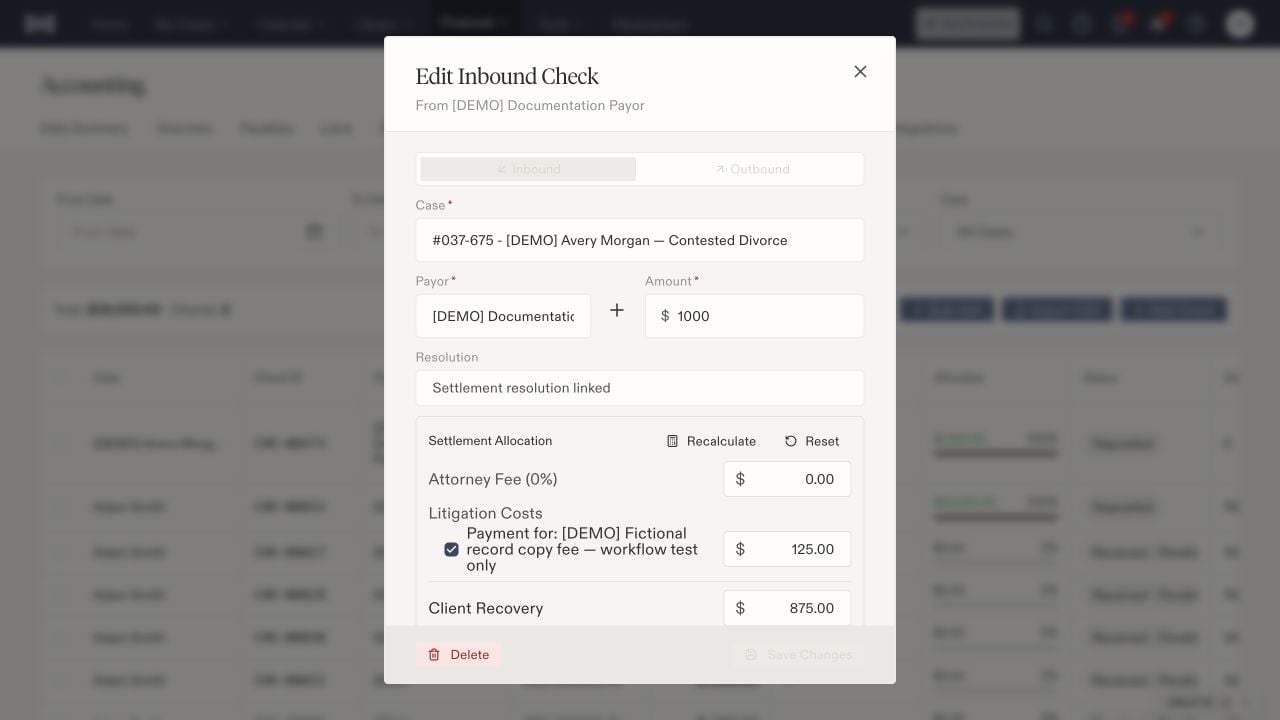 Compare **Check Amount**, **Total Allocated**, and **Remaining** before saving. In the fictional example, a $1,000 receipt is allocated as $125 toward a recorded expense and \$875 to client recovery. These example amounts are not a fee policy.
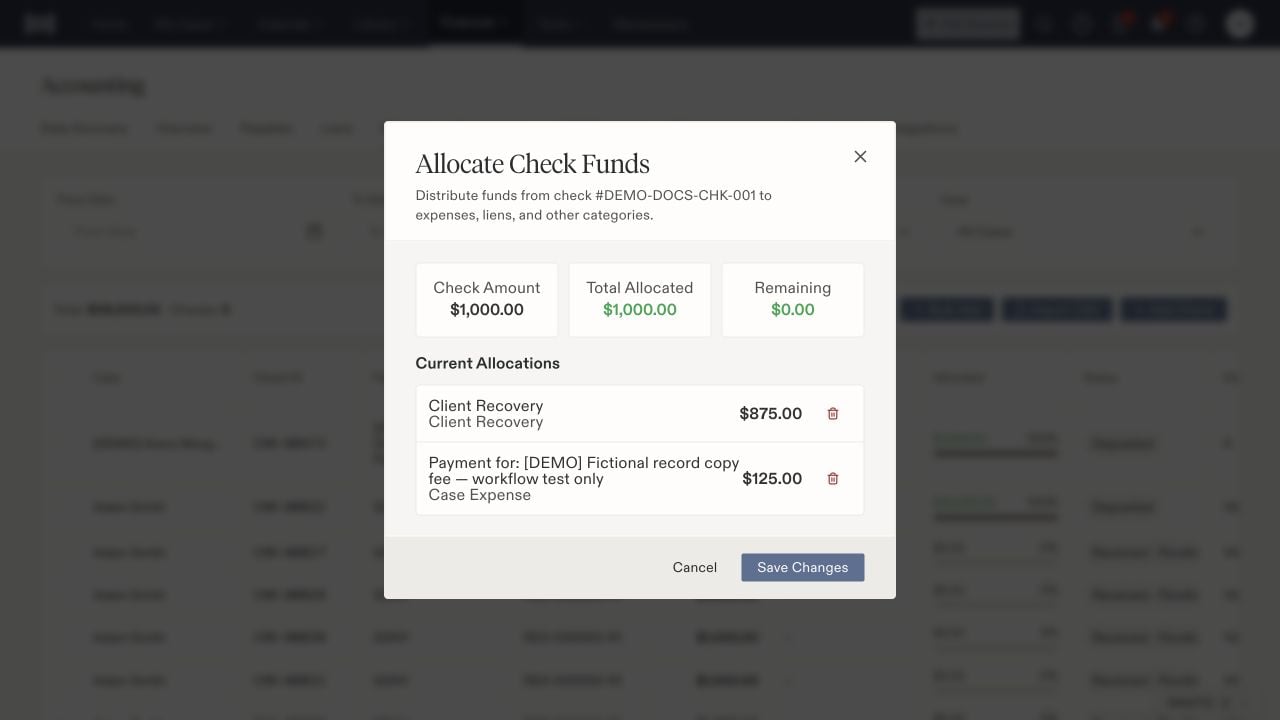 Save the allocation and reopen the check to verify it. A fully allocated check does not mean every recipient has been paid, and allocation does not by itself change the check's receipt status.
## Connect the settlement and disbursements
A settlement resolution records the amount, date, payor, fee information, and deposit account. Create or review it from **Accounting → Resolutions** on the matter. If a check already exists, link that receipt rather than recording it twice. Legal users can prepare an unrouted Draft; accounting selects the deposit account and activates it. See [resolution preparation and accounting handoff](/docs/help/accounting/resolutions).
Review the linked check's status and deposit information before disbursing. If available funds are insufficient, check the receipt and resolution records; do not change a status merely to bypass the message.
Open each resulting [disbursement](/docs/help/accounting/disbursements) to confirm its payee, amount, source check, and individual status. A manual Completed status records payment progress; it does not execute a bank transfer.
## Locate or correct a record
Use date, status, and case filters in the Checks list. Check the selected filters before concluding a receipt is missing. **Export Current Page**, **Bulk Add**, and **Import CSV** are separate controls; check the scope before using a bulk action.
For an incorrect entry, open the original check and compare it with the source evidence and linked resolution. Review downstream allocations and disbursements with the accounting owner before removing or replacing anything. Do not create a second receipt to hide a mismatch.
Upstream costs may come from [invoice review and staging](/docs/help/accounting/invoice-review).
## Referral source and new payors
**Add Inbound Check**, **Edit Inbound Check**, and **Log Payments** show **Case referral source** after a case is selected. The summary includes who referred the case and their source type, even when the check is not linked to a resolution. Checks opened from a matter use that matter automatically.
**Not recorded** means that source information is missing. Update **Lead Source** and **Referral Source Type** under **Intake → Additional Details**. If the summary says the information could not be loaded, review the case before recording referral fees; that message does not mean the case has no referrer.
Review the linked resolution’s referral terms before allocating fees. The source summary provides context; it does not change an existing resolution’s referral agreement or check allocations. Attorney-source defaults are applied when creating a resolution, where you can review **Has Referral Attorney** and the fee details.
To add a missing payor, select **+** beside **Payor**, enter the person or organization, and create the contact. The new payor is selected for that payment row.
Save the allocation and reopen the check to verify it. A fully allocated check does not mean every recipient has been paid, and allocation does not by itself change the check's receipt status.
## Connect the settlement and disbursements
A settlement resolution records the amount, date, payor, fee information, and deposit account. Create or review it from **Accounting → Resolutions** on the matter. If a check already exists, link that receipt rather than recording it twice. Legal users can prepare an unrouted Draft; accounting selects the deposit account and activates it. See [resolution preparation and accounting handoff](/docs/help/accounting/resolutions).
Review the linked check's status and deposit information before disbursing. If available funds are insufficient, check the receipt and resolution records; do not change a status merely to bypass the message.
Open each resulting [disbursement](/docs/help/accounting/disbursements) to confirm its payee, amount, source check, and individual status. A manual Completed status records payment progress; it does not execute a bank transfer.
## Locate or correct a record
Use date, status, and case filters in the Checks list. Check the selected filters before concluding a receipt is missing. **Export Current Page**, **Bulk Add**, and **Import CSV** are separate controls; check the scope before using a bulk action.
For an incorrect entry, open the original check and compare it with the source evidence and linked resolution. Review downstream allocations and disbursements with the accounting owner before removing or replacing anything. Do not create a second receipt to hide a mismatch.
Upstream costs may come from [invoice review and staging](/docs/help/accounting/invoice-review).
## Referral source and new payors
**Add Inbound Check**, **Edit Inbound Check**, and **Log Payments** show **Case referral source** after a case is selected. The summary includes who referred the case and their source type, even when the check is not linked to a resolution. Checks opened from a matter use that matter automatically.
**Not recorded** means that source information is missing. Update **Lead Source** and **Referral Source Type** under **Intake → Additional Details**. If the summary says the information could not be loaded, review the case before recording referral fees; that message does not mean the case has no referrer.
Review the linked resolution’s referral terms before allocating fees. The source summary provides context; it does not change an existing resolution’s referral agreement or check allocations. Attorney-source defaults are applied when creating a resolution, where you can review **Has Referral Attorney** and the fee details.
To add a missing payor, select **+** beside **Payor**, enter the person or organization, and create the contact. The new payor is selected for that payment row.