> ## Documentation Index
> Fetch the complete documentation index at: https://www.presolve.com/docs/llms.txt
> Use this file to discover all available pages before exploring further.
# Record a case expense and review litigation costs
> Choose the payee, payment timing, and settlement treatment without duplicating a charge.
Open the matter's **Accounting → Case Expenses**. Use **Unpaid Queue** for outstanding items and **All Expenses** to include paid history. An empty unpaid queue can coexist with previously paid expenses.
## Record a standalone expense
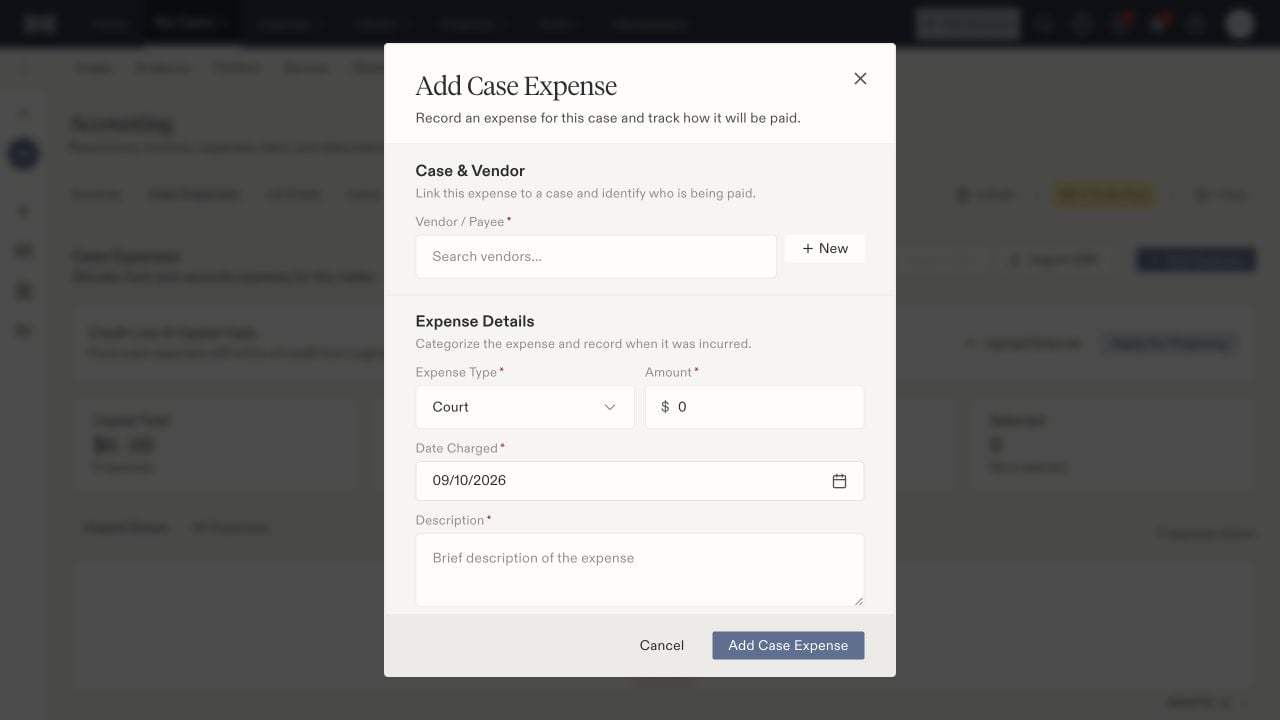
1. Select **Add Expense**.
2. Search for the **Vendor / Payee**. Use **New** only if the correct contact does not already exist.
3. Select **Expense Type**, enter the amount, and set **Date Charged**.
4. Enter a clear description and any invoice reference. Review the invoice due-date field when applicable.
5. If you have accounting permission, review **Paid By** and **Payment Timing**. Otherwise, leave payment preparation to accounting.
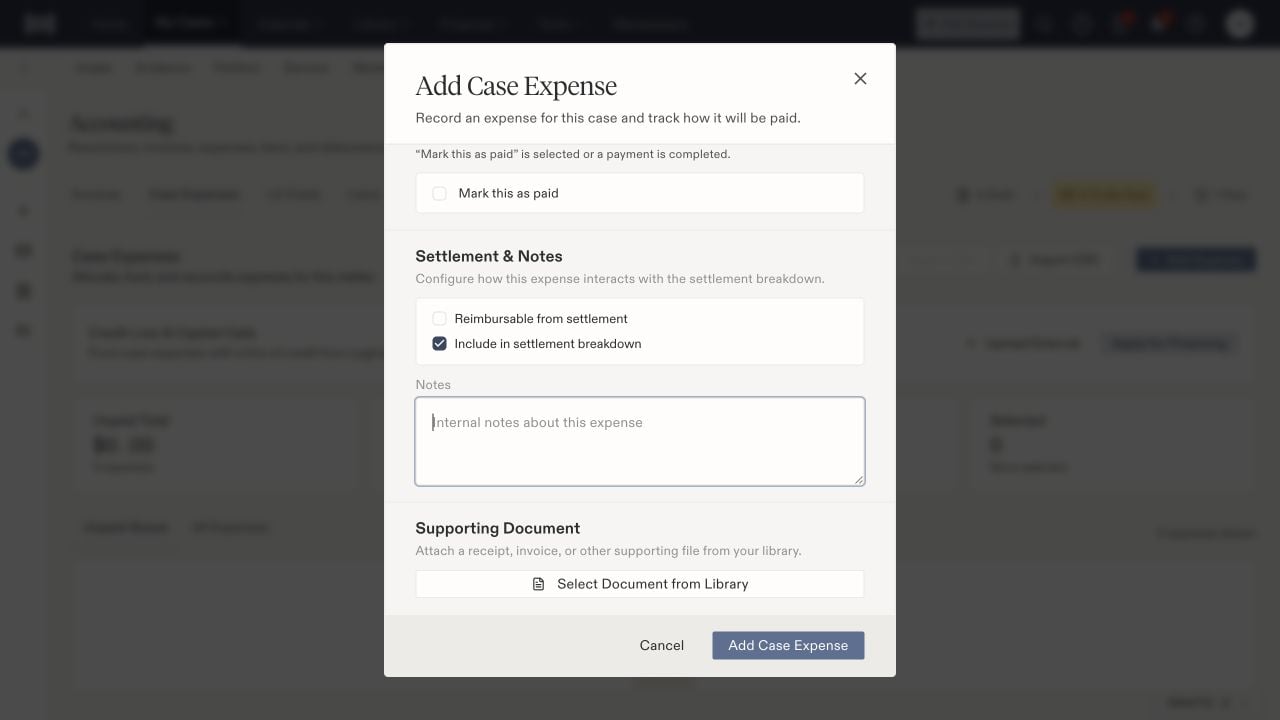
6. Set the settlement options, add notes, and choose a supporting document from Library.
7. Select **Add Case Expense**, then verify the saved row and its details.
 ## Distinguish timing from payment
**Pay Now** places an expense in the payment queue. The form explains that it becomes paid only when **Mark this as paid** is selected or a payment completes. Use the paid checkbox to record evidence of an actual payment, not simply because the expense is approved.
**Paid By** can remain **Not decided** when accounting will choose funding later. Review the saved funding and status when the invoice or expense passes through [approval and staging](/docs/help/accounting/invoice-review).
## Review settlement treatment
**Reimbursable from settlement** and **Include in settlement breakdown** are separate choices. Review both for each expense; the standalone expense form and the inbound invoice wizard can start with different defaults.
## Distinguish timing from payment
**Pay Now** places an expense in the payment queue. The form explains that it becomes paid only when **Mark this as paid** is selected or a payment completes. Use the paid checkbox to record evidence of an actual payment, not simply because the expense is approved.
**Paid By** can remain **Not decided** when accounting will choose funding later. Review the saved funding and status when the invoice or expense passes through [approval and staging](/docs/help/accounting/invoice-review).
## Review settlement treatment
**Reimbursable from settlement** and **Include in settlement breakdown** are separate choices. Review both for each expense; the standalone expense form and the inbound invoice wizard can start with different defaults.
 Open **Lit Costs** alongside Case Expenses when reviewing the costs used in settlement work. Compare the description, amount, payment evidence, and settlement treatment with the underlying expense. If an invoice already created the charge, use that existing expense rather than recording another copy.
For the complete sequence, see [the litigation-cost lifecycle](/docs/help/accounting/litigation-cost-lifecycle).
## Follow the cost into the settlement
Check the unpaid, allocated, and outstanding totals together with the selected queue. For settlement proceeds, review the [check's destinations](/docs/help/accounting/checks) and each [disbursement](/docs/help/accounting/disbursements). Allocation and a recorded payment status answer different questions.
Before correcting or removing a cost, review its invoice, allocations, and payment records with the accounting owner. Preserve enough supporting information to explain the correction.
Open **Lit Costs** alongside Case Expenses when reviewing the costs used in settlement work. Compare the description, amount, payment evidence, and settlement treatment with the underlying expense. If an invoice already created the charge, use that existing expense rather than recording another copy.
For the complete sequence, see [the litigation-cost lifecycle](/docs/help/accounting/litigation-cost-lifecycle).
## Follow the cost into the settlement
Check the unpaid, allocated, and outstanding totals together with the selected queue. For settlement proceeds, review the [check's destinations](/docs/help/accounting/checks) and each [disbursement](/docs/help/accounting/disbursements). Allocation and a recorded payment status answer different questions.
Before correcting or removing a cost, review its invoice, allocations, and payment records with the accounting owner. Preserve enough supporting information to explain the correction.