> ## Documentation Index
> Fetch the complete documentation index at: https://www.presolve.com/docs/llms.txt
> Use this file to discover all available pages before exploring further.
# Review an invoice and stage its expenses
> Follow an invoice through conditional approval and into the payment queue.
An invoice can require approval when your firm has configured a workflow for it. Approval responsibilities and funding choices depend on your firm's process.
The sequence is **invoice → approval when required → staged expense → vendor payment → settlement recovery when applicable**. Staging prepares the record for payment; it does not pay the vendor.
## Create and check the invoice
1. Open [Accounting](https://attorney.dearlegal.com/dashboard/accounting?tab=payables), select **Payables**, then **Create Invoice**.
2. Select the case and the correct vendor contact. Verify the vendor belongs to the organization you are working in.
3. Complete **Invoice Type**, including the invoice number and payment terms.
4. In **Line Items**, select the appropriate existing expense or enter a new expense with its description, type, and amount. Funding can remain undecided for accounting to complete.
5. Complete **Document & Status**, then review **Review & Confirm**.
6. Select **Create Invoice** and check that the invoice and its line items appear in the lists.
## Review a staging approval
If your workflow requests review, the designated reviewer opens the request in [Approvals](https://attorney.dearlegal.com/dashboard/approvals).
1. Check the invoice number, vendor, total, document, and unpaid expenses.
2. Review the default and per-item funding choices. **Keep undecided until payment** leaves that choice unresolved for later payment work.
3. When the invoice is ready under your firm's process, select **Approve & stage for payment**.
4. Check **History** for the reviewed decision and **Payables** for **To Be Paid**.
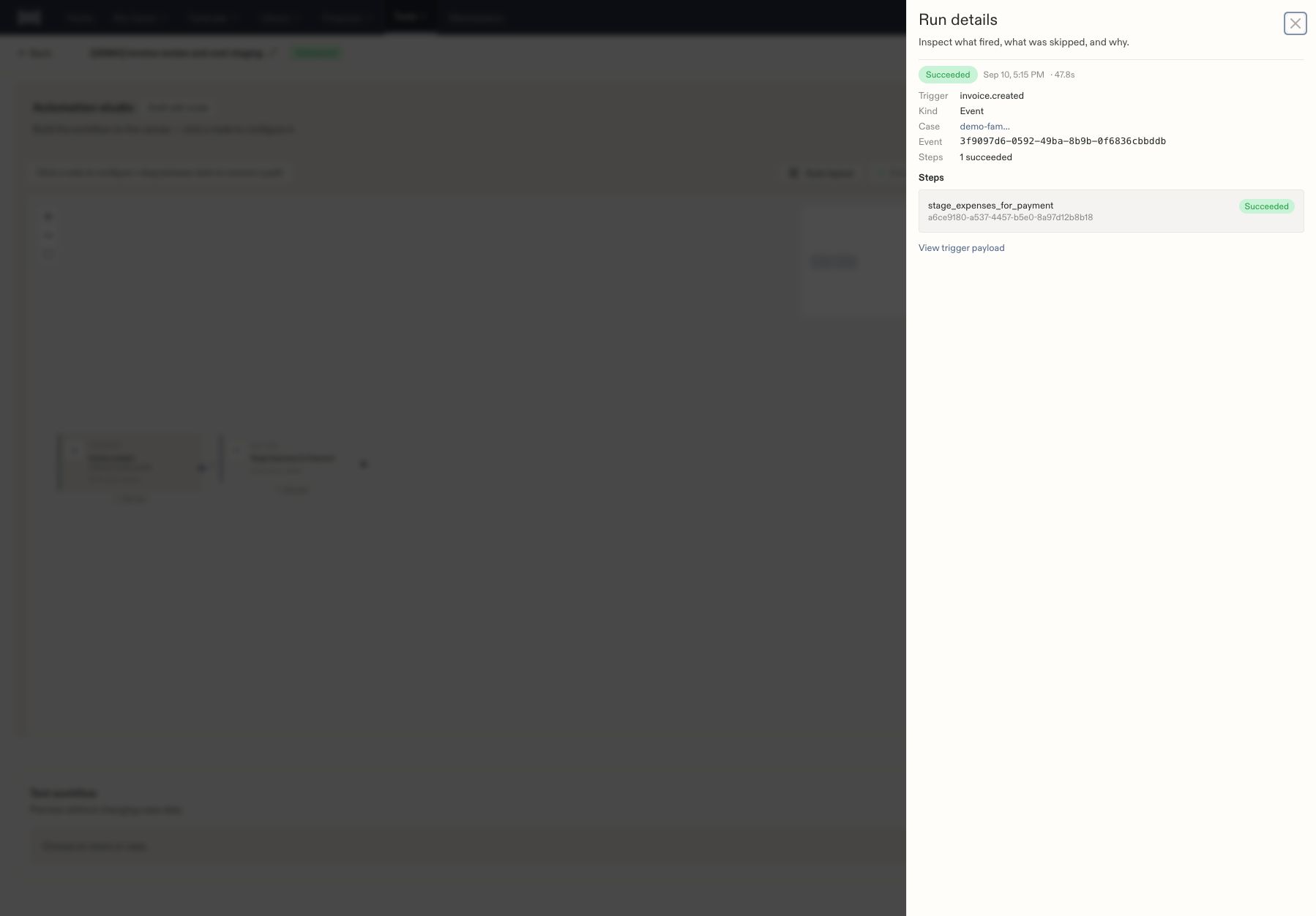
5. For a workflow-driven review, check the matching run's status and the resulting expense or cost list.
 ## When review cannot proceed
If the workflow cannot find an eligible reviewer, have your administrator check both the reviewer's approval permission and their access to the case. A job title alone does not establish case access.
If creation reports a vendor-contact error, verify or select the correct organization contact before trying again. Check the invoice list for an existing record before resubmitting.
Next: [Follow the cost through payment and recovery](/docs/help/accounting/litigation-cost-lifecycle).
## Choose the invoice direction and timing
| Choice | When to use it | What to check |
| - | - | - |
| Inbound (From Vendor) | Record a bill your firm received | Select the vendor contact, case, invoice number, terms, and due date. |
| Outbound (Billing) | Prepare a bill to a client or other billed party | Review the bill-to information. The first step has different controls from an inbound invoice. |
| Pay Now | Prepare an inbound expense for the current payment process | Queue placement still requires your firm's payment steps. |
| Pay at Settlement | Identify an expense intended for settlement payment | Check its later treatment in the matter's settlement accounting. |
The inbound wizard explains that added expenses are reimbursable and included in settlement accounting. Review the saved expense's settings as part of checking the invoice.
## Choose the line items
In **Line Items**, inspect the available sources before adding a charge:
* **Existing Expenses:** select an expense already recorded for the matter. Check the description and amount to avoid entering the same charge again.
* **Add New:** enter an expense description, category, amount, date, **Paid By**, and any notes; select **Add to Invoice**.
* **Custom:** review custom lines included in the draft. A newly added expense can appear with a **New** label and increase the Custom count.
A line visible in the wizard is still part of the draft. After **Create Invoice** succeeds, verify both the invoice and its linked expense in Accounting.
For example, a records vendor's \$125 copy fee can be recorded as one **Record Request** expense. Compare the saved invoice total with the source bill and confirm that the cost appears only once.
## Review the source document and status
**Document & Status** includes an optional source file, a description, and invoice status. Choices include **Draft**, **Sent**, **Paid**, **Partial**, and **Overdue**. Select the state that accurately describes the invoice under your firm's process.
Approval is a separate workflow decision. Selecting an invoice status does not substitute for a required review. Likewise, a status label should be checked against payment records before treating a vendor as paid.
In **Review & Confirm**, compare the case, vendor, invoice number, dates, line items, total, and source-document presence. Correct a discrepancy before creating the invoice.
## Follow the invoice across pages
| Location | What to verify |
| - | - |
| Accounting → Payables | The invoice exists with the intended number, vendor, total, and current status. |
| Matter → Accounting → Case Expenses | The linked expense exists with the correct category, amount, and funding choice. |
| Approvals → Pending | A required review is available to an eligible reviewer. |
| Approvals → History | The decision identifies who reviewed the request. |
| Automations → workflow → Run history | The matching event and staging step have reached the expected result. |
The staging approval changes the invoice to **To Be Paid** and applies the selected funding to unpaid expenses. It does not mark those expenses paid. Continue through [payment and recovery](/docs/help/accounting/litigation-cost-lifecycle) for the next part of the process.
## When review cannot proceed
If the workflow cannot find an eligible reviewer, have your administrator check both the reviewer's approval permission and their access to the case. A job title alone does not establish case access.
If creation reports a vendor-contact error, verify or select the correct organization contact before trying again. Check the invoice list for an existing record before resubmitting.
Next: [Follow the cost through payment and recovery](/docs/help/accounting/litigation-cost-lifecycle).
## Choose the invoice direction and timing
| Choice | When to use it | What to check |
| - | - | - |
| Inbound (From Vendor) | Record a bill your firm received | Select the vendor contact, case, invoice number, terms, and due date. |
| Outbound (Billing) | Prepare a bill to a client or other billed party | Review the bill-to information. The first step has different controls from an inbound invoice. |
| Pay Now | Prepare an inbound expense for the current payment process | Queue placement still requires your firm's payment steps. |
| Pay at Settlement | Identify an expense intended for settlement payment | Check its later treatment in the matter's settlement accounting. |
The inbound wizard explains that added expenses are reimbursable and included in settlement accounting. Review the saved expense's settings as part of checking the invoice.
## Choose the line items
In **Line Items**, inspect the available sources before adding a charge:
* **Existing Expenses:** select an expense already recorded for the matter. Check the description and amount to avoid entering the same charge again.
* **Add New:** enter an expense description, category, amount, date, **Paid By**, and any notes; select **Add to Invoice**.
* **Custom:** review custom lines included in the draft. A newly added expense can appear with a **New** label and increase the Custom count.
A line visible in the wizard is still part of the draft. After **Create Invoice** succeeds, verify both the invoice and its linked expense in Accounting.
For example, a records vendor's \$125 copy fee can be recorded as one **Record Request** expense. Compare the saved invoice total with the source bill and confirm that the cost appears only once.
## Review the source document and status
**Document & Status** includes an optional source file, a description, and invoice status. Choices include **Draft**, **Sent**, **Paid**, **Partial**, and **Overdue**. Select the state that accurately describes the invoice under your firm's process.
Approval is a separate workflow decision. Selecting an invoice status does not substitute for a required review. Likewise, a status label should be checked against payment records before treating a vendor as paid.
In **Review & Confirm**, compare the case, vendor, invoice number, dates, line items, total, and source-document presence. Correct a discrepancy before creating the invoice.
## Follow the invoice across pages
| Location | What to verify |
| - | - |
| Accounting → Payables | The invoice exists with the intended number, vendor, total, and current status. |
| Matter → Accounting → Case Expenses | The linked expense exists with the correct category, amount, and funding choice. |
| Approvals → Pending | A required review is available to an eligible reviewer. |
| Approvals → History | The decision identifies who reviewed the request. |
| Automations → workflow → Run history | The matching event and staging step have reached the expected result. |
The staging approval changes the invoice to **To Be Paid** and applies the selected funding to unpaid expenses. It does not mark those expenses paid. Continue through [payment and recovery](/docs/help/accounting/litigation-cost-lifecycle) for the next part of the process.