> ## Documentation Index
> Fetch the complete documentation index at: https://www.presolve.com/docs/llms.txt
> Use this file to discover all available pages before exploring further.
# Record and review time entries
> Associate work with a case, review its rate, and inspect timekeeping totals.
Open [Accounting → Timekeeping](https://attorney.dearlegal.com/dashboard/accounting?tab=timekeeping). You can also open **Log time entry** from the clock icon in the top navigation.
## Add a time entry
1. Select **Add Entry**.
2. Search for the correct **Case** and enter a descriptive **Task Name**.
3. Set the date the work occurred and choose the appropriate **Activity Type** and **Team Member**.
4. Review the required **Client** field.
5. Enter **Hours** and **Hourly Rate**. Check the displayed hours × rate total.
6. Review **Billable to the client** and add any useful notes.
7. Select **Add Time Entry** and confirm the saved entry in Timekeeping.
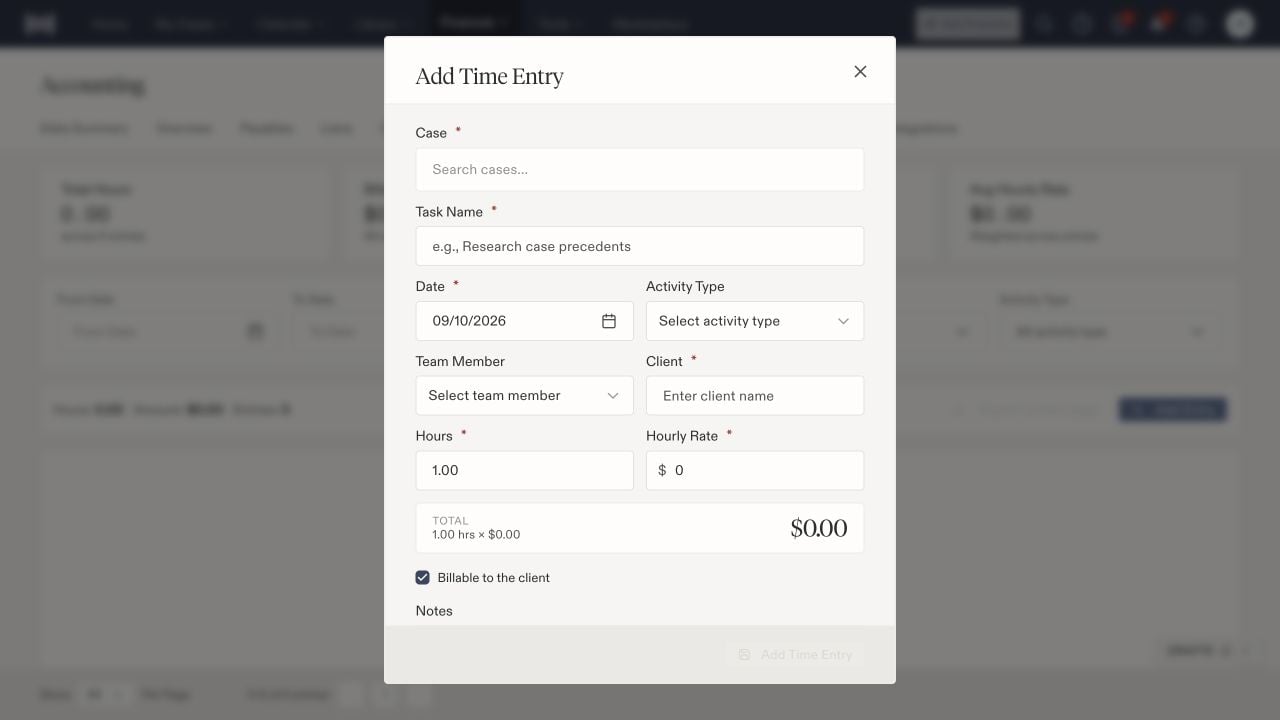 Use the rate and billing treatment approved for that work. Recording a time entry does not itself send an invoice or collect payment. The Task Name describes the logged work; check the [Tasks workspace](/docs/help/tasks/create-and-track) separately for assigned follow-up work.
## Review logged work
Narrow the list with **From Date**, **To Date**, **Team Member**, **Case**, and **Activity Type**. Review the current filters alongside the hours, amount, and entry counts. An empty filtered list does not establish that no one has logged time.
The summary includes Total Hours, Billable Amount, Billable Hours, and a weighted Avg Hourly Rate. Check the individual entries behind a total before using it for billing.
**Export current page** exports the displayed page rather than serving as an instruction to export every entry. Review pagination and filters, then inspect the downloaded file before sharing it.
If a saved entry appears incorrect, find the original by case, date, and work description before adding another. Have the billing owner review any correction that affects already billed work.
Use the rate and billing treatment approved for that work. Recording a time entry does not itself send an invoice or collect payment. The Task Name describes the logged work; check the [Tasks workspace](/docs/help/tasks/create-and-track) separately for assigned follow-up work.
## Review logged work
Narrow the list with **From Date**, **To Date**, **Team Member**, **Case**, and **Activity Type**. Review the current filters alongside the hours, amount, and entry counts. An empty filtered list does not establish that no one has logged time.
The summary includes Total Hours, Billable Amount, Billable Hours, and a weighted Avg Hourly Rate. Check the individual entries behind a total before using it for billing.
**Export current page** exports the displayed page rather than serving as an instruction to export every entry. Review pagination and filters, then inspect the downloaded file before sharing it.
If a saved entry appears incorrect, find the original by case, date, and work description before adding another. Have the billing owner review any correction that affects already billed work.