> ## Documentation Index
> Fetch the complete documentation index at: https://www.presolve.com/docs/llms.txt
> Use this file to discover all available pages before exploring further.
# Manage deadline rules and calendars
> Understand rule packs, named case events, and organization calendar exceptions.
Open [Calendar → Deadline settings](https://attorney.dearlegal.com/dashboard/deadlines). This is the firm's configuration area. Staff work with individual deadlines from a case's **Deadlines** tab; workflows can also create case deadlines from configured rules.
## Understand the three parts
| Part | Purpose |
| - | - |
| Rule Packs & Rules | Group reusable calculations, including their starting event, offset, counting rule, calendar, and warning settings. |
| Anchor Definitions | Name the case events that calculations start from. A definition describes an event; the case's anchor record supplies its actual date or time. |
| Business Calendars | Identify which days count as business days, with organization-specific exceptions. |
## Review a rule pack
Expand a pack to inspect its rules. Check the **Version**, **Status**, description, and source references before using it. Within a rule, review the anchor, offset, calendar, counting rule, severity, warning/critical timing, and effective dates. A matching pack name alone does not establish that its assumptions match a particular matter.
Draft packs can be edited by users with settings-edit access. Activating a pack freezes that version and records its activator. **New version** is the path for changing an active pack; **Archive** is a separate action for retiring it. Have the firm's deadline owner review the configuration and its use in workflows before activation or retirement.
## Define a starting event
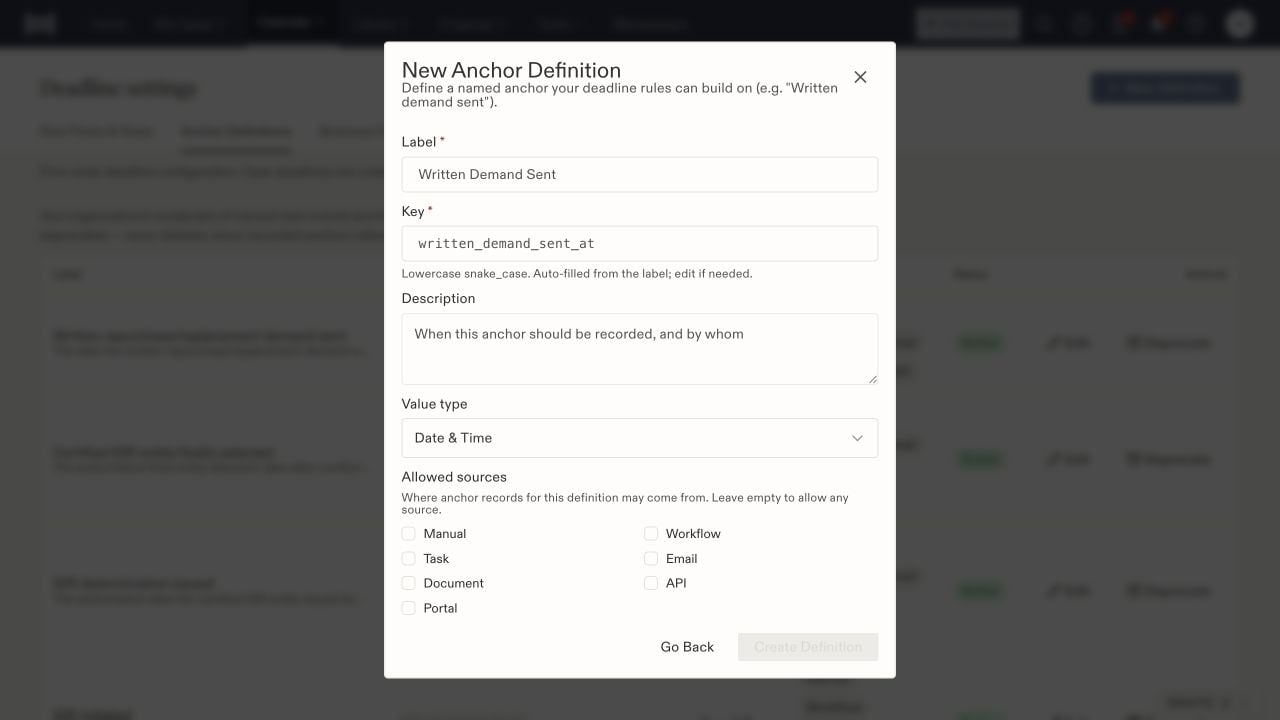
1. Select **Anchor Definitions → New Definition**.
2. Enter the required **Label** and review the automatically suggested **Key**. The key uses lowercase words separated by underscores.
3. Add a description explaining when the event should be recorded and who verifies it.
4. Choose the **Value type**.
5. Select **Allowed sources** if the event should only come from particular channels, such as Manual, Workflow, Email, Document, API, or Portal. Leaving all unchecked allows any source.
6. Select **Create Definition**, then confirm it appears in the list.
 Existing definitions offer **Edit** and **Deprecate**. They are retained because recorded case anchors reference them. Creating a definition does not record an event on every case.
## Add a calendar exception
Under **Business Calendars**, read the chosen calendar's description and loaded holiday years. An organization exception adds a specific day to that calendar's treatment of business days.
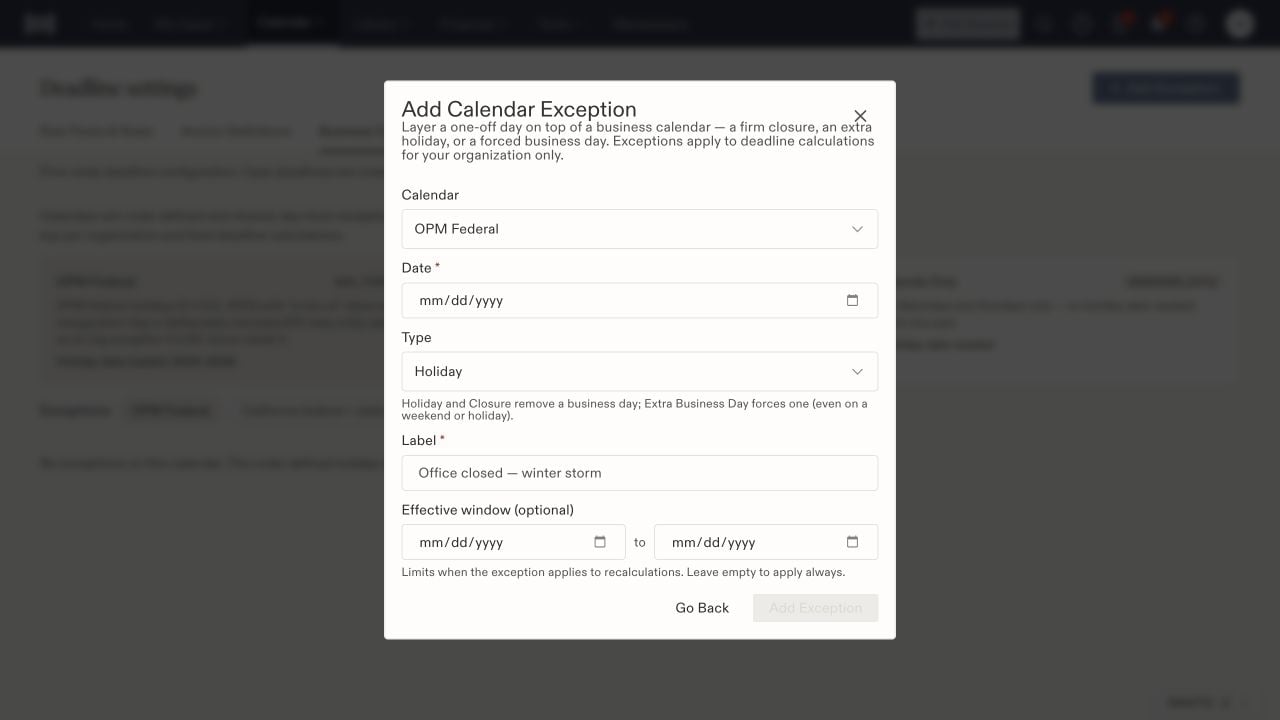
Select **Add Exception**, choose the calendar, and enter the date and label. **Holiday** and **Closure** remove a business day; **Extra Business Day** forces one, including on a weekend or holiday. An optional effective window limits when the exception applies to recalculations. Review the values before selecting **Add Exception**.
Existing definitions offer **Edit** and **Deprecate**. They are retained because recorded case anchors reference them. Creating a definition does not record an event on every case.
## Add a calendar exception
Under **Business Calendars**, read the chosen calendar's description and loaded holiday years. An organization exception adds a specific day to that calendar's treatment of business days.
Select **Add Exception**, choose the calendar, and enter the date and label. **Holiday** and **Closure** remove a business day; **Extra Business Day** forces one, including on a weekend or holiday. An optional effective window limits when the exception applies to recalculations. Review the values before selecting **Add Exception**.
 ## Check a case deadline
Review the actual starting event, source document, date, and selected rule on the case. Check the resulting deadline and any related task or approval. A configured rule or recorded status is not proof that a notice was delivered or a filing was accepted. Use the firm's verified deadline procedure to confirm the result before relying on it.
For everyday scheduling, see [calendar events](/docs/help/tasks/calendar). For rules invoked by an automation, see [workflow review](/docs/help/automations/publish-and-review).
## Check a case deadline
Review the actual starting event, source document, date, and selected rule on the case. Check the resulting deadline and any related task or approval. A configured rule or recorded status is not proof that a notice was delivered or a filing was accepted. Use the firm's verified deadline procedure to confirm the result before relying on it.
For everyday scheduling, see [calendar events](/docs/help/tasks/calendar). For rules invoked by an automation, see [workflow review](/docs/help/automations/publish-and-review).