> ## Documentation Index
> Fetch the complete documentation index at: https://www.presolve.com/docs/llms.txt
> Use this file to discover all available pages before exploring further.
# Configure folders and e-sign defaults
> Set case folders, document types, reminders, and staff notification routing.
Open [Settings → Documents](https://attorney.dearlegal.com/dashboard/settings?tab=documents). These settings affect your organization. Read the inheritance label on each section before creating a firm override.
## Set default case folders
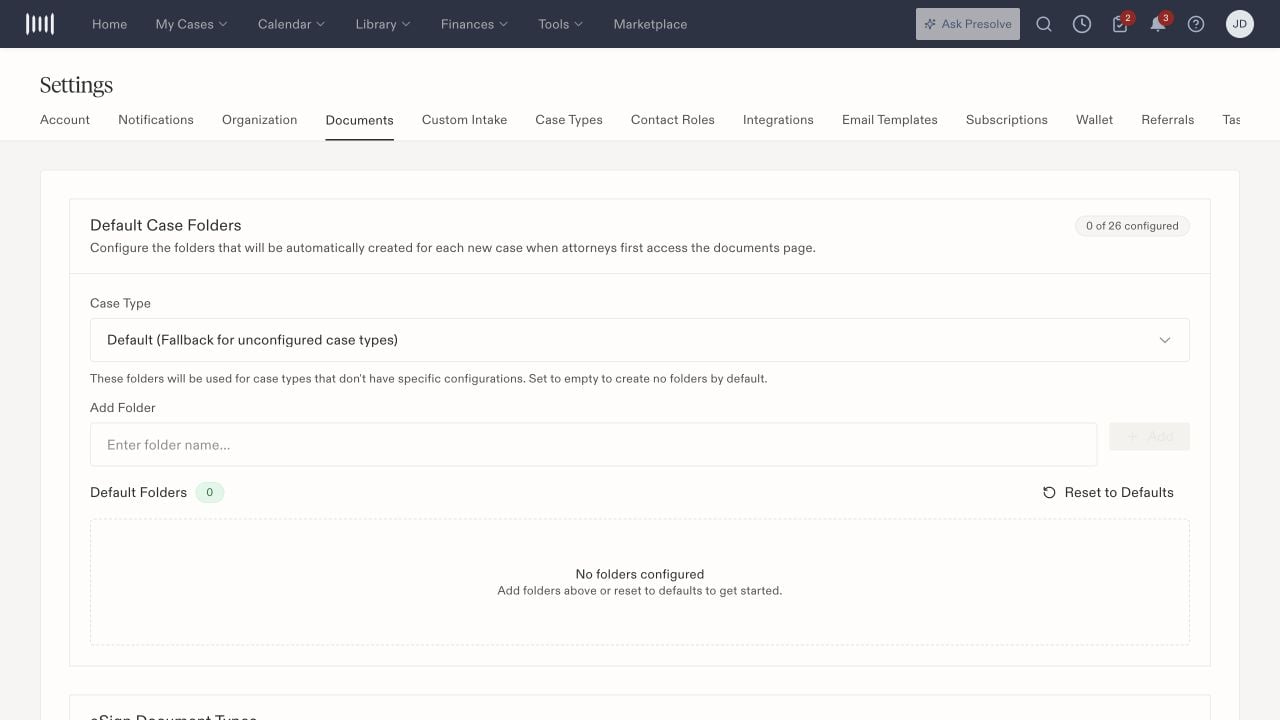
Choose a **Case Type** under **Default Case Folders**. Use **Default (Fallback for unconfigured case types)** for types without their own configuration. Enter a folder name and select **Add**; review the resulting folder list. **Reset to Defaults** is a separate action for restoring the preset list.
The screen explains that configured folders are created when the documents page is first accessed for a new case. An empty fallback creates no default folders. Check a new case of the intended type after changing the configuration; changing the list is not a command to reorganize every existing case.
 ## Add an e-sign document type
Under **eSign Document Types**, enter a **New Label** and select **Add Type**. Use custom labels for documents such as an engagement addendum or fee disclosure. The built-in types remain available and cannot be removed. Select the appropriate type when preparing a document; a custom label does not substitute for built-in retainer detection.
## Configure reminder emails
1. Find **eSign Reminder Emails** and review whether platform defaults or a firm override are active.
2. Choose whether to **Automatically send reminder emails**.
3. Set **Time between reminders (hours)** within the displayed range and **Maximum reminders per document** within the displayed cap.
4. Optionally customize the subject and body using the supported tokens shown below the fields. Leave both blank to use the default copy.
5. Select **Save Reminder Settings** and confirm the saved configuration.
## Add an e-sign document type
Under **eSign Document Types**, enter a **New Label** and select **Add Type**. Use custom labels for documents such as an engagement addendum or fee disclosure. The built-in types remain available and cannot be removed. Select the appropriate type when preparing a document; a custom label does not substitute for built-in retainer detection.
## Configure reminder emails
1. Find **eSign Reminder Emails** and review whether platform defaults or a firm override are active.
2. Choose whether to **Automatically send reminder emails**.
3. Set **Time between reminders (hours)** within the displayed range and **Maximum reminders per document** within the displayed cap.
4. Optionally customize the subject and body using the supported tokens shown below the fields. Leave both blank to use the default copy.
5. Select **Save Reminder Settings** and confirm the saved configuration.
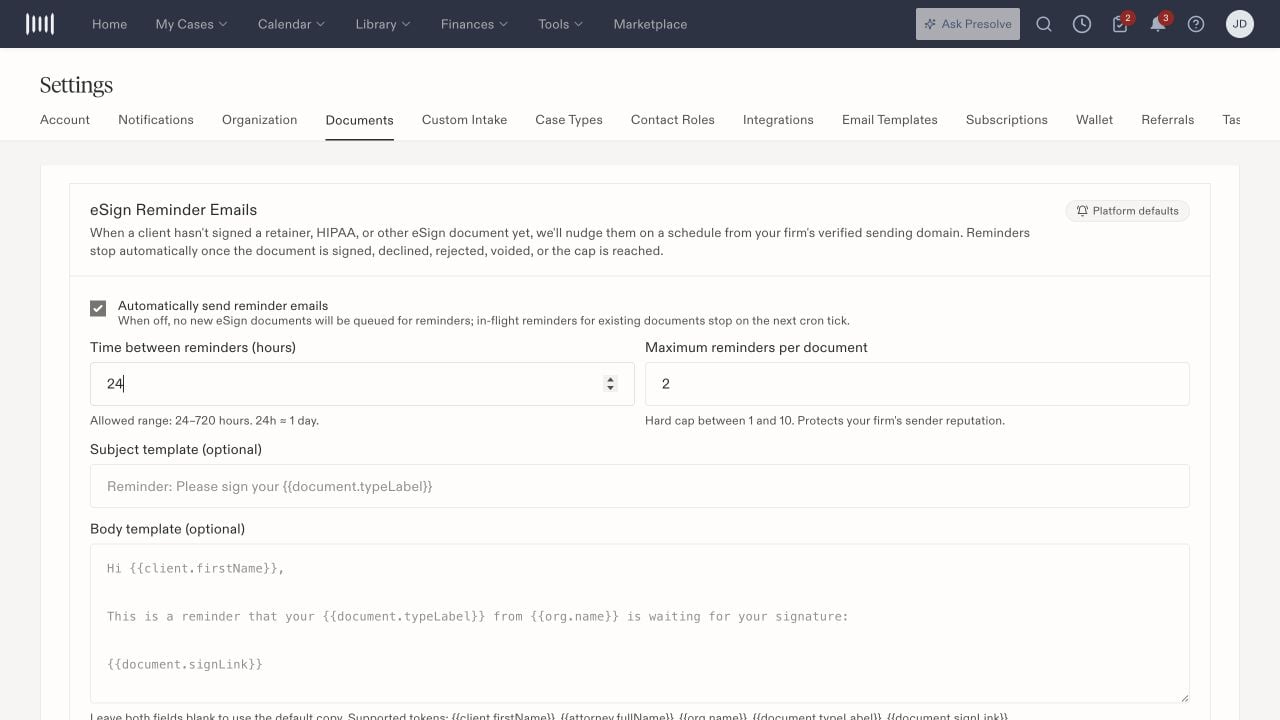 The screen describes reminders stopping after signing, declining, rejection, voiding, or reaching the cap. Turning reminders off also stops existing queued reminders when the background processing next checks them. Saving an organization override opts the firm out of subsequent platform-default changes for that setting.
## Set client signing texts
**Client eSign Messages** contains the firm default and optional document-type text overrides. The firm-wide **Allow client texts** switch controls availability; senders can choose text when the client has opted in. Review the template preview and signing-link token. A sender can make a one-time edit before sending.
A document-type override changes the text, while the firm-wide switch still governs SMS availability. Saving a message template does not send it.
## Route internal notifications
**eSign Workflow Notifications** separates **Document Sent**, **Document Completed**, and **Reminders Exhausted**. Review each event's email/SMS switches, recipient roles, additional recipients, exclusions, and optional content overrides. Completed means all parties have signed; exhausted reminders call for follow-up on an unsigned document.
Document-type notification overrides add recipients to the defaults rather than replacing them. Excluded emails are withheld even when a selected role resolves to that address. The screen also notes that additional recipients receive individual emails; do not assume a Cc label creates a shared visible email thread.
Client-facing signing emails are separate from these internal staff notifications. For personal email and SMS preferences, see [notification settings](/docs/help/admin/notifications).
The screen describes reminders stopping after signing, declining, rejection, voiding, or reaching the cap. Turning reminders off also stops existing queued reminders when the background processing next checks them. Saving an organization override opts the firm out of subsequent platform-default changes for that setting.
## Set client signing texts
**Client eSign Messages** contains the firm default and optional document-type text overrides. The firm-wide **Allow client texts** switch controls availability; senders can choose text when the client has opted in. Review the template preview and signing-link token. A sender can make a one-time edit before sending.
A document-type override changes the text, while the firm-wide switch still governs SMS availability. Saving a message template does not send it.
## Route internal notifications
**eSign Workflow Notifications** separates **Document Sent**, **Document Completed**, and **Reminders Exhausted**. Review each event's email/SMS switches, recipient roles, additional recipients, exclusions, and optional content overrides. Completed means all parties have signed; exhausted reminders call for follow-up on an unsigned document.
Document-type notification overrides add recipients to the defaults rather than replacing them. Excluded emails are withheld even when a selected role resolves to that address. The screen also notes that additional recipients receive individual emails; do not assume a Cc label creates a shared visible email thread.
Client-facing signing emails are separate from these internal staff notifications. For personal email and SMS preferences, see [notification settings](/docs/help/admin/notifications).