> ## Documentation Index
> Fetch the complete documentation index at: https://www.presolve.com/docs/llms.txt
> Use this file to discover all available pages before exploring further.
# Create reusable email templates
> Set message content, variables, sender defaults, and attachments.
Open [Settings → Email Templates](https://attorney.dearlegal.com/dashboard/settings?tab=emails). Templates keep recurring messages consistent while allowing staff to review each email before sending.
## Set up the template
1. Select **Create Template**.
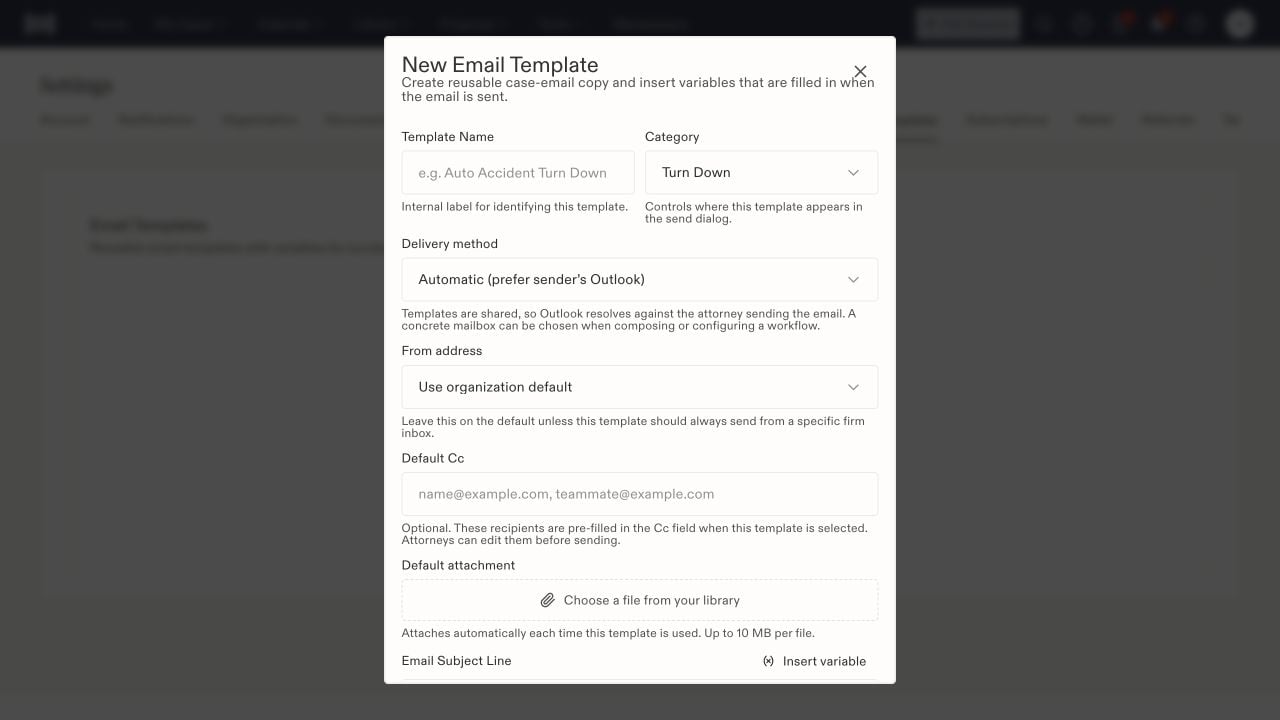
2. Enter a **Template Name** that staff will recognize. This is the internal label.
3. Choose a **Category**. It controls where the template appears in send dialogs.
4. Review **Delivery method** and **From address**. Automatic delivery prefers the sending attorney's Outlook connection; the template is shared, so it does not permanently borrow its creator's mailbox.
5. Optionally enter **Default Cc** and choose a **Default attachment** from Library.
6. Enter the **Email Subject Line** and **Email Body**. Use **Insert variable** for case-specific values.
7. Select **Preview**, review the content, and select **Create Template** when ready.
 ## Choose useful defaults
Leave **From address** on the organization default unless this message should use a particular firm inbox. A concrete mailbox can also be chosen when composing an email or configuring a workflow. For mailbox setup, see [email connections](/docs/help/integrations/email).
Default Cc addresses are prefilled when someone selects the template and can be edited before sending. The default attachment is added each time the template is used, so choose a document appropriate for every intended recipient. The picker lists a 10 MB limit per file.
## Review variables and links
Variables are replaced when the email is sent. Use the provided picker rather than guessing a field name. Preview the layout, then check the populated message against the actual case when composing. A preview cannot establish that every case has the required intake answer.
The body accepts a full URL or a Markdown link with a readable label. Use stable destinations your recipients can access.
## Use the template in a case email
Select the template in its applicable send dialog. Review the sending mailbox, To/Cc recipients, subject, populated values, body, and attachment. Correct missing information before sending. Creating or selecting a template does not itself confirm delivery; inspect the resulting sent record after sending.
For recurring automatic messages, review the workflow's recipient and approval settings as well as the template. See [workflow publication and review](/docs/help/automations/publish-and-review).
## Choose useful defaults
Leave **From address** on the organization default unless this message should use a particular firm inbox. A concrete mailbox can also be chosen when composing an email or configuring a workflow. For mailbox setup, see [email connections](/docs/help/integrations/email).
Default Cc addresses are prefilled when someone selects the template and can be edited before sending. The default attachment is added each time the template is used, so choose a document appropriate for every intended recipient. The picker lists a 10 MB limit per file.
## Review variables and links
Variables are replaced when the email is sent. Use the provided picker rather than guessing a field name. Preview the layout, then check the populated message against the actual case when composing. A preview cannot establish that every case has the required intake answer.
The body accepts a full URL or a Markdown link with a readable label. Use stable destinations your recipients can access.
## Use the template in a case email
Select the template in its applicable send dialog. Review the sending mailbox, To/Cc recipients, subject, populated values, body, and attachment. Correct missing information before sending. Creating or selecting a template does not itself confirm delivery; inspect the resulting sent record after sending.
For recurring automatic messages, review the workflow's recipient and approval settings as well as the template. See [workflow publication and review](/docs/help/automations/publish-and-review).