> ## Documentation Index
> Fetch the complete documentation index at: https://www.presolve.com/docs/llms.txt
> Use this file to discover all available pages before exploring further.
# Show an intake question conditionally
> Ask a follow-up question only when an earlier answer makes it relevant.
In the [custom intake builder](/docs/help/admin/intake-builder), conditional visibility controls whether a question appears. Answer rules are separate controls that can run actions.
## Add the condition
1. Add or edit the follow-up question.
2. Under **Conditional visibility**, add a condition.
3. Choose the earlier question whose answer controls visibility.
4. Choose the comparison and value.
5. Check the matching rule when there is more than one condition.
6. Save the question and verify its **Conditional** badge.
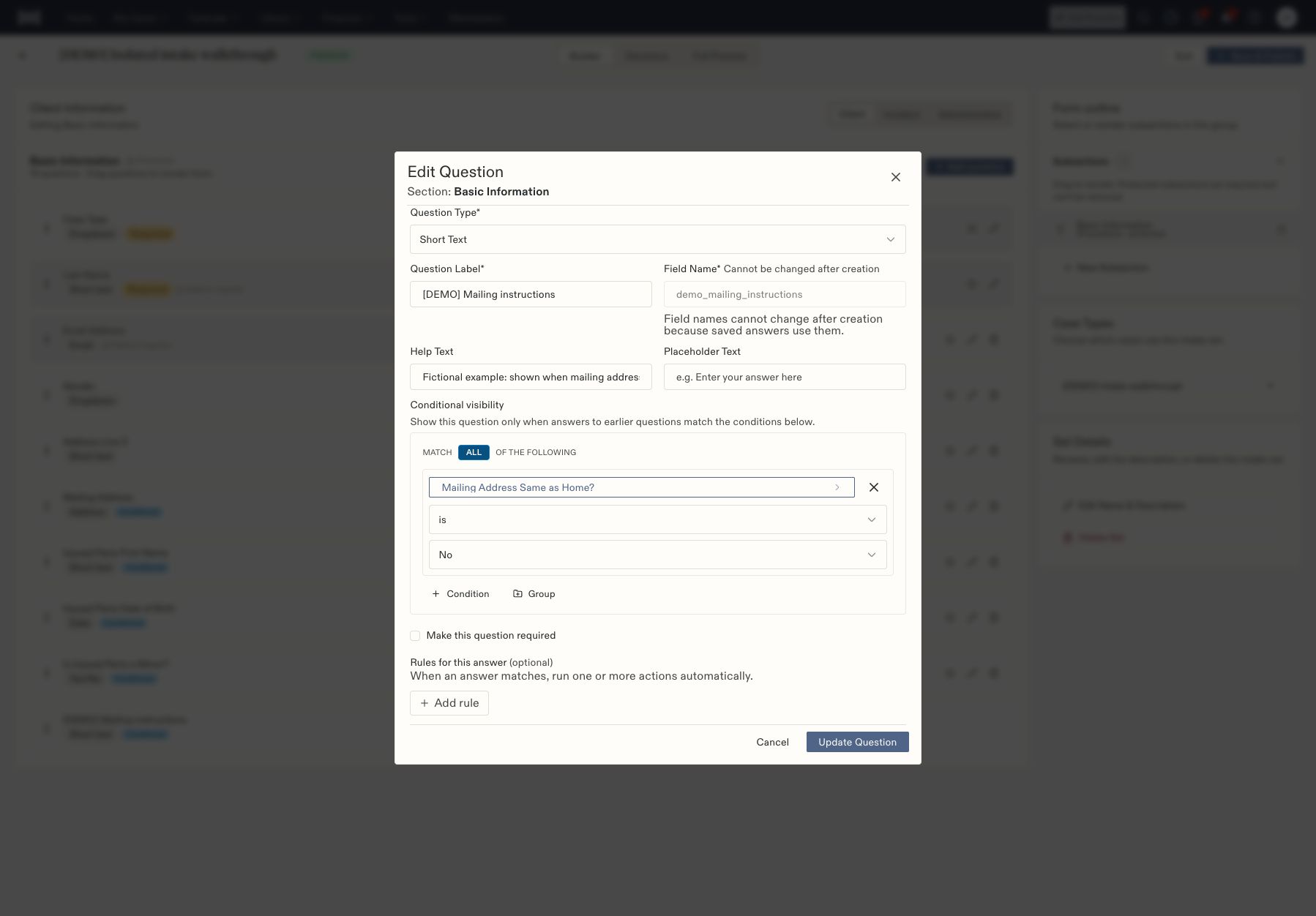 In this example, **Mailing instructions** appears when **Mailing Address Same as Home? is No**. The controlling question must appear earlier in the intake.
## Test both answers
After publishing to an isolated test case type, open that intake through **Upload Case**. Choose the answer that should show the follow-up, then the answer that should hide it. Return to the showing answer, enter test text, and save the case. Reopen the case's intake to verify the saved answer.
**Full Preview** helps inspect the form structure, but reviewing an outline alone does not test answer-dependent visibility. Verify the actual intake interaction before assigning the form broadly.
Leave **Rules for this answer** empty unless you intentionally want an action to run. Showing a question and executing an automation are different configurations.
## Work with multiple conditions
The condition editor includes **ALL** matching, additional **Condition** controls, and nested **Group** controls. Review which conditions belong to each group before saving. A group that requires all of its conditions will only qualify when each condition is satisfied.
Start with one follow-up question and one condition, then test it. When adding another condition, test the combinations separately: both satisfied, only the first satisfied, only the second satisfied, and neither satisfied. Include an unanswered controlling question in your review as well.
## Check common configuration mistakes
| Symptom | What to inspect |
| - | - |
| The controlling question is absent from the picker | Confirm it appears earlier in the intake. |
| The follow-up always appears | Confirm the condition was saved on the correct question and the Conditional badge appears. |
| The follow-up never appears | Check the comparison, selected answer, and matching requirements across groups. |
| The expected form is absent during case creation | Check the case type's published intake assignment. |
| Preview shows a condition but behavior is uncertain | Test the actual intake rather than relying on the outline alone. |
After changing a condition, repeat the interaction test and reopen the saved case to inspect the retained answer. Do not assume how previously entered hidden answers are handled without checking the resulting record.
In this example, **Mailing instructions** appears when **Mailing Address Same as Home? is No**. The controlling question must appear earlier in the intake.
## Test both answers
After publishing to an isolated test case type, open that intake through **Upload Case**. Choose the answer that should show the follow-up, then the answer that should hide it. Return to the showing answer, enter test text, and save the case. Reopen the case's intake to verify the saved answer.
**Full Preview** helps inspect the form structure, but reviewing an outline alone does not test answer-dependent visibility. Verify the actual intake interaction before assigning the form broadly.
Leave **Rules for this answer** empty unless you intentionally want an action to run. Showing a question and executing an automation are different configurations.
## Work with multiple conditions
The condition editor includes **ALL** matching, additional **Condition** controls, and nested **Group** controls. Review which conditions belong to each group before saving. A group that requires all of its conditions will only qualify when each condition is satisfied.
Start with one follow-up question and one condition, then test it. When adding another condition, test the combinations separately: both satisfied, only the first satisfied, only the second satisfied, and neither satisfied. Include an unanswered controlling question in your review as well.
## Check common configuration mistakes
| Symptom | What to inspect |
| - | - |
| The controlling question is absent from the picker | Confirm it appears earlier in the intake. |
| The follow-up always appears | Confirm the condition was saved on the correct question and the Conditional badge appears. |
| The follow-up never appears | Check the comparison, selected answer, and matching requirements across groups. |
| The expected form is absent during case creation | Check the case type's published intake assignment. |
| Preview shows a condition but behavior is uncertain | Test the actual intake rather than relying on the outline alone. |
After changing a condition, repeat the interaction test and reopen the saved case to inspect the retained answer. Do not assume how previously entered hidden answers are handled without checking the resulting record.