> ## Documentation Index
> Fetch the complete documentation index at: https://www.presolve.com/docs/llms.txt
> Use this file to discover all available pages before exploring further.
# Configure referral defaults
> Review agreement defaults, follow-up schedules, and automatic acceptance settings.
Open [Settings → Referrals](https://attorney.dearlegal.com/dashboard/settings?tab=referrals). These are organization defaults for referral handling. Review them with the person responsible for the firm's referral process before saving.
## Set agreement and routing defaults
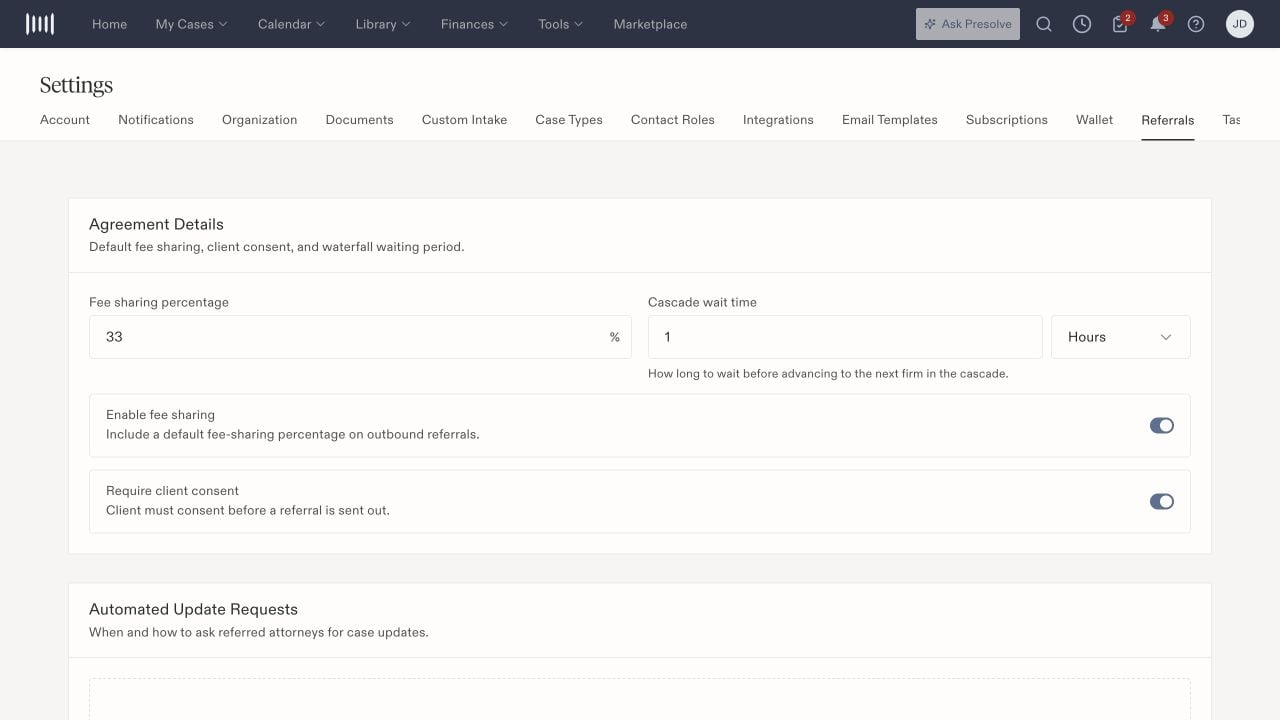
**Agreement Details** includes the fee-sharing percentage, **Enable fee sharing**, **Require client consent**, and **Cascade wait time**. The wait time determines how long to wait before advancing to the next firm in a referral cascade.
Use the agreement and consent requirements approved for your firm. The values in the screenshot illustrate a demonstration organization's configuration; they are not a recommended fee arrangement.
 ## Configure follow-up and message defaults
**Automated Update Requests** provides **Add reminder schedule** for recurring requests to referred attorneys. Review the timing and recipients before enabling follow-up.
Under **Additional Settings**, **Copy sending attorney on reminder emails** adds the originating attorney to update-request communications. **Additional notes template** prefills notes on new outbound referrals. **Default to marketplace** changes the default routing destination; review it separately from direct-attorney referrals.
A saved default is not confirmation that a particular referral was sent, acknowledged, or accepted. Inspect that referral's record when checking progress.
## Review automatic decisions
**Auto Rejection** includes an enable switch and a timeout. The detailed control describes automatically declining unacknowledged inbound referrals and notifying the organizations involved. Review this setting before relying on manual acknowledgment as your team's only control.
**Auto-accept on acknowledge** accepts a referral and matches the case to your organization when acknowledgment occurs. Leave it off when acknowledgment and acceptance must remain separate decisions in your firm's process.
## Understand the effect on case views
A sent or acknowledged outbound referral keeps a signed, open matter in the originating firm's **Active Cases** until acceptance is recorded. Once accepted, it leaves that firm's Active Cases and remains in **Referrals** and **Pending Leads → Converted**. Acceptance does not itself close the shared matter or transfer its ownership.
With **Auto-accept on acknowledge** enabled, acknowledgment can be the event that records acceptance, including for CaseXchange updates. Check the saved referral status before deciding who still has active responsibility. See [the lead and matter lifecycle](/docs/help/leads/lifecycle#follow-an-outbound-referral).
## Save and verify
Select **Save Settings** after reviewing the changes. Reopen the page and confirm the saved values. **Reset to defaults** is a separate action; review the resulting settings before saving them.
For staff permissions, see [roles and permissions](/docs/help/admin/roles). For reusable message content, see [email templates](/docs/help/admin/email-templates).
## Configure follow-up and message defaults
**Automated Update Requests** provides **Add reminder schedule** for recurring requests to referred attorneys. Review the timing and recipients before enabling follow-up.
Under **Additional Settings**, **Copy sending attorney on reminder emails** adds the originating attorney to update-request communications. **Additional notes template** prefills notes on new outbound referrals. **Default to marketplace** changes the default routing destination; review it separately from direct-attorney referrals.
A saved default is not confirmation that a particular referral was sent, acknowledged, or accepted. Inspect that referral's record when checking progress.
## Review automatic decisions
**Auto Rejection** includes an enable switch and a timeout. The detailed control describes automatically declining unacknowledged inbound referrals and notifying the organizations involved. Review this setting before relying on manual acknowledgment as your team's only control.
**Auto-accept on acknowledge** accepts a referral and matches the case to your organization when acknowledgment occurs. Leave it off when acknowledgment and acceptance must remain separate decisions in your firm's process.
## Understand the effect on case views
A sent or acknowledged outbound referral keeps a signed, open matter in the originating firm's **Active Cases** until acceptance is recorded. Once accepted, it leaves that firm's Active Cases and remains in **Referrals** and **Pending Leads → Converted**. Acceptance does not itself close the shared matter or transfer its ownership.
With **Auto-accept on acknowledge** enabled, acknowledgment can be the event that records acceptance, including for CaseXchange updates. Check the saved referral status before deciding who still has active responsibility. See [the lead and matter lifecycle](/docs/help/leads/lifecycle#follow-an-outbound-referral).
## Save and verify
Select **Save Settings** after reviewing the changes. Reopen the page and confirm the saved values. **Reset to defaults** is a separate action; review the resulting settings before saving them.
For staff permissions, see [roles and permissions](/docs/help/admin/roles). For reusable message content, see [email templates](/docs/help/admin/email-templates).