> ## Documentation Index
> Fetch the complete documentation index at: https://www.presolve.com/docs/llms.txt
> Use this file to discover all available pages before exploring further.
# Configure case tags and automatic actions
> Manage reusable labels and the actions attached to future tag additions.
Open [Settings → Organization](https://attorney.dearlegal.com/dashboard/settings?tab=organization) and find **Tags**. Case tags are reusable across the organization. Staff apply them from the [matter's tag picker](/docs/help/matters/tags).
## Create or edit a tag
1. Select **Add Tag**, or select **Edit** beside an existing tag.
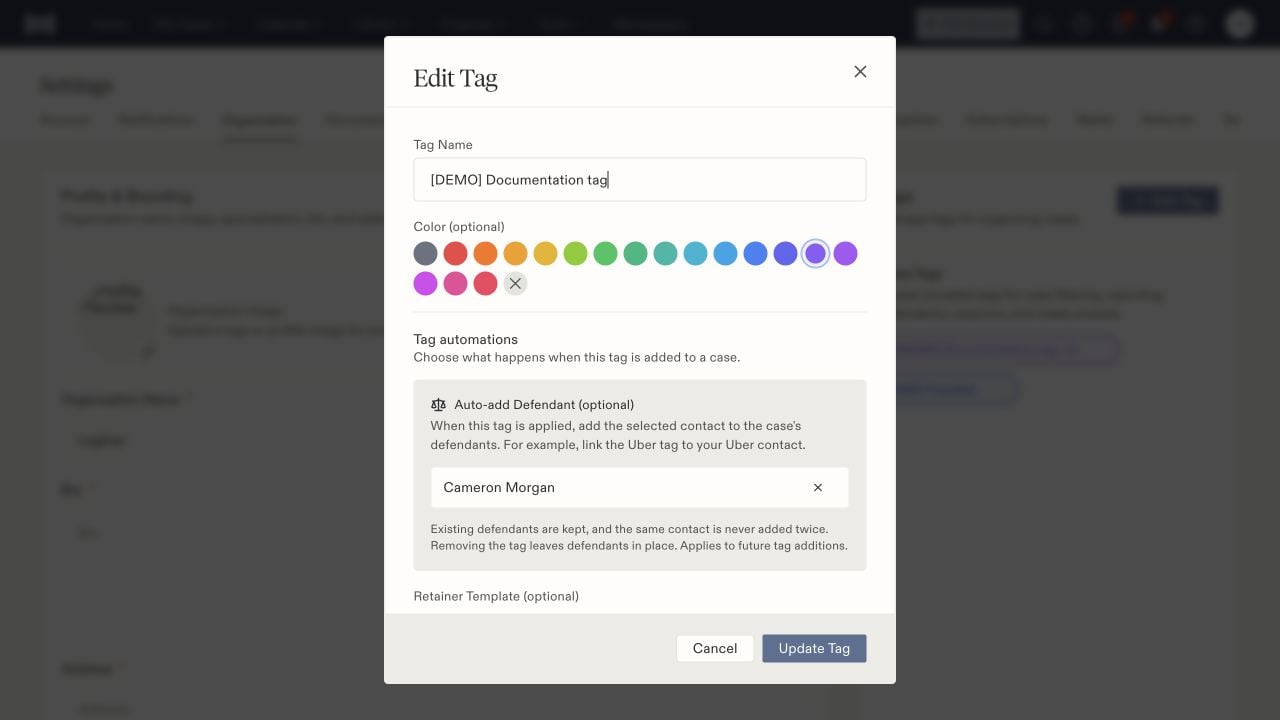
2. Enter a clear **Tag Name** and choose an optional color.
3. Review **Tag automations** before saving. Leave optional actions empty when the tag should only label cases.
4. Save the tag. For an existing tag, select **Update Tag**.
5. Reopen it to confirm the name, color, and intended configuration.
 ## Understand each automatic action
**Auto-add Defendant** lets you select a contact to associate with a case when the tag is added. Use the intended existing contact rather than creating another record for the same party. **Turn off defendant automation** clears this configuration. The setting applies to future tag additions; inspect the case's defendants separately after applying a tag.
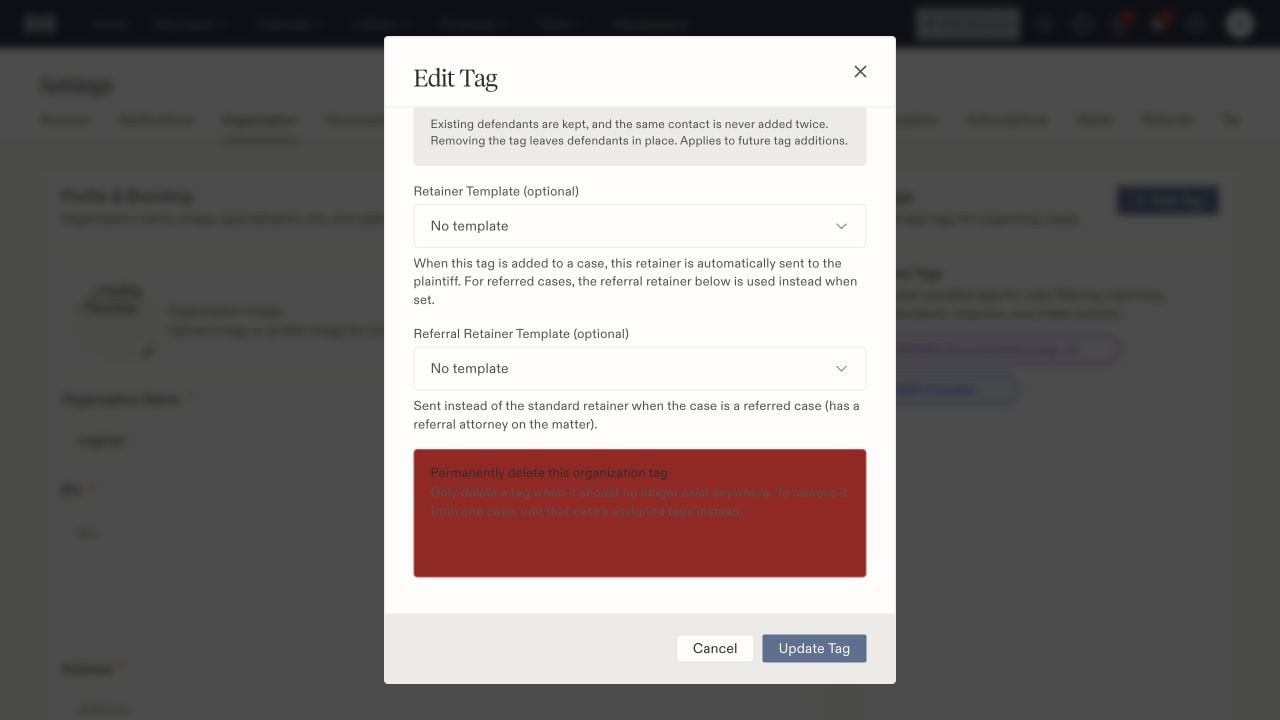
**Retainer Template** selects a template for automatic sending when the tag is added. Choose **No template** when automatic sending is not intended. Confirm the template, fields, and client details before enabling an action that sends documents.
**Referral Retainer Template** supplies the alternate template for a referred case with a referral attorney. The screen describes this as replacing the standard retainer selection for that circumstance.
## Understand each automatic action
**Auto-add Defendant** lets you select a contact to associate with a case when the tag is added. Use the intended existing contact rather than creating another record for the same party. **Turn off defendant automation** clears this configuration. The setting applies to future tag additions; inspect the case's defendants separately after applying a tag.
**Retainer Template** selects a template for automatic sending when the tag is added. Choose **No template** when automatic sending is not intended. Confirm the template, fields, and client details before enabling an action that sends documents.
**Referral Retainer Template** supplies the alternate template for a referred case with a referral attorney. The screen describes this as replacing the standard retainer selection for that circumstance.
 ## Check the result on a case
Apply the tag to a suitable case and save the assignment. Reopen the picker to confirm it persisted. Then inspect the relevant destination: the defendant list for a contact action, or the e-sign record for a retainer action. A saved tag is not confirmation of a completed automatic action or delivered document.
For a workflow that applies tags, review both the workflow's conditions and the selected tag's configuration. A label with document automation can have consequences beyond classification. Use [workflow runs and approvals](/docs/help/automations/publish-and-review) to inspect execution, and verify the final case records.
## Remove an assignment or retire a tag
To remove a tag from one case, use that case's tag picker. **Delete tag permanently** in organization settings is for retiring the organization tag itself. Do not use it for a single-case correction. Review related filters, reports, and workflows before retiring a shared tag.
## Check the result on a case
Apply the tag to a suitable case and save the assignment. Reopen the picker to confirm it persisted. Then inspect the relevant destination: the defendant list for a contact action, or the e-sign record for a retainer action. A saved tag is not confirmation of a completed automatic action or delivered document.
For a workflow that applies tags, review both the workflow's conditions and the selected tag's configuration. A label with document automation can have consequences beyond classification. Use [workflow runs and approvals](/docs/help/automations/publish-and-review) to inspect execution, and verify the final case records.
## Remove an assignment or retire a tag
To remove a tag from one case, use that case's tag picker. **Delete tag permanently** in organization settings is for retiring the organization tag itself. Do not use it for a single-case correction. Review related filters, reports, and workflows before retiring a shared tag.