> ## Documentation Index
> Fetch the complete documentation index at: https://www.presolve.com/docs/llms.txt
> Use this file to discover all available pages before exploring further.
# Choose and prepare an AI tool
> Find a tool, review its inputs, and check the resulting work.
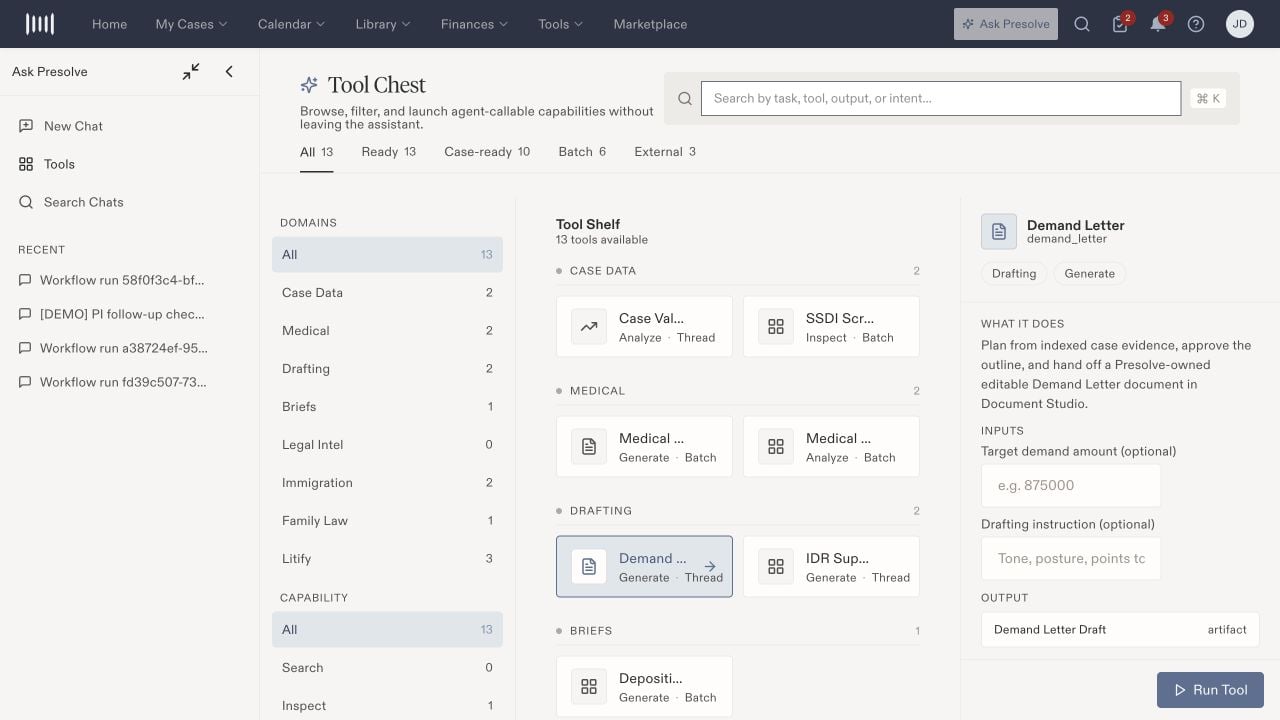
Open [Ask Presolve → Tools](https://attorney.dearlegal.com/dashboard/ai-tools/registry) to browse the **Tool Chest**. Use this page when you know the task you want to perform, such as drafting a demand letter or reviewing immigration evidence. For open-ended questions, use [Ask Presolve chat](/docs/help/ai/ask-presolve).
## Find the right tool
Search by task, tool, output, or intent. The tabs narrow the shelf to **All**, **Ready**, **Case-ready**, **Batch**, or **External** tools. You can also filter by domain, such as Medical or Immigration, and capability, such as Analyze or Generate. Counts reflect the current catalog and filters.
Select a tool to read **What it does**, **Inputs**, and **Output**. A Ready label describes availability in the catalog; check that you have the case context and required information before running it.
 ## Prepare the inputs
| Tool | What to prepare |
| - | - |
| Demand Letter | The intended case context, an optional target demand amount, and drafting instructions. The described flow includes an outline for approval and an editable Document Studio draft. |
| Case Valuation | The required case ID and current supporting case information. |
| SSDI Screening | The case context and whether to use Force. Leave Force off when you do not intend to repeat an existing active screening. Screening can affect case flags. |
| Medical Chronology | The case's medical documents. Review the Force option before asking for a fresh run instead of using an existing result. |
| IDR Support Letter | The dispute context and any optional verified facts or drafting instructions. Review the proposed plan before approving drafting. |
| O-1A Eligibility Check | The required case ID and organized evidence for the scorecard. |
| O-1A Recommendations | The required case ID and the evidence available for recommendations. |
| Divorce Petition Packet | The case context and required packet type. Read the proposed actions, including any signing or routing steps, before proceeding. |
| Deposition Prep Brief | The deposition ID/type, witness name and specialty, matter ID, and notification email requested by the form. Additional inputs may be requested after launch. |
| Medical Record Extraction (Depo Prep) | The requested Litify identifier and access to the corresponding records. |
| Master Summary | The external identifiers requested by the form; review full-rebuild and repair options. |
| Pre-Hearing Memo | The requested matter and event IDs, plus instructions for the memo. |
| Demand Strategy | The requested external identifiers; review validation, repair, and Force options. |
Copy case and external identifiers from the intended record. Names and identifiers are not interchangeable. If you cannot identify the required external record, ask the administrator responsible for that connection.
## Run and review
1. Confirm the selected tool and case context.
2. Complete the required inputs and review optional settings.
3. Select **Run Tool** when ready to start the described work.
4. Follow any additional input or approval steps in the resulting thread.
5. Review the output against the underlying documents before using it. Open the resulting document or case record to confirm what was actually created or changed.
A generated draft, valuation, or eligibility score is working material for staff review. Verify names, dates, amounts, citations, and missing evidence. If a run stops or asks for more information, read its message before retrying; first check whether it already created a document or changed a record.
For evidence organization, see [O-1 matters](/docs/help/practices/o1), [TN matters](/docs/help/practices/tn), and [NSA disputes](/docs/help/practices/nsa).
## Prepare the inputs
| Tool | What to prepare |
| - | - |
| Demand Letter | The intended case context, an optional target demand amount, and drafting instructions. The described flow includes an outline for approval and an editable Document Studio draft. |
| Case Valuation | The required case ID and current supporting case information. |
| SSDI Screening | The case context and whether to use Force. Leave Force off when you do not intend to repeat an existing active screening. Screening can affect case flags. |
| Medical Chronology | The case's medical documents. Review the Force option before asking for a fresh run instead of using an existing result. |
| IDR Support Letter | The dispute context and any optional verified facts or drafting instructions. Review the proposed plan before approving drafting. |
| O-1A Eligibility Check | The required case ID and organized evidence for the scorecard. |
| O-1A Recommendations | The required case ID and the evidence available for recommendations. |
| Divorce Petition Packet | The case context and required packet type. Read the proposed actions, including any signing or routing steps, before proceeding. |
| Deposition Prep Brief | The deposition ID/type, witness name and specialty, matter ID, and notification email requested by the form. Additional inputs may be requested after launch. |
| Medical Record Extraction (Depo Prep) | The requested Litify identifier and access to the corresponding records. |
| Master Summary | The external identifiers requested by the form; review full-rebuild and repair options. |
| Pre-Hearing Memo | The requested matter and event IDs, plus instructions for the memo. |
| Demand Strategy | The requested external identifiers; review validation, repair, and Force options. |
Copy case and external identifiers from the intended record. Names and identifiers are not interchangeable. If you cannot identify the required external record, ask the administrator responsible for that connection.
## Run and review
1. Confirm the selected tool and case context.
2. Complete the required inputs and review optional settings.
3. Select **Run Tool** when ready to start the described work.
4. Follow any additional input or approval steps in the resulting thread.
5. Review the output against the underlying documents before using it. Open the resulting document or case record to confirm what was actually created or changed.
A generated draft, valuation, or eligibility score is working material for staff review. Verify names, dates, amounts, citations, and missing evidence. If a run stops or asks for more information, read its message before retrying; first check whether it already created a document or changed a record.
For evidence organization, see [O-1 matters](/docs/help/practices/o1), [TN matters](/docs/help/practices/tn), and [NSA disputes](/docs/help/practices/nsa).