> ## Documentation Index
> Fetch the complete documentation index at: https://www.presolve.com/docs/llms.txt
> Use this file to discover all available pages before exploring further.
# Set up an invoice-staging review workflow
> Connect an invoice-created event to a designated reviewer and payment staging.
Use [Automations](https://attorney.dearlegal.com/dashboard/automations) to configure the approval step in your firm's invoice process. Agree on the eligible invoices, reviewer, and funding approach with the accounting owner before publishing.
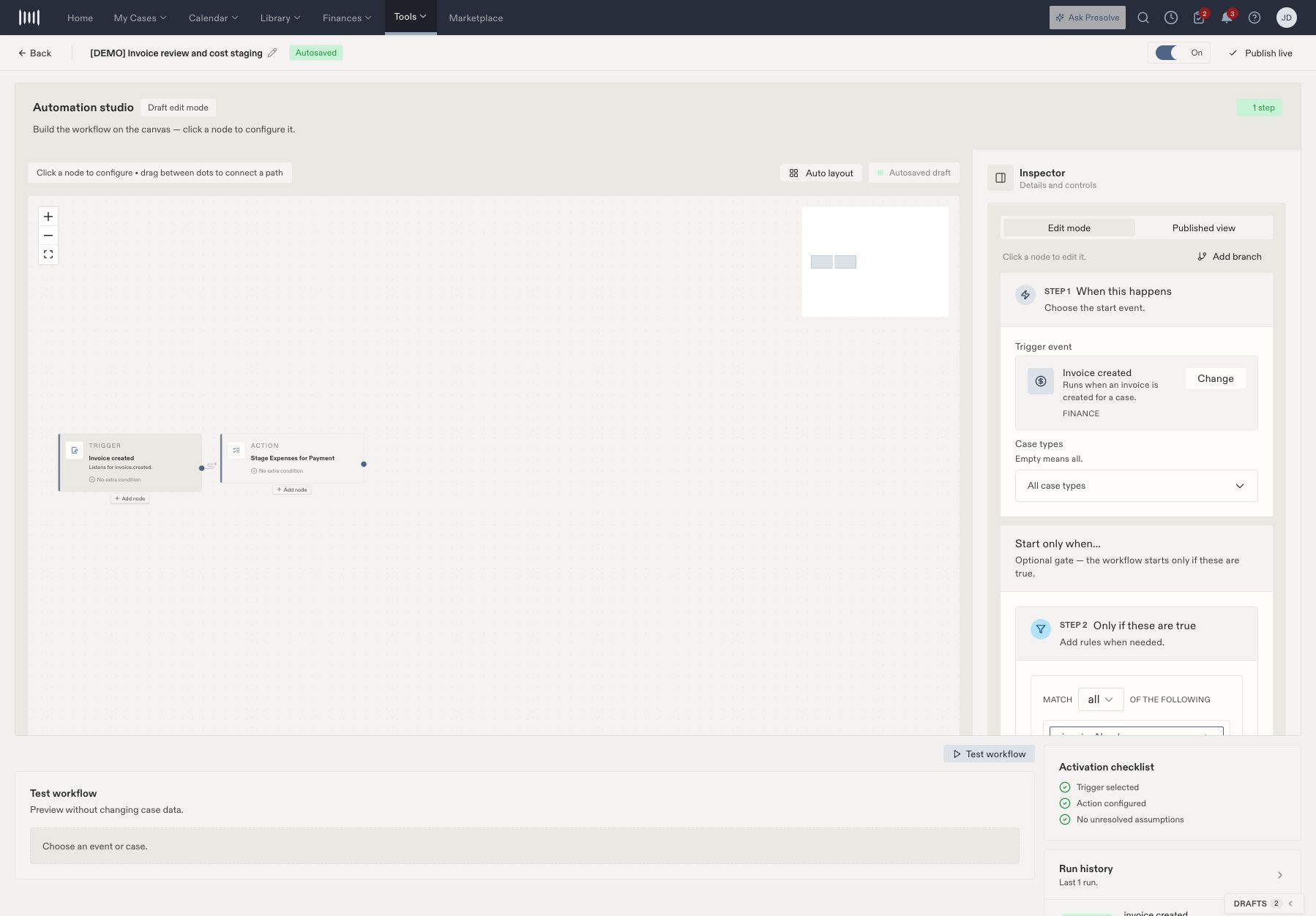
The workflow connects **Invoice created → conditions → Stage Expenses for Payment → required review → staged invoice and expenses**.
## Configure the trigger and action
1. Open the workflow editor and select the trigger.
2. Choose **Invoice created** and review **Start only when…** conditions.
3. For a narrowly scoped demonstration, use an exact invoice-number condition and create the matching fictional invoice only after activation.
4. Select **Stage Expenses for Payment**. Review the runtime case and invoice inputs so the action operates on the triggering invoice.
5. Inspect any funding or contact overrides. Leave them unset only when that matches the intended review process.
 ## Assign the review
Require approval and select **Specific team member** when one designated reviewer should handle the request. Confirm the person has **Approvals Review** permission and access to the affected case.
Review the notification channels independently. An internal demonstration can use in-app notification with email and SMS disabled. Choose the channels appropriate to the actual process when configuring a production workflow.
## Publish, trigger, and verify
1. Complete the activation checklist and wait for Autosaved.
2. Publish live and turn the automation On.
3. Create an invoice that meets the configured conditions.
4. Find the matching invoice-created event in Run history.
5. Have the reviewer inspect the invoice and unpaid expenses, then choose **Approve & stage for payment** when appropriate.
6. Verify the approved decision in Approvals History, **To Be Paid** in Payables, and **Succeeded** in the workflow run.
The reviewer can retain **Keep undecided until payment** for default or per-item funding when permitted by the process. Staging does not mark expenses paid or send a disbursement.
If no review appears, distinguish an invoice that did not save, an event that did not match the trigger, a workflow that is Off, and a run that failed reviewer eligibility. Inspect the saved invoice and run details before retrying.
Related: [Invoice entry and review](/docs/help/accounting/invoice-review), [publication and run troubleshooting](/docs/help/automations/publish-and-review), and [disbursements](/docs/help/accounting/disbursements).
## Assign the review
Require approval and select **Specific team member** when one designated reviewer should handle the request. Confirm the person has **Approvals Review** permission and access to the affected case.
Review the notification channels independently. An internal demonstration can use in-app notification with email and SMS disabled. Choose the channels appropriate to the actual process when configuring a production workflow.
## Publish, trigger, and verify
1. Complete the activation checklist and wait for Autosaved.
2. Publish live and turn the automation On.
3. Create an invoice that meets the configured conditions.
4. Find the matching invoice-created event in Run history.
5. Have the reviewer inspect the invoice and unpaid expenses, then choose **Approve & stage for payment** when appropriate.
6. Verify the approved decision in Approvals History, **To Be Paid** in Payables, and **Succeeded** in the workflow run.
The reviewer can retain **Keep undecided until payment** for default or per-item funding when permitted by the process. Staging does not mark expenses paid or send a disbursement.
If no review appears, distinguish an invoice that did not save, an event that did not match the trigger, a workflow that is Off, and a run that failed reviewer eligibility. Inspect the saved invoice and run details before retrying.
Related: [Invoice entry and review](/docs/help/accounting/invoice-review), [publication and run troubleshooting](/docs/help/automations/publish-and-review), and [disbursements](/docs/help/accounting/disbursements).