> ## Documentation Index
> Fetch the complete documentation index at: https://www.presolve.com/docs/llms.txt
> Use this file to discover all available pages before exploring further.
# Publish a workflow and check its run
> Understand draft changes, live activation, and the result of a workflow run.
Use [Automations](https://attorney.dearlegal.com/dashboard/automations) when your role includes configuring firm workflows. Before publishing, confirm the intended trigger, conditions, action, and reviewer with the person responsible for that process.
A **trigger** is the event that starts the workflow. **Conditions** limit when it runs. An **action** is the work it performs, which may require approval.
## Review the configured workflow
1. Open the automation's editor.
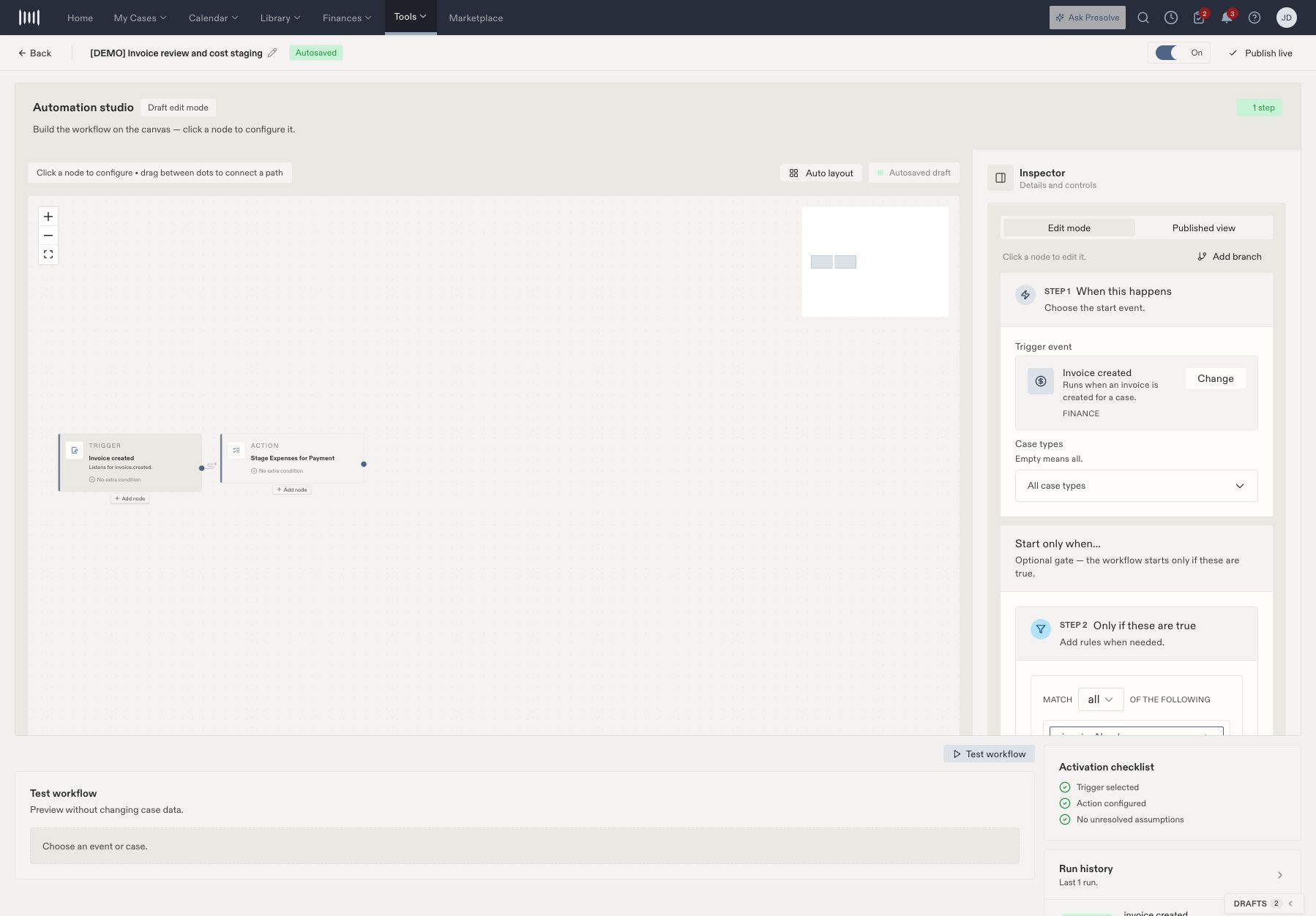
2. Select the trigger on the canvas. Check **When this happens** and any **Start only when…** rules in the Inspector.
3. Select each action and verify its inputs and approval settings.
4. Check the **Activation checklist** for unresolved configuration.
 ## Publish and activate
1. Wait for the draft to show **Autosaved**.
2. Select **Publish live** and check the publication confirmation.
3. Set the automation to **On** when it should begin responding to matching events.
4. Use **Published view** to inspect the live version.
An autosaved draft and a published live version are different states. Check the version and On/Off control before expecting the workflow to run.
## Verify an actual run
1. After the intended event occurs, open **Run history**.
2. Select the matching run by event, time, and case.
3. Review its overall status and individual steps.
4. If approval is pending, the assigned reviewer must complete that review.
5. Check the resulting record as well as the run status.
## Publish and activate
1. Wait for the draft to show **Autosaved**.
2. Select **Publish live** and check the publication confirmation.
3. Set the automation to **On** when it should begin responding to matching events.
4. Use **Published view** to inspect the live version.
An autosaved draft and a published live version are different states. Check the version and On/Off control before expecting the workflow to run.
## Verify an actual run
1. After the intended event occurs, open **Run history**.
2. Select the matching run by event, time, and case.
3. Review its overall status and individual steps.
4. If approval is pending, the assigned reviewer must complete that review.
5. Check the resulting record as well as the run status.
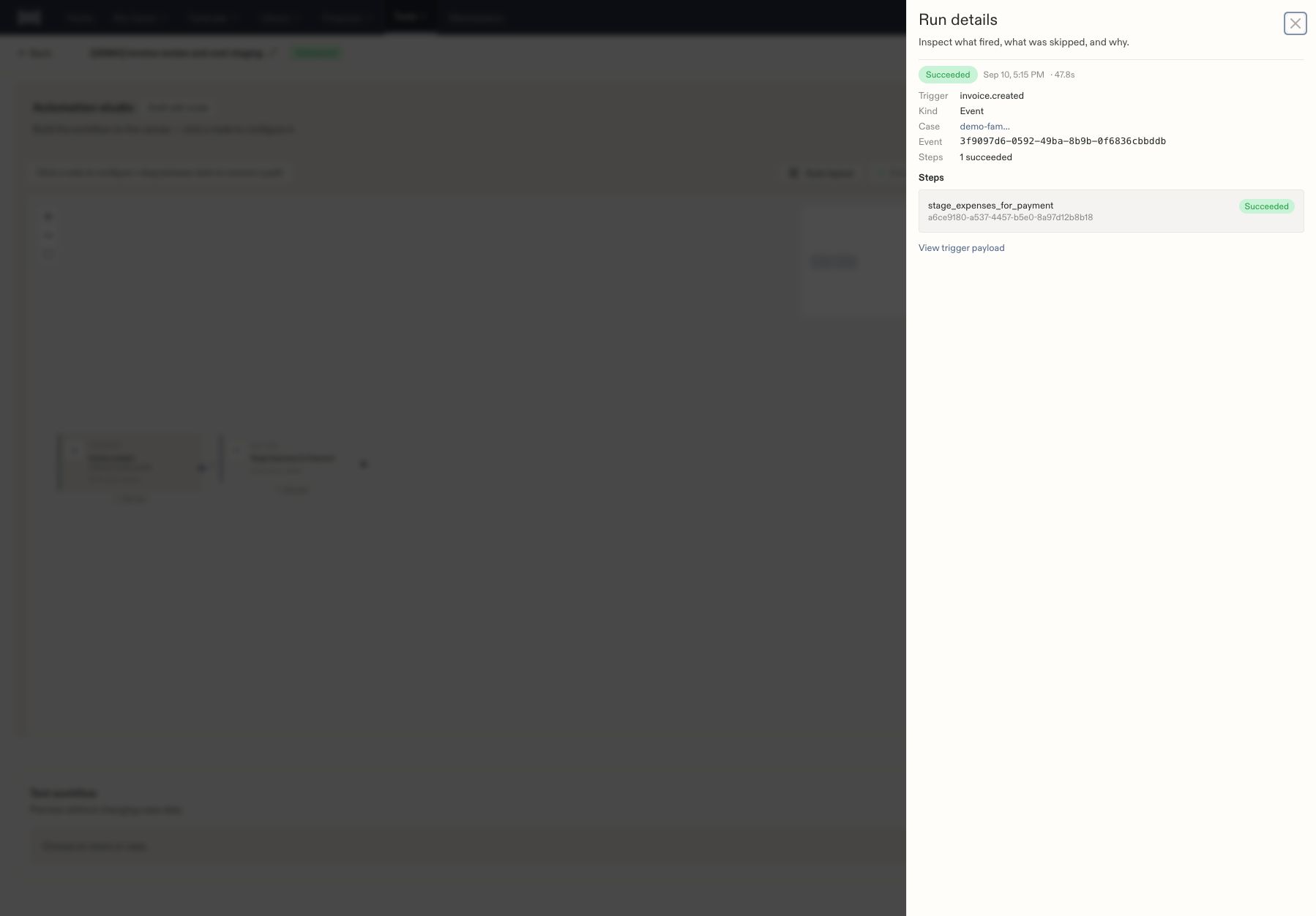 **Test workflow** previews behavior without changing case data. A preview does not establish that the live event or its resulting action succeeded. If a run fails, inspect its step details and verify existing records before retrying.
For the accounting steps, see [invoice review and staging](/docs/help/accounting/invoice-review).
## Check the scope before a live test
A workflow's name helps people recognize it; its trigger and conditions determine which events qualify. For an invoice workflow, inspect the actual invoice-number rule rather than relying on a name such as “Demo review.”
Review these parts together:
| Setting | Question to answer |
| - | - |
| Trigger | Which event starts a run—for example, Invoice created? |
| Start conditions | Which matching records should proceed? |
| Action inputs | Which case, invoice, or other record will the action use? |
| Approval requirement | Must a person review the action before it continues? |
| Reviewer | Is the selected person eligible and able to access the case? |
| Notification channels | How will the reviewer learn that work is waiting? |
For the invoice-staging example, the action is **Stage Expenses for Payment**, the reviewer is a **Specific team member**, and the review can leave funding undecided until payment. Your administrator should choose the reviewer and notification channels that match your firm's process.
## Understand publication states
| State or control | Meaning for your check |
| - | - |
| Autosaved | The editor has saved the draft changes. |
| Publish live | Makes the configured draft available as a published version. |
| Published view | Lets you inspect the version intended for live execution. |
| On / Off | Controls whether the automation responds to matching events. |
| Run history | Shows executions that actually started. |
After publishing, reopen the workflow and verify its published version and On/Off state. Then create or perform the intended test event using a clearly identified test record approved by your firm.
## Follow a pending or failed run
A run can pause at **Pending approval**. Open its review package or find the request in [Approvals](https://attorney.dearlegal.com/dashboard/approvals), review the action, and check the run again after the decision.
If a step reports that no eligible reviewer exists, ask an administrator to check **Approvals Review** permission and case access. Being called a firm administrator or accounting reviewer does not by itself establish both requirements.
After correcting the cause, **Re-run workflow** is available in run details. Before using it, inspect the earlier steps and resulting records so that you understand what already happened. Match the retried run to the original event, then verify the business result separately.
A **Succeeded** staging run should be accompanied by the expected invoice and expense state. It is not evidence that a payment was sent.
**Test workflow** previews behavior without changing case data. A preview does not establish that the live event or its resulting action succeeded. If a run fails, inspect its step details and verify existing records before retrying.
For the accounting steps, see [invoice review and staging](/docs/help/accounting/invoice-review).
## Check the scope before a live test
A workflow's name helps people recognize it; its trigger and conditions determine which events qualify. For an invoice workflow, inspect the actual invoice-number rule rather than relying on a name such as “Demo review.”
Review these parts together:
| Setting | Question to answer |
| - | - |
| Trigger | Which event starts a run—for example, Invoice created? |
| Start conditions | Which matching records should proceed? |
| Action inputs | Which case, invoice, or other record will the action use? |
| Approval requirement | Must a person review the action before it continues? |
| Reviewer | Is the selected person eligible and able to access the case? |
| Notification channels | How will the reviewer learn that work is waiting? |
For the invoice-staging example, the action is **Stage Expenses for Payment**, the reviewer is a **Specific team member**, and the review can leave funding undecided until payment. Your administrator should choose the reviewer and notification channels that match your firm's process.
## Understand publication states
| State or control | Meaning for your check |
| - | - |
| Autosaved | The editor has saved the draft changes. |
| Publish live | Makes the configured draft available as a published version. |
| Published view | Lets you inspect the version intended for live execution. |
| On / Off | Controls whether the automation responds to matching events. |
| Run history | Shows executions that actually started. |
After publishing, reopen the workflow and verify its published version and On/Off state. Then create or perform the intended test event using a clearly identified test record approved by your firm.
## Follow a pending or failed run
A run can pause at **Pending approval**. Open its review package or find the request in [Approvals](https://attorney.dearlegal.com/dashboard/approvals), review the action, and check the run again after the decision.
If a step reports that no eligible reviewer exists, ask an administrator to check **Approvals Review** permission and case access. Being called a firm administrator or accounting reviewer does not by itself establish both requirements.
After correcting the cause, **Re-run workflow** is available in run details. Before using it, inspect the earlier steps and resulting records so that you understand what already happened. Match the retried run to the original event, then verify the business result separately.
A **Succeeded** staging run should be accompanied by the expected invoice and expense state. It is not evidence that a payment was sent.