> ## Documentation Index
> Fetch the complete documentation index at: https://www.presolve.com/docs/llms.txt
> Use this file to discover all available pages before exploring further.
# Prepare an e-sign template
> Upload a reusable document, place recipient fields, and verify the saved template.
Open [Library → E-Sign](https://attorney.dearlegal.com/dashboard/esign-documents). **Templates** contains reusable starting documents. **Documents** contains individual signing documents. A template marked Ready is available for preparation; it is not a signed client document.
## Upload a template
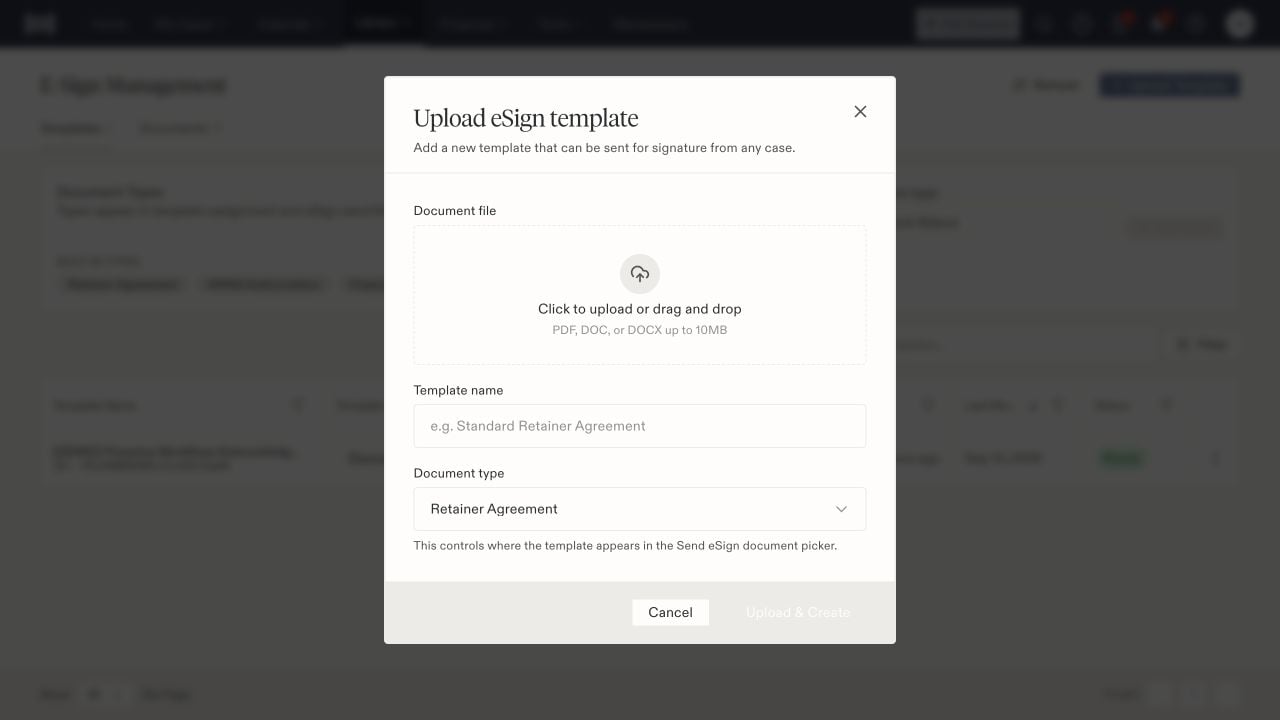
1. Select **Upload Template**.
2. Choose a PDF, DOC, or DOCX file within the displayed 10 MB limit.
3. Enter a recognizable **Template name**.
4. Choose the correct **Document type**. This controls where it appears in the Send eSign document picker.
5. Select **Upload & Create** and wait for the result.
6. Use **Refresh** and find the template by name if the list has not updated.
 ## Prepare recipient fields
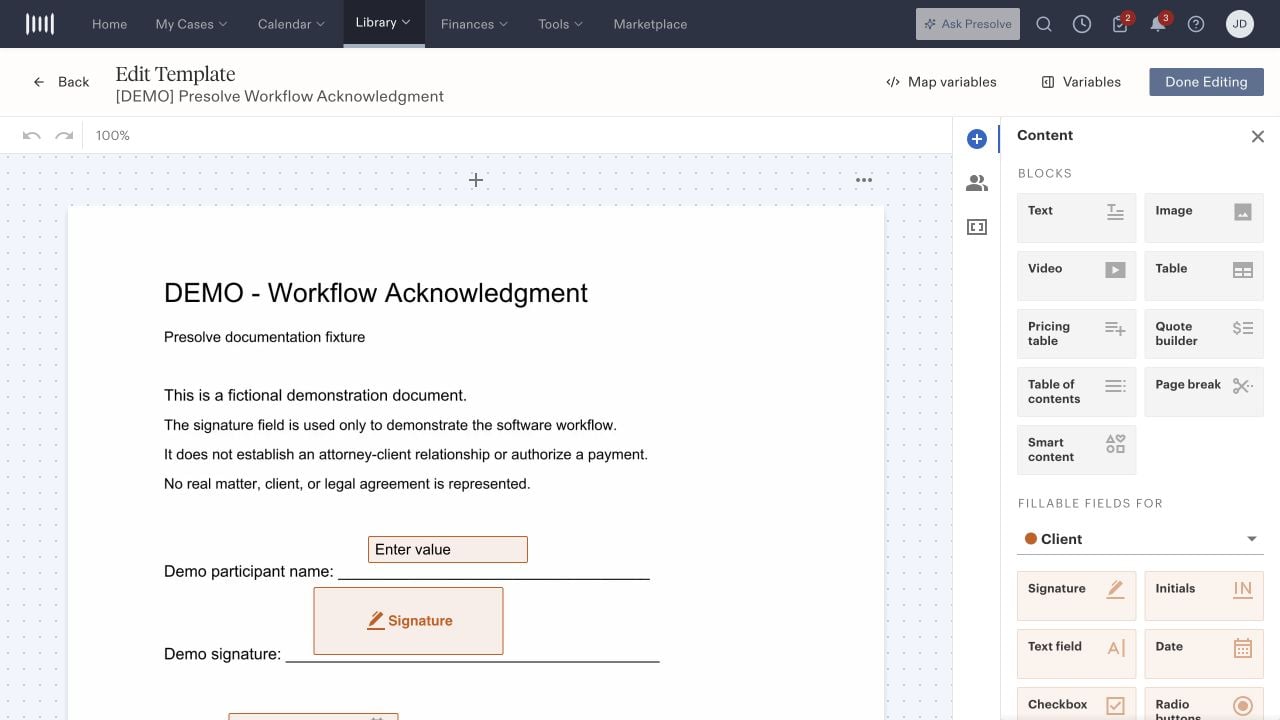
Open the template's actions menu and select **Edit**. The editor page is labeled **Retainer Editor**, including when you are editing another document type. Confirm the document content before placing fields.
Add the fields the recipient needs, such as text, signature, and date. Assign each field to the intended recipient role, position it beside the relevant label, and inspect every page. Avoid leaving required fields over unrelated text or outside the visible document.
Use **Done Editing** to return after editing. Reopen the template and verify that field placement and recipient assignments persisted. The library's Ready label does not replace this check.
## Prepare recipient fields
Open the template's actions menu and select **Edit**. The editor page is labeled **Retainer Editor**, including when you are editing another document type. Confirm the document content before placing fields.
Add the fields the recipient needs, such as text, signature, and date. Assign each field to the intended recipient role, position it beside the relevant label, and inspect every page. Avoid leaving required fields over unrelated text or outside the visible document.
Use **Done Editing** to return after editing. Reopen the template and verify that field placement and recipient assignments persisted. The library's Ready label does not replace this check.
 ## Use variables and intake answers
**Variables** provides copyable tokens grouped by information such as client, attorney, case, document, vehicle, referral, and NSA provider. Use the relevant group for the template's purpose.
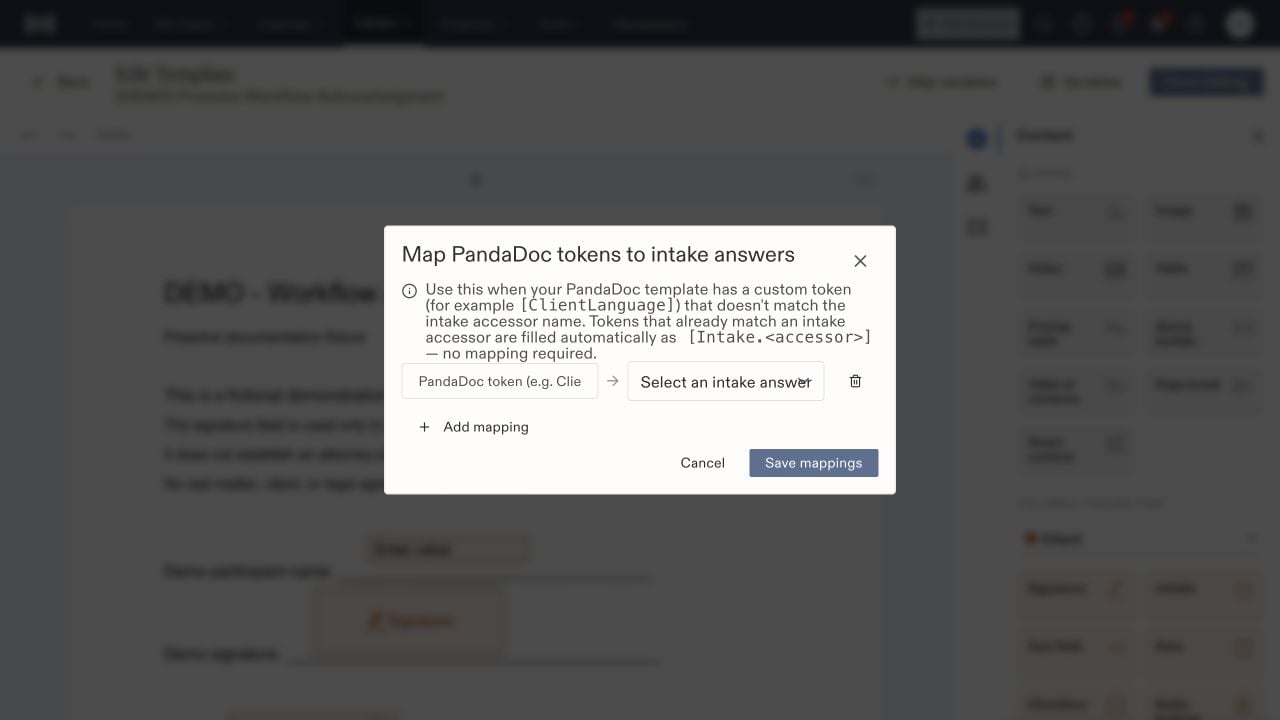
**Map variables** pairs a custom token with an intake accessor—the saved field name for an intake answer. The screen also describes automatic population for matching `[Intake.]` tokens. Ask the intake administrator for the correct field name if it is unclear. Check the populated document on the intended case before sending; a configured mapping does not guarantee that a case contains the answer.
## Use variables and intake answers
**Variables** provides copyable tokens grouped by information such as client, attorney, case, document, vehicle, referral, and NSA provider. Use the relevant group for the template's purpose.
**Map variables** pairs a custom token with an intake accessor—the saved field name for an intake answer. The screen also describes automatic population for matching `[Intake.]` tokens. Ask the intake administrator for the correct field name if it is unclear. Check the populated document on the intended case before sending; a configured mapping does not guarantee that a case contains the answer.
 ## Manage templates deliberately
The row actions include **Rename**, **Download blank template**, **Mark as recurring**, and **Delete** as well as Edit. Use the type selector and search/filter controls to locate the intended template. Custom document-type labels can be added in this workspace or [document settings](/docs/help/admin/document-defaults).
Before sending from a case, check the chosen template, populated values, recipient details, delivery method, and required fields. Review the individual signing document afterward to track its status. Reminder and staff-notification settings are configured separately under [document defaults](/docs/help/admin/document-defaults).
## Manage templates deliberately
The row actions include **Rename**, **Download blank template**, **Mark as recurring**, and **Delete** as well as Edit. Use the type selector and search/filter controls to locate the intended template. Custom document-type labels can be added in this workspace or [document settings](/docs/help/admin/document-defaults).
Before sending from a case, check the chosen template, populated values, recipient details, delivery method, and required fields. Review the individual signing document afterward to track its status. Reminder and staff-notification settings are configured separately under [document defaults](/docs/help/admin/document-defaults).