> ## Documentation Index
> Fetch the complete documentation index at: https://www.presolve.com/docs/llms.txt
> Use this file to discover all available pages before exploring further.
# Add or remove document tags
> Label a file so staff can recognize its contents.
Document tags describe a file, such as insurance, correspondence, or a police report. They are managed from the file's actions. To label the case itself, use [case tags](/docs/help/matters/tags).
Before you start, open [Library](https://attorney.dearlegal.com/dashboard/library) and find the file you want to label.
## Add a tag
1. Open the file's three-dot **File actions** menu.
2. Select **Manage Tags**.
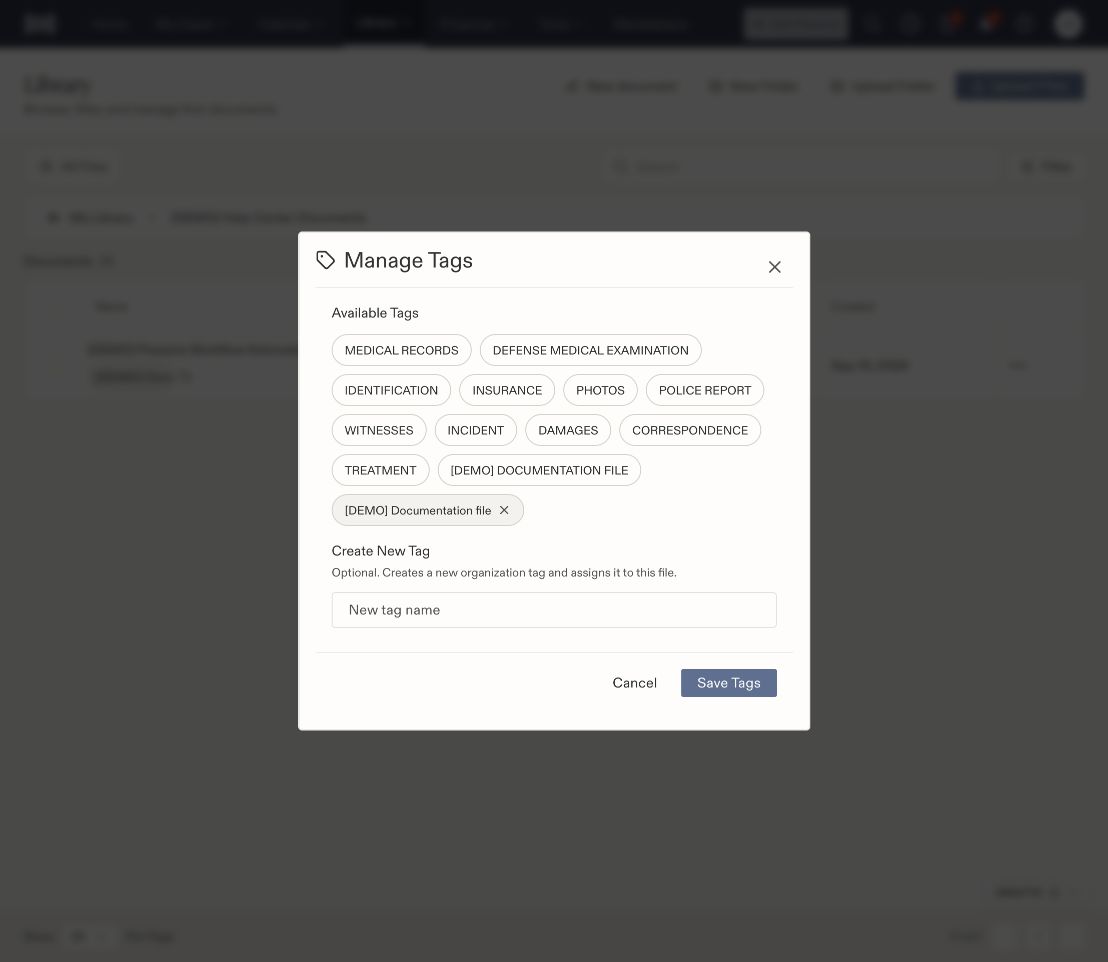
3. Select the tag under **Available Tags**. The selected tag appears below the available choices.
4. Select **Save Tags**.
5. Check the file row for the saved tag.
 ## Create a new tag
In **Manage Tags**, enter a name under **Create New Tag**, then select **Save Tags**. This creates an organization tag and assigns it to the file. Reuse an existing label when it already describes the content.
## Remove a tag from a file
Open **Manage Tags**, remove the selected tag using its × control, and select **Save Tags**. Reopen the dialog to check the saved selection. Removing a selection from this file does not request deletion of the underlying document.
If the expected label does not appear, confirm you saved the dialog and are viewing the same file. See [Library folders and file actions](/docs/help/documents/library).
## Create a new tag
In **Manage Tags**, enter a name under **Create New Tag**, then select **Save Tags**. This creates an organization tag and assigns it to the file. Reuse an existing label when it already describes the content.
## Remove a tag from a file
Open **Manage Tags**, remove the selected tag using its × control, and select **Save Tags**. Reopen the dialog to check the saved selection. Removing a selection from this file does not request deletion of the underlying document.
If the expected label does not appear, confirm you saved the dialog and are viewing the same file. See [Library folders and file actions](/docs/help/documents/library).