> ## Documentation Index
> Fetch the complete documentation index at: https://www.presolve.com/docs/llms.txt
> Use this file to discover all available pages before exploring further.
# Review file and accounting integrations
> Find SharePoint mappings and the appropriate QuickBooks workflow.
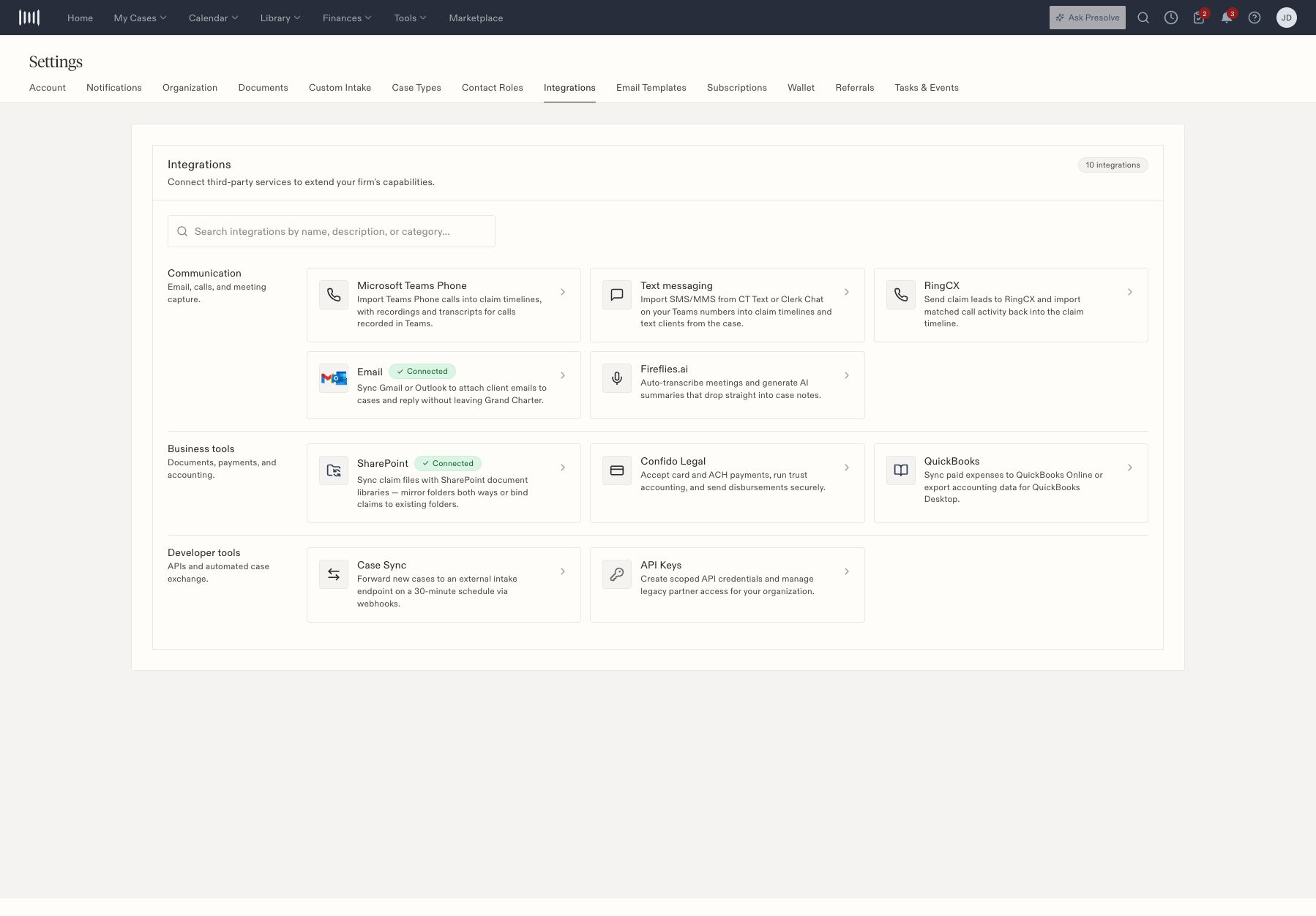
Start in [Settings → Integrations](https://attorney.dearlegal.com/dashboard/settings?tab=integrations). Open the relevant provider with the person responsible for your firm's document or accounting setup.
 ## SharePoint
Review the organization connection, personal connection, and mappings separately. An organization can be connected with no mappings. The settings distinguish folder mirroring and binding cases to existing folders; organization mappings take precedence according to the interface.
Before expecting a file to appear, confirm the intended site, document library, mapping, and case-folder binding. Check the same fictional or controlled file at both ends when validating a new configuration. Do not infer that the whole library synchronized from a connected badge.
## QuickBooks
The QuickBooks entry distinguishes Online synchronization and Desktop export workflows. Open the relevant accounting/export screen and inspect the rows, dates, and mappings before creating an export or sync request.
An export preview is a chance to check amounts and destination accounts. A generated file or success message does not prove that QuickBooks imported it. The accounting owner should verify the resulting entries in the destination system.
## Developer-managed exchange
**Case Sync** and **API Keys** are separate developer-tool entries. Have the integration owner confirm the receiving system and required access. Staff do not need API credentials to use ordinary case pages. Link the owner to [Developer Guides](/docs/introduction) instead of sharing a personal login.
For manual accounting records in Presolve, see [invoice staging](/docs/help/accounting/invoice-review) and [disbursement status](/docs/help/accounting/disbursements).
## Separate SharePoint connection from mapping
1. Open SharePoint from Integrations.
2. Inspect the organization connection and any personal connection.
3. Review the configured mappings; zero mappings is a possible state even while connected.
4. When adding a mapping, identify the intended site and document library before proceeding.
5. Review whether the process mirrors folders or binds a case to an existing folder.
6. Verify a controlled file and its intended case-folder relationship before expecting broader synchronization.
Organization mappings take precedence according to the settings. Check that precedence when an individual user's expectations differ from the organization's configuration. Reconnecting an account does not by itself resolve an incorrect mapping.
## Hand off Case Sync to the integration owner
The Case Sync entry includes an enable switch, endpoint, masked key, source field, **Save Changes**, and a payload reference. Its screen describes a 30-minute interval and skipping cases that already have a partner ID; a returned partner ID is stored on the case.
Give the integration owner a specific case and the expected receiving system when reporting a missing exchange. They should check enablement, configuration, and the case's partner relationship. Avoid treating the interval description as confirmation that a particular case was successfully received.
## Request scoped API access
**API Keys** has a separate credential-creation form with a name, expiry, **Read only** preset, per-resource read/write scopes, organization-management access, and optional webhook settings. Have the integration owner identify the minimum resources and actions required before creating a credential.
Use the [scope reference](/docs/scopes) and [authentication guide](/docs/authentication) for the technical configuration. Staff reviewing cases or reports can describe the desired business outcome without handling the integration's credentials.
## SharePoint
Review the organization connection, personal connection, and mappings separately. An organization can be connected with no mappings. The settings distinguish folder mirroring and binding cases to existing folders; organization mappings take precedence according to the interface.
Before expecting a file to appear, confirm the intended site, document library, mapping, and case-folder binding. Check the same fictional or controlled file at both ends when validating a new configuration. Do not infer that the whole library synchronized from a connected badge.
## QuickBooks
The QuickBooks entry distinguishes Online synchronization and Desktop export workflows. Open the relevant accounting/export screen and inspect the rows, dates, and mappings before creating an export or sync request.
An export preview is a chance to check amounts and destination accounts. A generated file or success message does not prove that QuickBooks imported it. The accounting owner should verify the resulting entries in the destination system.
## Developer-managed exchange
**Case Sync** and **API Keys** are separate developer-tool entries. Have the integration owner confirm the receiving system and required access. Staff do not need API credentials to use ordinary case pages. Link the owner to [Developer Guides](/docs/introduction) instead of sharing a personal login.
For manual accounting records in Presolve, see [invoice staging](/docs/help/accounting/invoice-review) and [disbursement status](/docs/help/accounting/disbursements).
## Separate SharePoint connection from mapping
1. Open SharePoint from Integrations.
2. Inspect the organization connection and any personal connection.
3. Review the configured mappings; zero mappings is a possible state even while connected.
4. When adding a mapping, identify the intended site and document library before proceeding.
5. Review whether the process mirrors folders or binds a case to an existing folder.
6. Verify a controlled file and its intended case-folder relationship before expecting broader synchronization.
Organization mappings take precedence according to the settings. Check that precedence when an individual user's expectations differ from the organization's configuration. Reconnecting an account does not by itself resolve an incorrect mapping.
## Hand off Case Sync to the integration owner
The Case Sync entry includes an enable switch, endpoint, masked key, source field, **Save Changes**, and a payload reference. Its screen describes a 30-minute interval and skipping cases that already have a partner ID; a returned partner ID is stored on the case.
Give the integration owner a specific case and the expected receiving system when reporting a missing exchange. They should check enablement, configuration, and the case's partner relationship. Avoid treating the interval description as confirmation that a particular case was successfully received.
## Request scoped API access
**API Keys** has a separate credential-creation form with a name, expiry, **Read only** preset, per-resource read/write scopes, organization-management access, and optional webhook settings. Have the integration owner identify the minimum resources and actions required before creating a credential.
Use the [scope reference](/docs/scopes) and [authentication guide](/docs/authentication) for the technical configuration. Staff reviewing cases or reports can describe the desired business outcome without handling the integration's credentials.