> ## Documentation Index
> Fetch the complete documentation index at: https://www.presolve.com/docs/llms.txt
> Use this file to discover all available pages before exploring further.
# Understand communication integrations
> Identify the provider behind email, call, text, and meeting records.
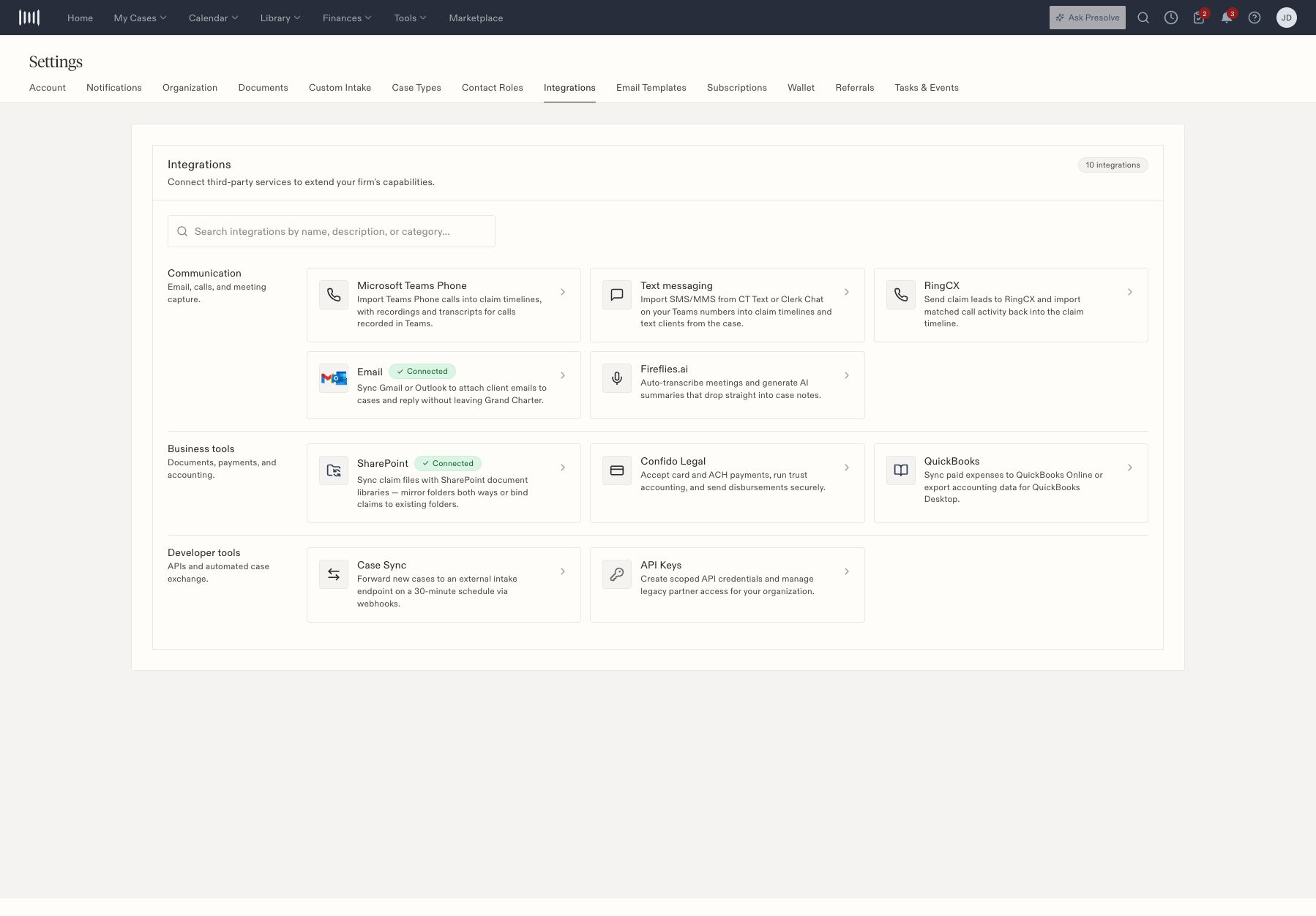
Use [Settings → Integrations](https://attorney.dearlegal.com/dashboard/settings?tab=integrations) to open the relevant communication card. Then review the corresponding case's **Records** area for activity.
 ## Email
The Email card provides Gmail connection and Outlook account-management controls. A firm can have an existing connection without every expected email appearing on a particular case. Check the sending account, client address, case match, and selected Records filter with your administrator before reconnecting.
## Microsoft Teams Phone
Connect your Microsoft work account under **Track my Teams calls** to identify your assigned lines. **Your calling account** separately connects browser calling. Integration managers configure firm access, employee mappings, and selected shared lines.
Start with [Teams account setup](/docs/help/integrations/microsoft-teams-phone), then choose [Call in browser](/docs/help/records/teams-browser-calling) or [Call in Teams](/docs/help/records/teams-app-calling). For imported entries, see [calls, matching, and recordings](/docs/help/records/teams-call-records). Recording imports do not start recording calls.
## Text messaging
The settings distinguish CT Text and Clerk Chat. Text availability in a case depends on the firm's integration and enabled features. If **Texts** is absent from Records, ask whether texting is configured for your organization and number; do not assume the messages were deleted.
## RingCX
The card covers lead delivery and matched call activity. Its setup includes account and import choices, campaign/queue filters, and recording configuration. The case header may say **Send to RingCentral**; confirm your firm's intended destination before using it.
## Fireflies.ai
The integration is intended to bring meeting transcripts and summaries into case notes. Confirm the meeting was processed and matched to the correct matter. A connected status alone does not confirm that a summary was added.
These are provider-orientation checks. Complete authentication and end-to-end delivery with your integration administrator. Related: [Find and review integrations](/docs/help/integrations/overview).
## Review RingCX setup choices
The RingCX detail screen includes sub-account selection, import mode, campaign or queue filtering, automatic lead sending, recording settings, and JWT setup. Review these with the person responsible for the phone system.
| Choice | Why it matters to the staff workflow |
| - | - |
| Sub-account | Identifies the account whose activity is being configured. |
| Import mode and campaign/queue filters | Determine the intended scope of imported activity. |
| Automatic lead sending | Needs to match the firm's intake-routing process. |
| Recordings | A call entry and an available recording are separate things to verify. |
| Authentication | Use the authentication method available in your environment; check setup guidance if OAuth is unavailable. |
Before using **Save & Send to RingCentral** during intake or the matter's send control, confirm that the destination and automatic-sending settings are appropriate. Saving a case and sending it to a call provider are separate actions.
## Review text-provider configuration
The text settings offer CT Text/YakChat and Clerk Chat choices. Setup can include an optional Send SMS flow URL and a connection/webhook guide. Have the integration owner identify the provider and sending number your firm uses before troubleshooting an individual conversation.
For a missing conversation, check the case, recipient number, selected Records view, and whether the organization's texting feature is enabled. A provider connection and a delivered message are separate results.
## Check meeting capture
The Fireflies detail screen includes a connection state and **Test Connection**. A connection test is one setup check; the staff outcome is the intended meeting transcript or summary appearing on the correct case.
When investigating missing notes, identify the meeting and intended matter first, then have the integration owner check processing and matching. Review the resulting note against the meeting source before using it in case work.
## Email
The Email card provides Gmail connection and Outlook account-management controls. A firm can have an existing connection without every expected email appearing on a particular case. Check the sending account, client address, case match, and selected Records filter with your administrator before reconnecting.
## Microsoft Teams Phone
Connect your Microsoft work account under **Track my Teams calls** to identify your assigned lines. **Your calling account** separately connects browser calling. Integration managers configure firm access, employee mappings, and selected shared lines.
Start with [Teams account setup](/docs/help/integrations/microsoft-teams-phone), then choose [Call in browser](/docs/help/records/teams-browser-calling) or [Call in Teams](/docs/help/records/teams-app-calling). For imported entries, see [calls, matching, and recordings](/docs/help/records/teams-call-records). Recording imports do not start recording calls.
## Text messaging
The settings distinguish CT Text and Clerk Chat. Text availability in a case depends on the firm's integration and enabled features. If **Texts** is absent from Records, ask whether texting is configured for your organization and number; do not assume the messages were deleted.
## RingCX
The card covers lead delivery and matched call activity. Its setup includes account and import choices, campaign/queue filters, and recording configuration. The case header may say **Send to RingCentral**; confirm your firm's intended destination before using it.
## Fireflies.ai
The integration is intended to bring meeting transcripts and summaries into case notes. Confirm the meeting was processed and matched to the correct matter. A connected status alone does not confirm that a summary was added.
These are provider-orientation checks. Complete authentication and end-to-end delivery with your integration administrator. Related: [Find and review integrations](/docs/help/integrations/overview).
## Review RingCX setup choices
The RingCX detail screen includes sub-account selection, import mode, campaign or queue filtering, automatic lead sending, recording settings, and JWT setup. Review these with the person responsible for the phone system.
| Choice | Why it matters to the staff workflow |
| - | - |
| Sub-account | Identifies the account whose activity is being configured. |
| Import mode and campaign/queue filters | Determine the intended scope of imported activity. |
| Automatic lead sending | Needs to match the firm's intake-routing process. |
| Recordings | A call entry and an available recording are separate things to verify. |
| Authentication | Use the authentication method available in your environment; check setup guidance if OAuth is unavailable. |
Before using **Save & Send to RingCentral** during intake or the matter's send control, confirm that the destination and automatic-sending settings are appropriate. Saving a case and sending it to a call provider are separate actions.
## Review text-provider configuration
The text settings offer CT Text/YakChat and Clerk Chat choices. Setup can include an optional Send SMS flow URL and a connection/webhook guide. Have the integration owner identify the provider and sending number your firm uses before troubleshooting an individual conversation.
For a missing conversation, check the case, recipient number, selected Records view, and whether the organization's texting feature is enabled. A provider connection and a delivered message are separate results.
## Check meeting capture
The Fireflies detail screen includes a connection state and **Test Connection**. A connection test is one setup check; the staff outcome is the intended meeting transcript or summary appearing on the correct case.
When investigating missing notes, identify the meeting and intended matter first, then have the integration owner check processing and matching. Review the resulting note against the meeting source before using it in case work.