> ## Documentation Index
> Fetch the complete documentation index at: https://www.presolve.com/docs/llms.txt
> Use this file to discover all available pages before exploring further.
# Connect and review email accounts
> Find Gmail and Outlook account controls and check case email records.
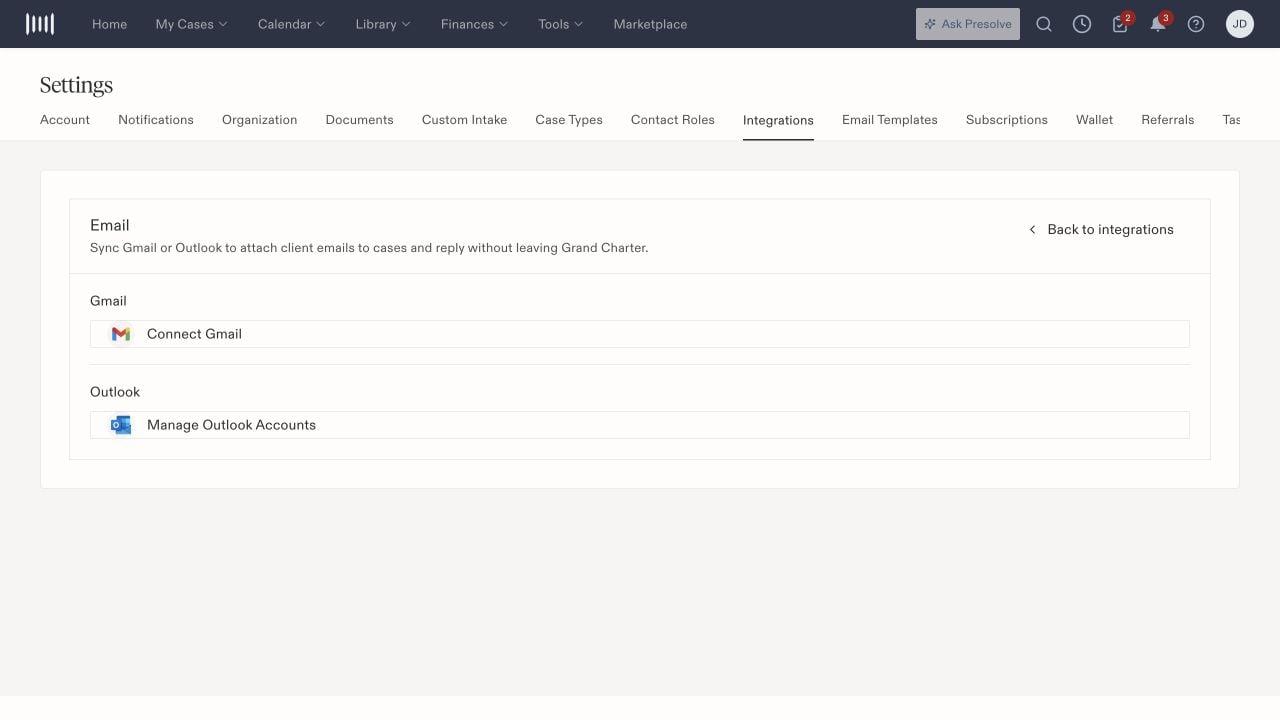
Open **Email** in [Settings → Integrations](https://attorney.dearlegal.com/dashboard/settings?tab=integrations). The card provides **Gmail Connect** and **Outlook Manage Accounts** controls.
## Choose the account to manage
For Gmail, use the connection entry for the intended mailbox. For Outlook, open Manage Accounts and inspect the listed account before choosing another action. The account-management dialog offers **Disconnect** and **Connect Outlook**.
Confirm with your firm whether the mailbox should belong to an individual or serve a shared process before changing a connection. Disconnect is an account-management action; it is not a filter for hiding one message.
## Check messages on a matter
1. Open the intended matter and select **Records → Emails**.
2. Review the active search and category filters.
3. Check the sender, recipient, subject, and date of the message you need.
4. If appropriate to your firm's process, use the Records Sync control to check for new messages, then inspect the resulting list.
A connected mailbox does not establish that a particular message matched to the case. When reporting missing email, identify the mailbox, message time, participants, and intended matter.
## Prepare an outgoing message
Use **Compose Email** in Records or **Send Email** in the matter header. Review the sending account, recipient, subject, body, and any attachments before sending. Opening the composer or saving other case information does not establish delivery.
This guide covers connection and account management. For delivery questions, verify the specific message in the sending mailbox and the intended case record.
 Related: [Integration overview](/docs/help/integrations/overview).