> ## Documentation Index
> Fetch the complete documentation index at: https://www.presolve.com/docs/llms.txt
> Use this file to discover all available pages before exploring further.
# Connect your Microsoft Teams account
> Connect your firm's work account, then choose browser calling or the Teams app.
Use your firm's **Microsoft work account with your Teams Phone number**. Start in the correct Presolve organization, signed into your own Presolve account.
* **Track my Teams calls** brings eligible calls from your assigned lines into this organization.
* **Your calling account** lets you speak inside Presolve. Connect this too if you want browser calling.
* **Call in Teams** opens the separate Teams app. Browser calling is optional for this path.
## Connect call tracking
Go to **Settings → Integrations → Microsoft Teams Phone**, or [open the settings page](https://www.presolve.com/dashboard/settings?tab=integrations\&integration=teams-phone).
Under **Track my Teams calls**, select **Connect my Teams account**. Choose the work account with your Teams number and complete Microsoft's sign-in prompts.
Back in Presolve, check **Connected as** and your work email. **Sign in again** is an option on connected accounts; it does not mean you were disconnected.
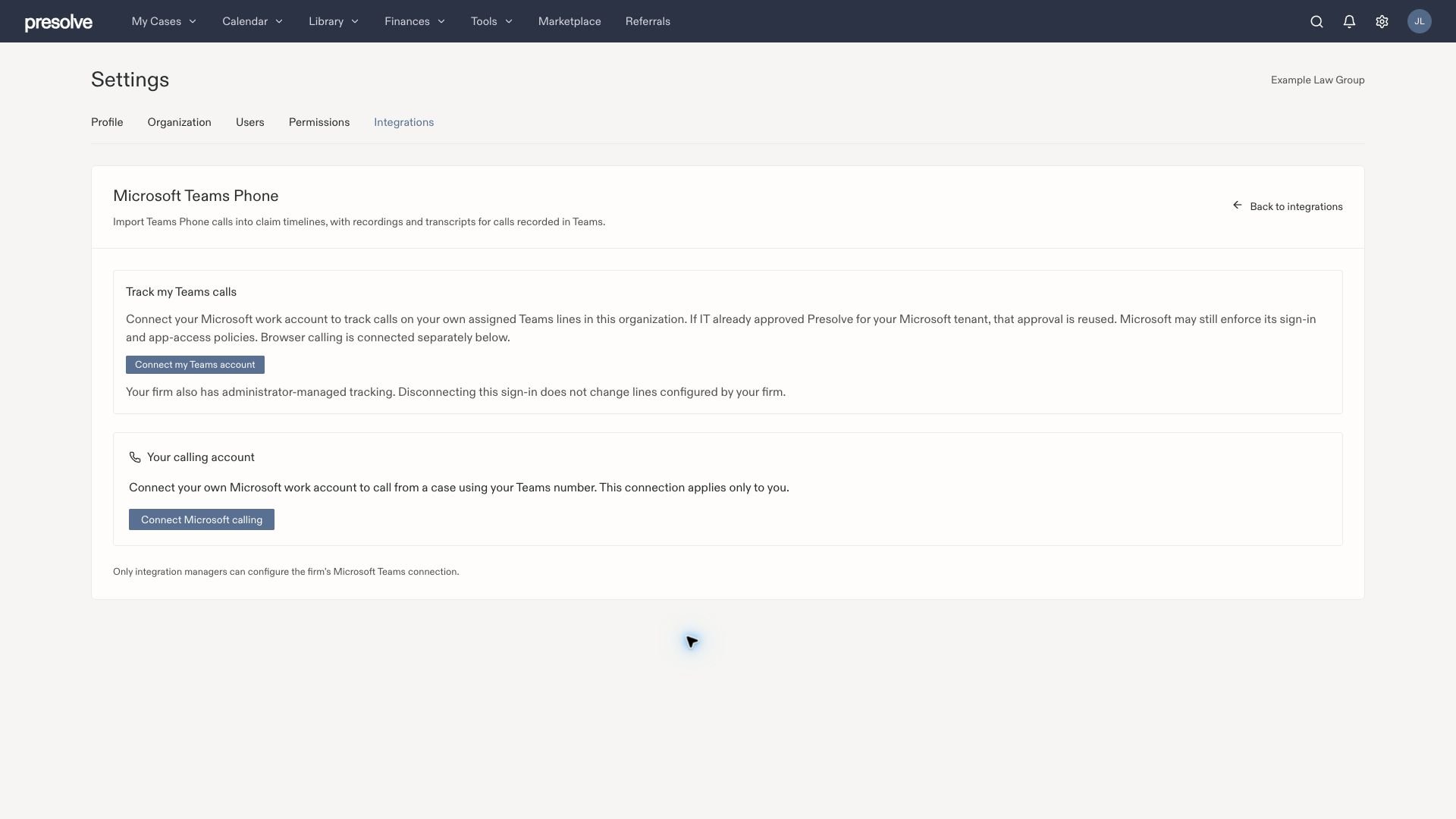 If Microsoft requests approval or the account does not match, use [IT/support: approval and sign-in](/docs/help/integrations/teams-phone-troubleshooting#approval-and-sign-in). IT's existing tenant approval can be reused; each employee still verifies their own work account.
## Add browser calling
On the same page, under **Your calling account**, select **Connect Microsoft calling**. Sign in with the same Microsoft work account and complete its prompts.
Confirm **Connected as** in this card too. You can now open a case and select **Call in browser**. Have a microphone and headset or speakers ready, and allow microphone access when asked.
Select **Turn on availability** and check for **Available for calls**. Keep Presolve open in that tab to receive calls. Availability is separate from the saved account connection.
If Microsoft requests approval or the account does not match, use [IT/support: approval and sign-in](/docs/help/integrations/teams-phone-troubleshooting#approval-and-sign-in). IT's existing tenant approval can be reused; each employee still verifies their own work account.
## Add browser calling
On the same page, under **Your calling account**, select **Connect Microsoft calling**. Sign in with the same Microsoft work account and complete its prompts.
Confirm **Connected as** in this card too. You can now open a case and select **Call in browser**. Have a microphone and headset or speakers ready, and allow microphone access when asked.
Select **Turn on availability** and check for **Available for calls**. Keep Presolve open in that tab to receive calls. Availability is separate from the saved account connection.
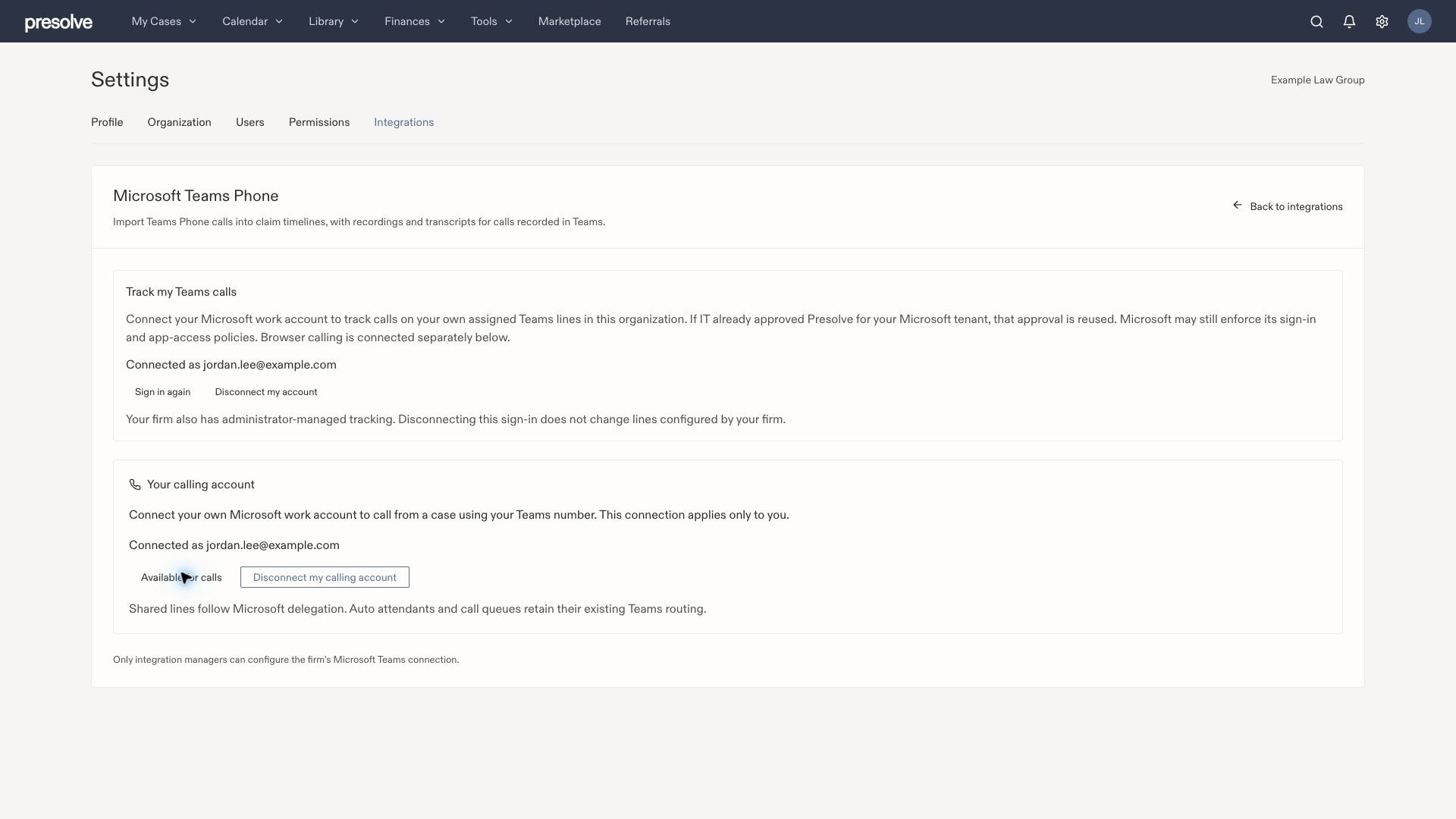 Screenshots use actual Presolve controls in a demonstration workspace with fictional data and simulated calls. Each capture shows a full 1920 × 1080 viewport; click an image to enlarge it. Controls depend on your firm's enabled features and your access.
## Make your first call
Start from a case's calling controls, a contact's phone number in **Library → Contacts**, or the **New call** phone icon in the top navigation bar. Review the destination, case, caller name, and role before dialing. Known contacts can prefill details when there is a clear match; you can always correct the suggestions for that call.
Call a contact or another number, answer incoming calls, and save notes.
Open Teams from a case, contact, or dialer and complete your call note.
Check caller roles, resolve case matches, and play recordings.
Get help with approval, calling, sync, or recordings.
Managing shared numbers or employee mappings? Use [firm setup](/docs/help/integrations/teams-phone-admin).
Screenshots use actual Presolve controls in a demonstration workspace with fictional data and simulated calls. Each capture shows a full 1920 × 1080 viewport; click an image to enlarge it. Controls depend on your firm's enabled features and your access.
## Make your first call
Start from a case's calling controls, a contact's phone number in **Library → Contacts**, or the **New call** phone icon in the top navigation bar. Review the destination, case, caller name, and role before dialing. Known contacts can prefill details when there is a clear match; you can always correct the suggestions for that call.
Call a contact or another number, answer incoming calls, and save notes.
Open Teams from a case, contact, or dialer and complete your call note.
Check caller roles, resolve case matches, and play recordings.
Get help with approval, calling, sync, or recordings.
Managing shared numbers or employee mappings? Use [firm setup](/docs/help/integrations/teams-phone-admin).