> ## Documentation Index
> Fetch the complete documentation index at: https://www.presolve.com/docs/llms.txt
> Use this file to discover all available pages before exploring further.
# Find and review integrations
> Locate provider settings and distinguish a connection from a verified result.
Open [Settings → Integrations](https://attorney.dearlegal.com/dashboard/settings?tab=integrations). Use the search field or category cards to locate the service your firm uses.
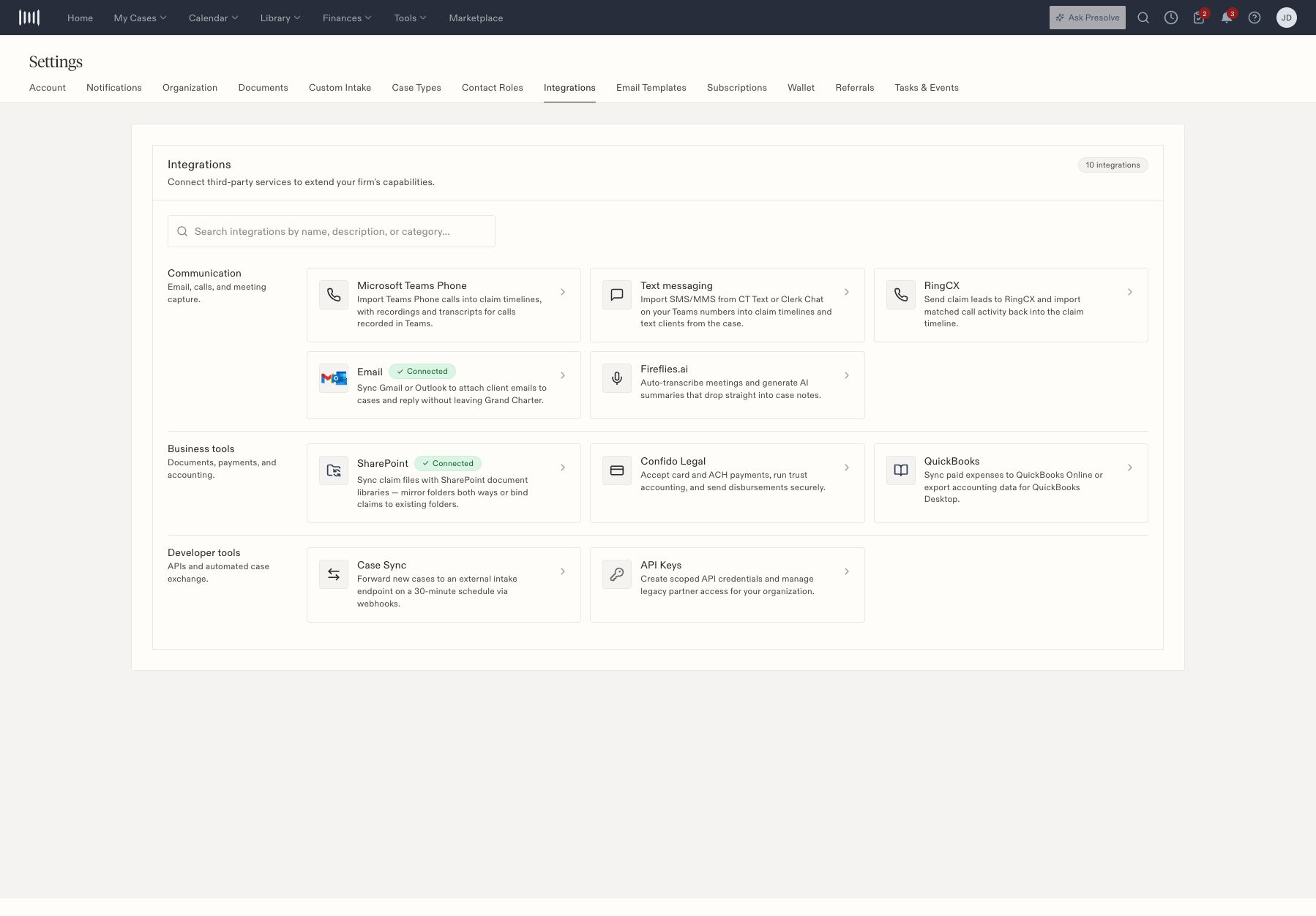 | Category | Entries |
| - | - |
| Communication | Microsoft Teams Phone, Text messaging, RingCX, Email, Fireflies.ai |
| Business tools | SharePoint, Confido Legal, QuickBooks |
| Developer tools | Case Sync, API Keys |
## Check a connection
1. Open the provider's card.
2. Review its current status and whether it is a personal or firm-managed connection.
3. Confirm that the intended provider account and mappings are configured with your administrator.
4. For missing activity, identify one expected item and check its matching matter record.
A **Connected** badge describes connection state. It does not prove that a particular email, call, meeting, file, or expense has synchronized.
## Ask the right person
Provider authentication, permissions, and mappings usually need the person who manages that account. Staff can help by supplying the case, item, expected result, and approximate time. Avoid repeatedly reconnecting an account to troubleshoot a single missing record.
[Email and calls](/docs/help/integrations/communications) explains the communication entries. [Files and accounting integrations](/docs/help/integrations/business-tools) covers SharePoint and QuickBooks orientation. For API access, send your integration administrator to [service accounts](/docs/service-accounts) and [scopes](/docs/scopes).
## Provider guides
| Provider | Setup and available controls |
| - | - |
| Email | [Gmail and Outlook accounts](/docs/help/integrations/email) |
| Microsoft Teams Phone | [Tenant and administrator consent](/docs/help/integrations/microsoft-teams-phone) |
| Text messaging | [Provider selection and texting availability](/docs/help/integrations/text-messaging) |
| RingCX | [Lead routing, import, and recording settings](/docs/help/integrations/ringcx) |
| Fireflies.ai | [Meeting capture connection and case-note checks](/docs/help/integrations/fireflies) |
| SharePoint | [Connections, mappings, and case folders](/docs/help/integrations/sharepoint) |
| QuickBooks | [Account mappings and export dashboard](/docs/help/integrations/quickbooks) |
| Case Sync | [Scheduled exchange configuration](/docs/help/integrations/case-sync) |
| API Keys | [Scoped integration access](/docs/help/integrations/api-keys) |
| Category | Entries |
| - | - |
| Communication | Microsoft Teams Phone, Text messaging, RingCX, Email, Fireflies.ai |
| Business tools | SharePoint, Confido Legal, QuickBooks |
| Developer tools | Case Sync, API Keys |
## Check a connection
1. Open the provider's card.
2. Review its current status and whether it is a personal or firm-managed connection.
3. Confirm that the intended provider account and mappings are configured with your administrator.
4. For missing activity, identify one expected item and check its matching matter record.
A **Connected** badge describes connection state. It does not prove that a particular email, call, meeting, file, or expense has synchronized.
## Ask the right person
Provider authentication, permissions, and mappings usually need the person who manages that account. Staff can help by supplying the case, item, expected result, and approximate time. Avoid repeatedly reconnecting an account to troubleshoot a single missing record.
[Email and calls](/docs/help/integrations/communications) explains the communication entries. [Files and accounting integrations](/docs/help/integrations/business-tools) covers SharePoint and QuickBooks orientation. For API access, send your integration administrator to [service accounts](/docs/service-accounts) and [scopes](/docs/scopes).
## Provider guides
| Provider | Setup and available controls |
| - | - |
| Email | [Gmail and Outlook accounts](/docs/help/integrations/email) |
| Microsoft Teams Phone | [Tenant and administrator consent](/docs/help/integrations/microsoft-teams-phone) |
| Text messaging | [Provider selection and texting availability](/docs/help/integrations/text-messaging) |
| RingCX | [Lead routing, import, and recording settings](/docs/help/integrations/ringcx) |
| Fireflies.ai | [Meeting capture connection and case-note checks](/docs/help/integrations/fireflies) |
| SharePoint | [Connections, mappings, and case folders](/docs/help/integrations/sharepoint) |
| QuickBooks | [Account mappings and export dashboard](/docs/help/integrations/quickbooks) |
| Case Sync | [Scheduled exchange configuration](/docs/help/integrations/case-sync) |
| API Keys | [Scoped integration access](/docs/help/integrations/api-keys) |