> ## Documentation Index
> Fetch the complete documentation index at: https://www.presolve.com/docs/llms.txt
> Use this file to discover all available pages before exploring further.
# Complete a custom matter checklist
> Use the checklist your firm has added to a matter workspace.
Your firm can add custom sections to its matter layouts. A checklist appears only where the corresponding case type has been configured to include it; its name and items are chosen by your organization.
## Update a checklist item
1. Open the case from [My Cases](https://attorney.dearlegal.com/dashboard/cases).
2. Expand **Matter** in the side navigation, if your layout uses it.
3. Select the custom checklist section.
4. Read the item and complete the work it describes.
5. Select its checkbox. Wait for saving to finish before making another change.
6. Reopen or refresh the section to confirm the saved selection.
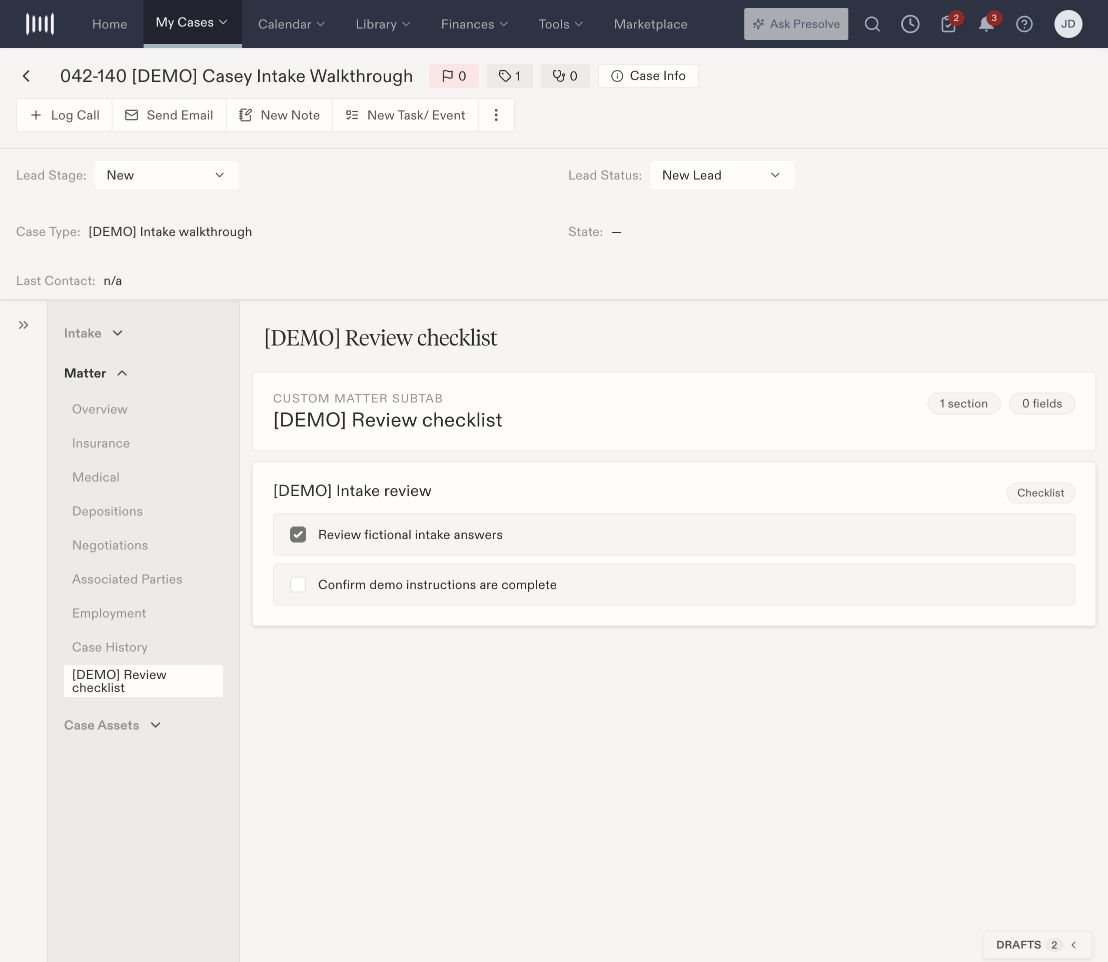 The checkbox records the checklist state on this case. For an item that refers to another record or task, confirm that work in the relevant area before checking it.
If your matter does not show the expected section, confirm its case type with your firm administrator. A checklist configured for one case type does not establish that every matter has that section.
Related: [Find your way around a matter](/docs/help/navigation) and [create a matter document](/docs/help/documents/create-document).
The checkbox records the checklist state on this case. For an item that refers to another record or task, confirm that work in the relevant area before checking it.
If your matter does not show the expected section, confirm its case type with your firm administrator. A checklist configured for one case type does not establish that every matter has that section.
Related: [Find your way around a matter](/docs/help/navigation) and [create a matter document](/docs/help/documents/create-document).