> ## Documentation Index
> Fetch the complete documentation index at: https://www.presolve.com/docs/llms.txt
> Use this file to discover all available pages before exploring further.
# Work in a custom matter
> Find your firm's intake answers, custom sections, and review checklists.
Your firm can configure a matter workspace for a particular case type. The section names and questions may differ from another practice's workspace—even within the same organization.
## Open the right matter
1. Find the record in [My Cases](https://attorney.dearlegal.com/dashboard/cases).
2. Confirm its name, case number, and **Case Type**.
3. Read the current lead or matter stage before starting the next task.
4. Expand **Intake**, **Matter**, or **Case Assets** as needed in layouts that use those navigation groups.
The case type describes the kind of work. The lead or matter stage describes its progress. A custom checklist provides a place to record review steps; it does not replace either classification.
## Review intake answers
Use the intake areas available on the record, such as **Basic Information**, **Incident Information**, and **Additional Details**. Custom questions appear according to the assigned intake and their visibility conditions.
For example, a Mailing instructions question can appear only when **Mailing Address Same as Home?** is **No**. If an expected answer is missing, check the controlling answer and ask your administrator to confirm the assigned intake before creating a duplicate field.
## Use a custom section
Open the named section in Matter navigation. In the example, **Review checklist** contains an **Intake review** checklist with two items.
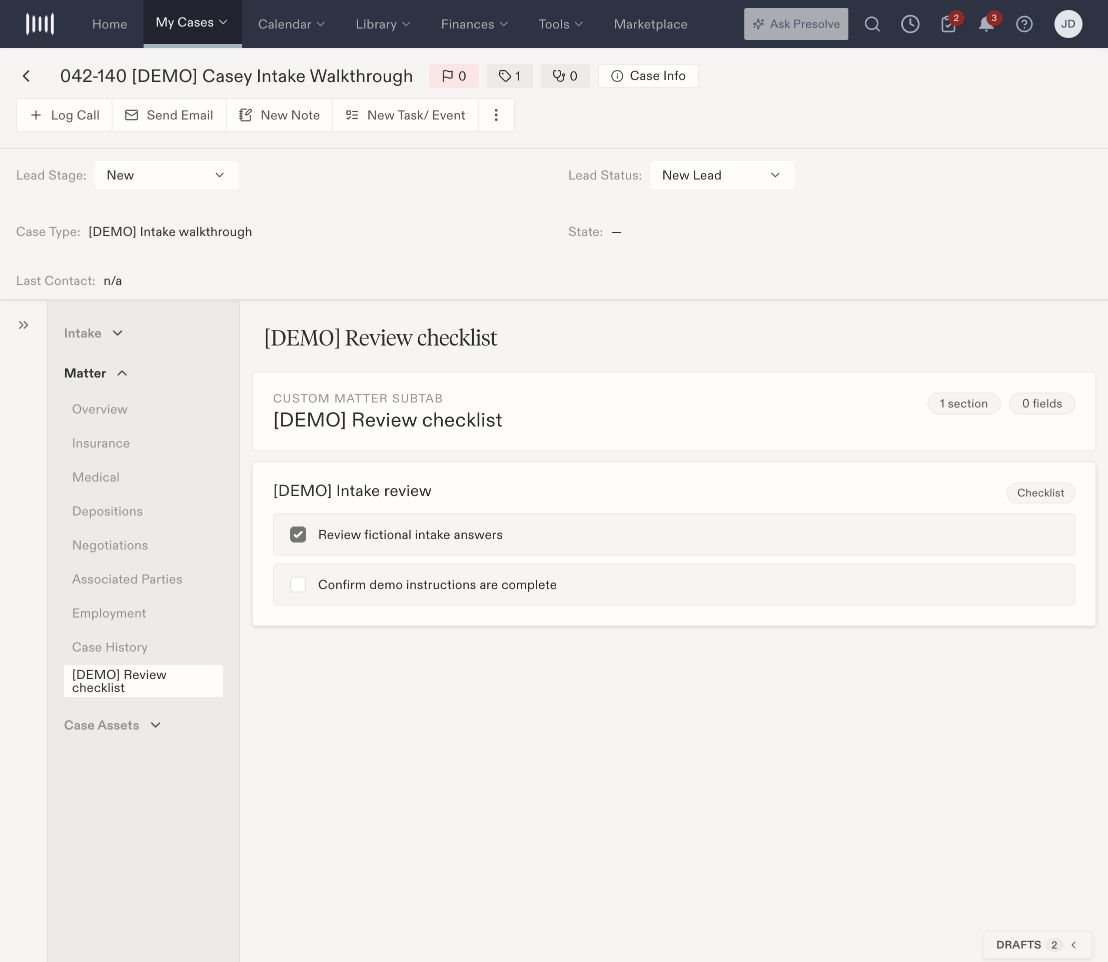 Complete the work described by an item before checking it. Wait for the saving indicator to finish, then reopen the section to confirm the selection. The saved selection belongs to this case.
A checked item records that review state. If it refers to a document, client communication, or task, inspect that underlying record as well.
## Keep follow-up work connected
Use the matter's task controls for work that needs an assignee or due date. Use Documents for the supporting material and Records for the relevant activity available in your layout. A checklist item and an assigned task serve different purposes; checking one does not establish that the other was completed.
If a section needs different questions or checklist items, ask the person who manages your firm's case-type layout. That configuration can affect other cases of the same type.
Related: [Configure custom matters](/docs/help/admin/custom-matters), [create a task](/docs/help/tasks/create-and-track), and [lead and case lifecycle](/docs/help/leads/lifecycle).
Complete the work described by an item before checking it. Wait for the saving indicator to finish, then reopen the section to confirm the selection. The saved selection belongs to this case.
A checked item records that review state. If it refers to a document, client communication, or task, inspect that underlying record as well.
## Keep follow-up work connected
Use the matter's task controls for work that needs an assignee or due date. Use Documents for the supporting material and Records for the relevant activity available in your layout. A checklist item and an assigned task serve different purposes; checking one does not establish that the other was completed.
If a section needs different questions or checklist items, ask the person who manages your firm's case-type layout. That configuration can affect other cases of the same type.
Related: [Configure custom matters](/docs/help/admin/custom-matters), [create a task](/docs/help/tasks/create-and-track), and [lead and case lifecycle](/docs/help/leads/lifecycle).