> ## Documentation Index
> Fetch the complete documentation index at: https://www.presolve.com/docs/llms.txt
> Use this file to discover all available pages before exploring further.
# Find your way around a personal-injury matter
> Locate intake, insurance, medical evidence, negotiations, and shared case records.
Open the case from [My Cases](https://attorney.dearlegal.com/dashboard/cases) and check its name, number, and **Case Type**. A personal-injury matter brings together intake answers, case details, and the records your team uses during the case.
This guide uses an auto-accident matter to illustrate the workspace. Your personal-injury case may have a different case type, with sections and fields configured for that work.
## Choose the right area
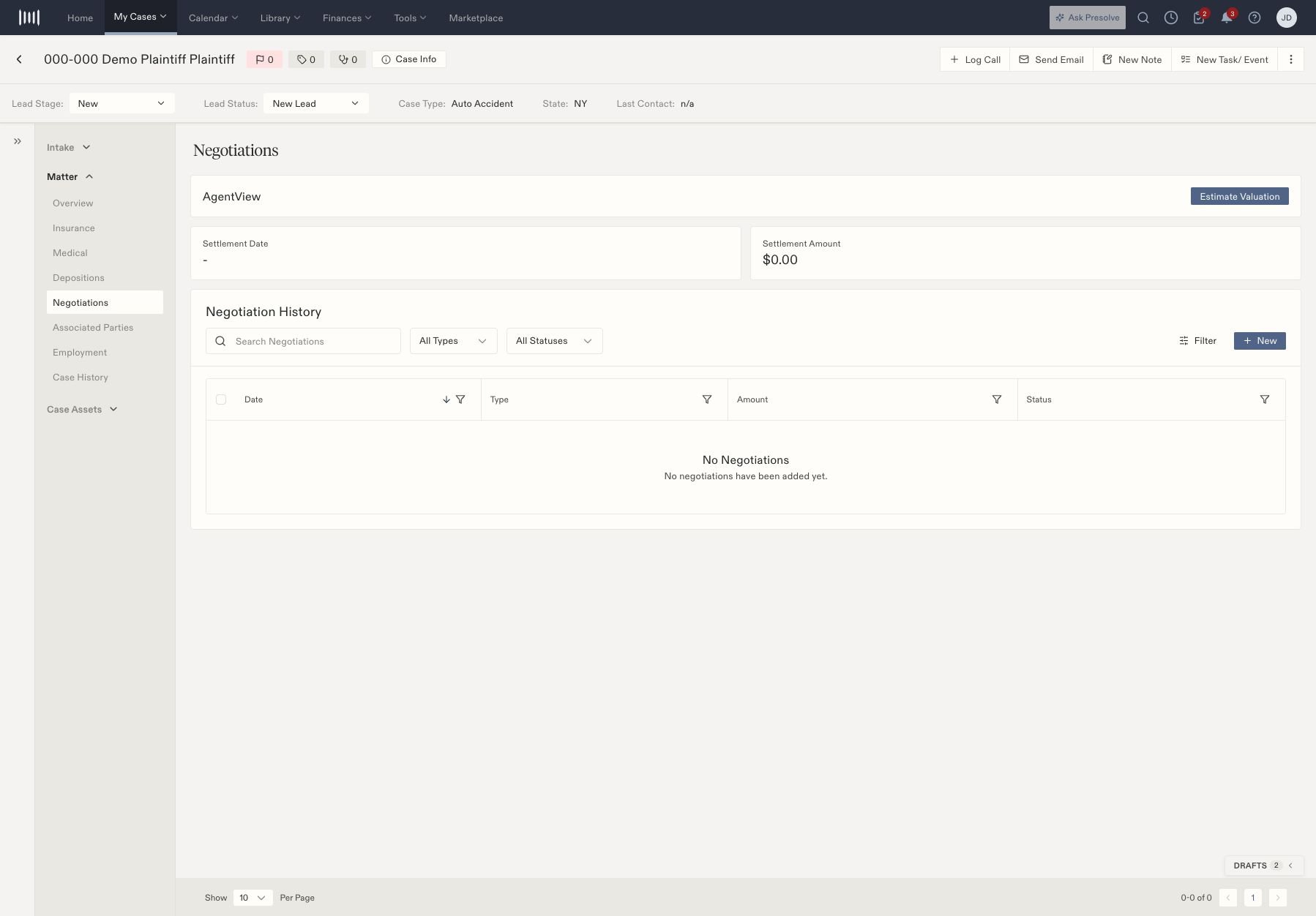
Use the sections available on your matter. The example workspace includes:
| Area | What to look for |
| - | - |
| Intake | Basic Information, Incident Information, and Additional Details |
| Overview | The matter's summary information |
| Insurance | Insurance information associated with the case |
| Medical | Medical information and the entry to Medical Analysis |
| Depositions | Deposition records and their details |
| Negotiations | Settlement fields and negotiation history |
| Associated Parties | Contacts linked to the case and their case roles |
| Employment | Employment and lost-wage information |
| Case History | Recorded changes and activity |
| Case Assets | Documents, Records, Tasks, Calendar, eSign, and Accounting entries available in the workspace |
Expand **Matter** or **Case Assets** to reveal the relevant navigation. Your firm's configuration and your access can affect the sections you see.
 ## Open Medical Analysis
From **Matter → Medical**, select **Open Medical Analysis**. The workspace has an injury overview, treatment timeline, and document views. Review the source documents alongside any analysis before using its contents in case work.
## Keep shared work with the case
Use [Documents](/docs/help/documents/create-document) for matter drafts and [case tags](/docs/help/matters/tags) for your organization's labels. A checklist generated in [Ask Presolve](/docs/help/ai/ask-presolve) can help organize a review, but the answer alone does not create tasks or obtain records.
For accounting work, begin with [invoice review and staging](/docs/help/accounting/invoice-review). Review [individual disbursements](/docs/help/accounting/disbursements) to check their recorded payment status.
## Record a deposition
Open **Matter → Depositions**, then **Add Deposition**. The form includes date, deposed person's name and role, status, deposition type, specialty, notes, and file selection. Check the required-field indicators and attach the correct supporting file before saving.
Use the person's role and deposition type to distinguish records with similar names. Review the saved entry and its file together; a deposition record should describe what actually occurred or is scheduled under your team's process.
## Link an associated party
Open **Associated Parties** to search linked people and organizations by name or narrow the list with role-category and contact-information filters.
In **Add Contact Role**, choose the role first, then search for an eligible contact or use the contact-creation option. Review the contact identity and any relationship notes before linking it. These roles describe relationships such as witness; they do not grant application access.
## Review employment and wage information
**Employment** includes estimated lost wages and future projections, employer search/add controls, pay, employment status, missed-work fields, wage verification, and notes. Compare these values with the supporting information before relying on a total. An employer's Remove control affects that relationship, so confirm the selected entry before using it.
## Inspect activity history
**Case History** provides an **Include Lead History** switch, action/staff search and filtering, and sortable or filterable action, staff, details, and timestamp columns. Review the selected filters when looking for an earlier event. A blank filtered view does not establish that no activity occurred.
## Explore Medical Analysis views
The Medical Analysis workspace separates summary, timeline, and document review:
| View | Available controls and information |
| - | - |
| Injury Overview | Injury, treatment, insurance, and record counts |
| Treatment Timeline | Timeline, Axis, and Table views; search, provider, and category filters |
| Documents | Type, provider, and search filters; Flagged Only; document, billed, and flag totals |
If a timeline is empty, inspect the filters and available source documents before concluding that treatment is missing. If **Flagged Only** is selected, clear it to inspect the broader document list. The availability of these views does not establish that extraction or analysis has completed for every file.
For a closer walkthrough, see [Medical Analysis](/docs/help/personal-injury/medical-analysis).
## Open Medical Analysis
From **Matter → Medical**, select **Open Medical Analysis**. The workspace has an injury overview, treatment timeline, and document views. Review the source documents alongside any analysis before using its contents in case work.
## Keep shared work with the case
Use [Documents](/docs/help/documents/create-document) for matter drafts and [case tags](/docs/help/matters/tags) for your organization's labels. A checklist generated in [Ask Presolve](/docs/help/ai/ask-presolve) can help organize a review, but the answer alone does not create tasks or obtain records.
For accounting work, begin with [invoice review and staging](/docs/help/accounting/invoice-review). Review [individual disbursements](/docs/help/accounting/disbursements) to check their recorded payment status.
## Record a deposition
Open **Matter → Depositions**, then **Add Deposition**. The form includes date, deposed person's name and role, status, deposition type, specialty, notes, and file selection. Check the required-field indicators and attach the correct supporting file before saving.
Use the person's role and deposition type to distinguish records with similar names. Review the saved entry and its file together; a deposition record should describe what actually occurred or is scheduled under your team's process.
## Link an associated party
Open **Associated Parties** to search linked people and organizations by name or narrow the list with role-category and contact-information filters.
In **Add Contact Role**, choose the role first, then search for an eligible contact or use the contact-creation option. Review the contact identity and any relationship notes before linking it. These roles describe relationships such as witness; they do not grant application access.
## Review employment and wage information
**Employment** includes estimated lost wages and future projections, employer search/add controls, pay, employment status, missed-work fields, wage verification, and notes. Compare these values with the supporting information before relying on a total. An employer's Remove control affects that relationship, so confirm the selected entry before using it.
## Inspect activity history
**Case History** provides an **Include Lead History** switch, action/staff search and filtering, and sortable or filterable action, staff, details, and timestamp columns. Review the selected filters when looking for an earlier event. A blank filtered view does not establish that no activity occurred.
## Explore Medical Analysis views
The Medical Analysis workspace separates summary, timeline, and document review:
| View | Available controls and information |
| - | - |
| Injury Overview | Injury, treatment, insurance, and record counts |
| Treatment Timeline | Timeline, Axis, and Table views; search, provider, and category filters |
| Documents | Type, provider, and search filters; Flagged Only; document, billed, and flag totals |
If a timeline is empty, inspect the filters and available source documents before concluding that treatment is missing. If **Flagged Only** is selected, clear it to inspect the broader document list. The availability of these views does not establish that extraction or analysis has completed for every file.
For a closer walkthrough, see [Medical Analysis](/docs/help/personal-injury/medical-analysis).