> ## Documentation Index
> Fetch the complete documentation index at: https://www.presolve.com/docs/llms.txt
> Use this file to discover all available pages before exploring further.
# Review medical analysis views
> Navigate injury information, treatment timelines, and document filters.
From a personal-injury matter, open **Matter → Medical → Open Medical Analysis**. Confirm the client name in the breadcrumb. Use **Back to Matter** to return to the case.
## Start with Injury Overview
**Injury Overview** summarizes injuries, treatments, insurance, and counts of bills, providers, documents, and treatment events. Review missing fields alongside the underlying case information. A blank field or a default display does not establish that the information has been verified.
## Explore the treatment timeline
Select **Treatment Timeline**. Switch between **Timeline**, **Axis**, and **Table** depending on how you want to review the available events. Use search, **All Providers**, and the category filter to narrow the view.
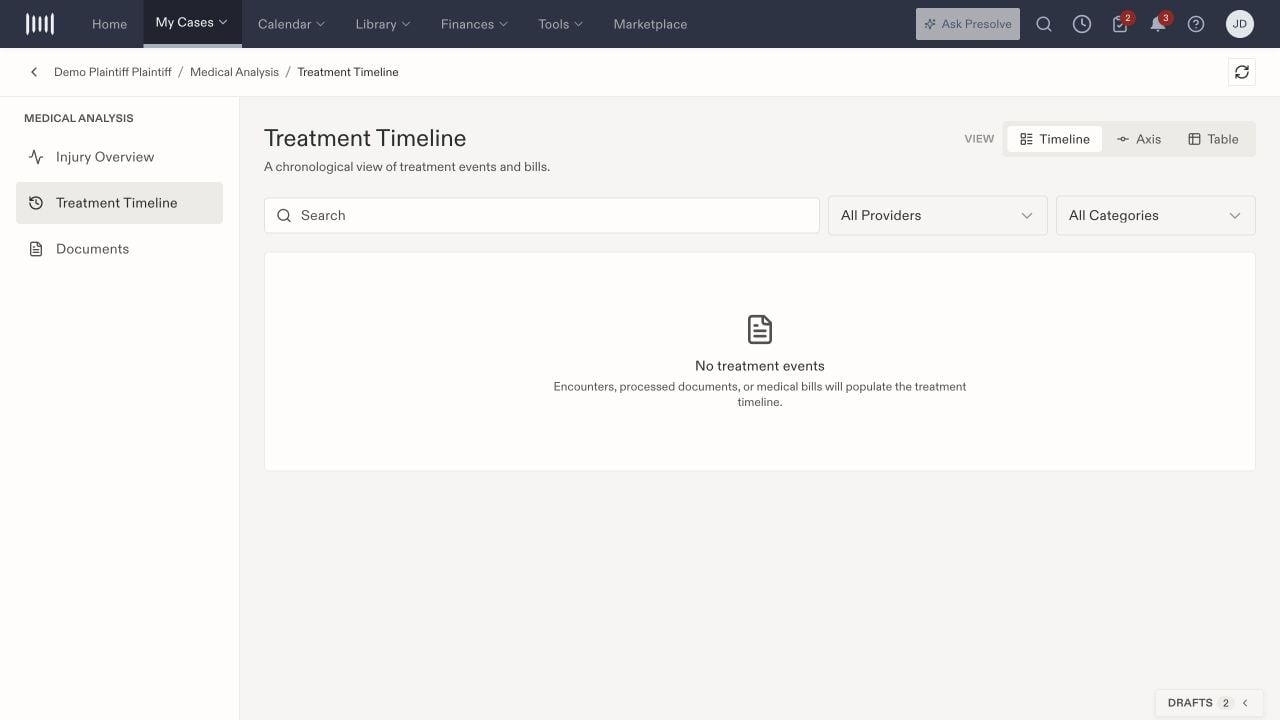 The screen describes encounters, processed documents, and medical bills as sources for the timeline. If it is empty, clear restrictive filters and check that the intended case has source records. The view being available does not establish that processing has completed for every file.
## Review documents and flags
Select **Documents** to use type, provider, and search filters. **Flagged Only** narrows the list to flagged records; clear it when reviewing the broader set. Compare document, billed, and flag totals with the selected view rather than assuming they describe all material ever received.
Review source documents when checking a date, amount, provider, or treatment description. Keep the distinction between information recorded in a file and any generated summary of it.
## Refresh and follow up
Use **Refresh medical analysis** after checking the relevant case records. If expected information is still missing, record which file or event you expected and where you looked, then ask the responsible staff member to review it. Repeatedly refreshing is not a substitute for confirming the source document is present.
For task-specific analysis or chronology preparation, see [AI Tool Chest](/docs/help/ai/tool-chest). For organizing supporting files, see [Library](/docs/help/documents/library).
To prepare sources and work with generated versions, see [Prepare and review a medical chronology](/docs/help/personal-injury/medical-chronology).
The screen describes encounters, processed documents, and medical bills as sources for the timeline. If it is empty, clear restrictive filters and check that the intended case has source records. The view being available does not establish that processing has completed for every file.
## Review documents and flags
Select **Documents** to use type, provider, and search filters. **Flagged Only** narrows the list to flagged records; clear it when reviewing the broader set. Compare document, billed, and flag totals with the selected view rather than assuming they describe all material ever received.
Review source documents when checking a date, amount, provider, or treatment description. Keep the distinction between information recorded in a file and any generated summary of it.
## Refresh and follow up
Use **Refresh medical analysis** after checking the relevant case records. If expected information is still missing, record which file or event you expected and where you looked, then ask the responsible staff member to review it. Repeatedly refreshing is not a substitute for confirming the source document is present.
For task-specific analysis or chronology preparation, see [AI Tool Chest](/docs/help/ai/tool-chest). For organizing supporting files, see [Library](/docs/help/documents/library).
To prepare sources and work with generated versions, see [Prepare and review a medical chronology](/docs/help/personal-injury/medical-chronology).