> ## Documentation Index
> Fetch the complete documentation index at: https://www.presolve.com/docs/llms.txt
> Use this file to discover all available pages before exploring further.
# Organize an O-1A matter
> Review beneficiary information, criterion-based evidence, letters, and packet files.
Open the matter from [My Cases](https://attorney.dearlegal.com/dashboard/cases) and confirm the beneficiary and visa type in **Overview**. An O-1A workspace separates evidence review, letters, recommendations, and packet preparation.
## Choose the right tab
| Tab | Work to review |
| - | - |
| Overview | Beneficiary and employer details, filing summary, case status, and tasks |
| Evidence | Evidence organized by the criterion selected in the left panel |
| Letters | Uploaded or generated cover-letter material and sharing state |
| Recommendations | Recommendations and proposed evidence-gap work |
| Packet | Packet form slots and Download Packet |
| Invoices / Accounting | Billing and financial records |
| Documents / Records / Tasks | Shared case files, activity, and assigned work |
## Review beneficiary and filing information
In Overview, compare the client and employer details with the source information. The filing summary includes current visa, when O-1 is needed, immediate need, petitioner, and petition structure. Use the available Edit controls to correct the intended field and verify the saved value.
The case-status area displays stages from evaluation and evidence gathering through filing, adjudication, approval, and status change. Check the actual available controls; a stage label does not establish that a filing or government decision occurred.
## Work through evidence by criterion
1. Open **Evidence**.
2. Select a criterion from the left panel.
3. Read its summary and inspect the documents and recommendation letters shown for that criterion.
4. Use **Upload Documents** for supporting material belonging in that category.
5. Confirm the uploaded file appears in the intended category before moving on.
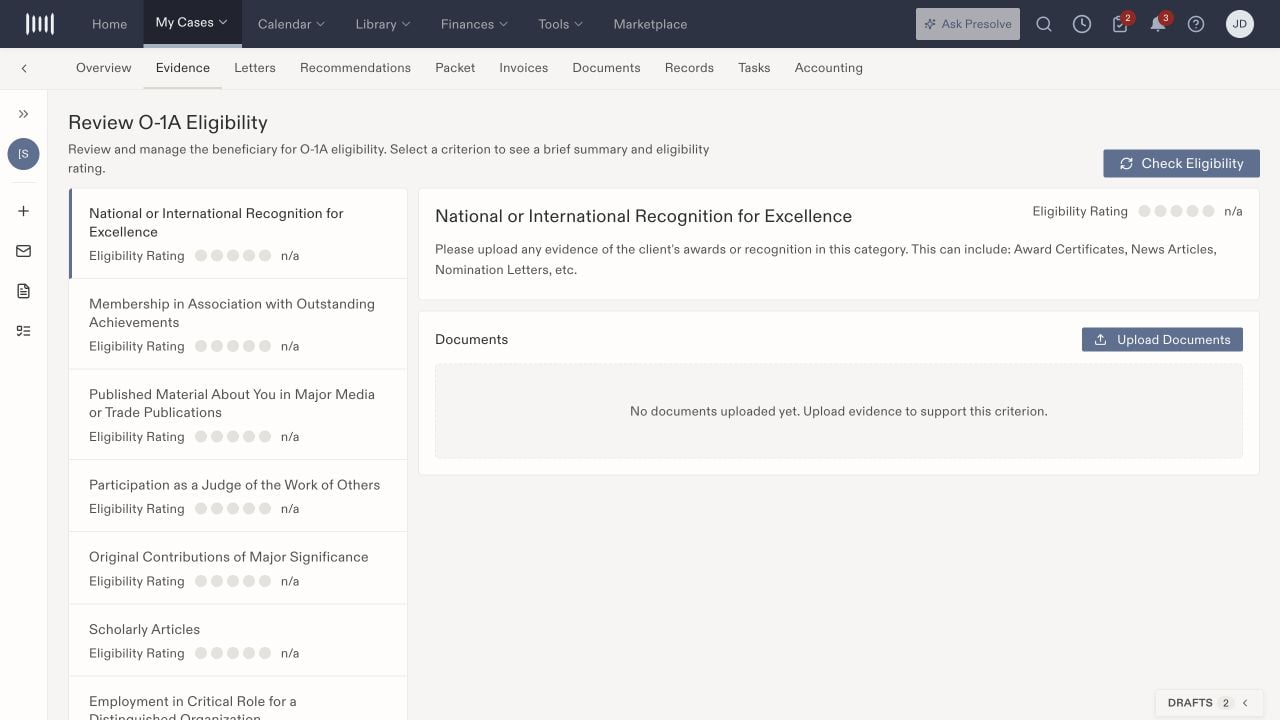 The interface groups evidence under recognition, memberships, published material, judging, original contributions, scholarly articles, critical roles, and remuneration. These labels organize the workspace; the responsible attorney determines which evidence supports the petition.
**Check Eligibility** is a separate action from uploading evidence. An **n/a** rating is not an adverse eligibility decision. Review any generated assessment against its source documents and attorney analysis before using it.
## Review letters and recommendations
Letters offers **Upload Letter** and **Generate Letter** and displays letter/sharing state. A prepared or generated letter is not automatically evidence that it was shared. Check the actual document and sharing state separately.
Recommendations offers **Generate** when no recommendations are present. Translate reviewed recommendations into [assigned tasks](/docs/help/tasks/create-and-track) when someone needs to collect or assess additional material. A recommendation alone does not assign that work.
## Check packet contents
Packet includes **G-28** and **I-129** upload slots and **Download Packet**. Review the files attached to each slot and inspect any downloaded packet before using it. A downloaded packet is not a filed petition, and the presence of these slots is not an exhaustive filing checklist.
Use [Documents](/docs/help/documents/library) and [case notes](/docs/help/records/create-note) to keep the supporting work with the matter.
The interface groups evidence under recognition, memberships, published material, judging, original contributions, scholarly articles, critical roles, and remuneration. These labels organize the workspace; the responsible attorney determines which evidence supports the petition.
**Check Eligibility** is a separate action from uploading evidence. An **n/a** rating is not an adverse eligibility decision. Review any generated assessment against its source documents and attorney analysis before using it.
## Review letters and recommendations
Letters offers **Upload Letter** and **Generate Letter** and displays letter/sharing state. A prepared or generated letter is not automatically evidence that it was shared. Check the actual document and sharing state separately.
Recommendations offers **Generate** when no recommendations are present. Translate reviewed recommendations into [assigned tasks](/docs/help/tasks/create-and-track) when someone needs to collect or assess additional material. A recommendation alone does not assign that work.
## Check packet contents
Packet includes **G-28** and **I-129** upload slots and **Download Packet**. Review the files attached to each slot and inspect any downloaded packet before using it. A downloaded packet is not a filed petition, and the presence of these slots is not an exhaustive filing checklist.
Use [Documents](/docs/help/documents/library) and [case notes](/docs/help/records/create-note) to keep the supporting work with the matter.