> ## Documentation Index
> Fetch the complete documentation index at: https://www.presolve.com/docs/llms.txt
> Use this file to discover all available pages before exploring further.
# Organize a TN matter
> Review filing facts, evidence categories, support letters, and packet preparation.
Open the matter from [My Cases](https://attorney.dearlegal.com/dashboard/cases) and confirm **TN** in Overview. Use the practice tabs for application preparation and the shared Documents, Records, Tasks, and Accounting tabs for related work.
## Review the filing facts
Overview includes client identity and a filing summary with citizenship, profession, employer, job title, salary, and degree information. Review the source material before editing these values. Use the field's Edit control where offered and confirm the saved result.
The **Eligibility Evaluation** area offers **Generate Report**. Generating an assessment and deciding how to proceed with the application are separate steps; review the result and supporting evidence with the responsible attorney.
## Organize Evidence Files
1. Select **Evidence Files**.
2. Choose the relevant category: **Identification**, **Employment**, **Education**, **Resume**, or **Supporting Documents**.
3. Inspect the files already associated with that category.
4. Use **Upload Document** to add the appropriate material.
5. Reopen the category and verify the file appears where intended.
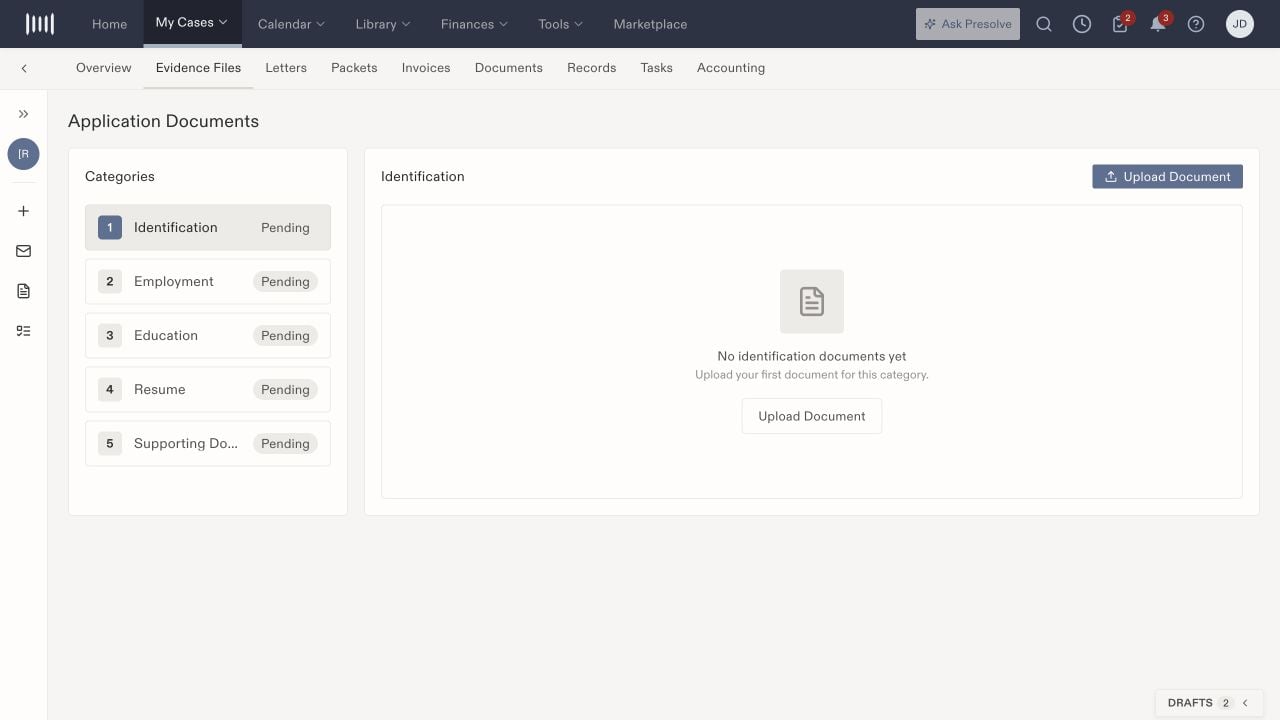 Selecting a category changes the document area. If no category is selected, the page asks you to choose one; that state is different from a selected category with no files.
## Prepare support letters
**Letters** shows support-letter records with source, date, and actions, plus **Upload** and **Generate** controls. Review the intended employer, beneficiary, and supporting facts before using a letter. Check the resulting document rather than assuming a generation action completed successfully.
Keep the reviewed version distinguishable from earlier drafts in your firm's document process.
## Review Packets
The **Packets** tab includes slots labeled **TN Application** and **Supporting Documents**, a required-form count, and **Download Packet**. Missing forms can leave Download Packet disabled.
Check the file assigned to each slot and inspect the actual packet after downloading. The workspace describes including case files; verify the resulting contents and order before relying on that description. Packet preparation does not submit an application.
## Track the remaining work
Use the Overview task controls or [Tasks](/docs/help/tasks/create-and-track) for missing evidence, letter review, and packet checks. Record the owner and due date explicitly. Keep application milestones separate from task completion and document availability.
Related: [O-1A workspace](/docs/help/practices/o1), [case activity](/docs/help/records/review-activity), and [document organization](/docs/help/documents/library).
Selecting a category changes the document area. If no category is selected, the page asks you to choose one; that state is different from a selected category with no files.
## Prepare support letters
**Letters** shows support-letter records with source, date, and actions, plus **Upload** and **Generate** controls. Review the intended employer, beneficiary, and supporting facts before using a letter. Check the resulting document rather than assuming a generation action completed successfully.
Keep the reviewed version distinguishable from earlier drafts in your firm's document process.
## Review Packets
The **Packets** tab includes slots labeled **TN Application** and **Supporting Documents**, a required-form count, and **Download Packet**. Missing forms can leave Download Packet disabled.
Check the file assigned to each slot and inspect the actual packet after downloading. The workspace describes including case files; verify the resulting contents and order before relying on that description. Packet preparation does not submit an application.
## Track the remaining work
Use the Overview task controls or [Tasks](/docs/help/tasks/create-and-track) for missing evidence, letter review, and packet checks. Record the owner and due date explicitly. Keep application milestones separate from task completion and document availability.
Related: [O-1A workspace](/docs/help/practices/o1), [case activity](/docs/help/records/review-activity), and [document organization](/docs/help/documents/library).