> ## Documentation Index
> Fetch the complete documentation index at: https://www.presolve.com/docs/llms.txt
> Use this file to discover all available pages before exploring further.
# Log a case call
> Record who called, when it happened, its outcome, and the follow-up needed.
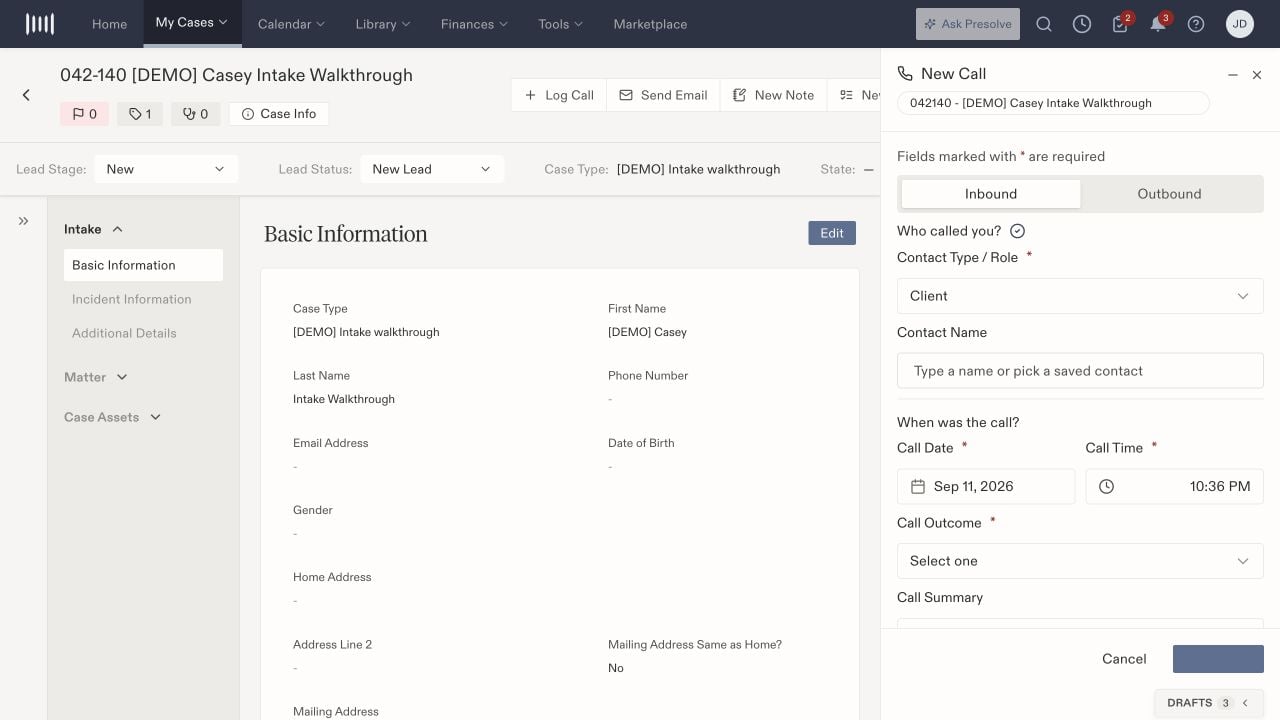
Open the matter from [My Cases](https://attorney.dearlegal.com/dashboard/cases) and select **Log Call**. Confirm the case name and number in the **New Call** drawer. This form records a call; phone-provider connections are managed separately under [Integrations](/docs/help/integrations/communications).
## Place a Teams call from a case
**Log Call** records call information; it does not dial. To place a call, use [Call in browser](/docs/help/records/teams-browser-calling) or [Call in Teams](/docs/help/records/teams-app-calling) beside the calling controls. The Teams-app option also opens a note draft. After the provider call arrives, [link the notes to that call](/docs/help/records/teams-app-calling#link-an-existing-note-to-the-teams-call) when needed.
You can also start from a directory contact or the **New call** phone icon in the top navigation bar. When Teams opens a draft with suggested contact and case details, review and correct them. Choose a case before saving a manual call draft, and use the actual person's role in that case rather than assuming every call is with the client.
For import delays, case matching, and recordings, see [Review Teams calls and recordings](/docs/help/records/teams-call-records).
## Identify the call
1. Choose **Inbound** or **Outbound** to match the call direction.
2. Select **Contact Type / Role**. The choices include directory categories such as Medical Provider, Insurance Company, Referral Partner, Vendor, and Other, as well as people on the matter.
3. Enter or select the **Contact Name**. Check the actual person or organization rather than relying on the category alone.
4. Set **Call Date** and **Call Time** to when the call occurred. Review the defaults before saving a historical call.
5. Choose **Call Outcome** and enter a useful **Call Summary**.
 ## Choose an outcome that describes what happened
The outcome choices include **No Answer/Left Voicemail**, **Call Back Scheduled**, **Information Provided**, **Follow Up Required**, **Escalation Needed**, and **Other**. Use the summary to capture what was discussed, any commitment made, and the next step.
Review **Log as Case Note** if the call should also appear in case notes. Select **Save Call**, choose **No, just log the call → Submit** to finish, or choose a follow-up option and select **Next**. Complete the resulting task or scheduling draft if you chose one. Then inspect the saved call under the matter's Records area. Confirm its direction, party, date, outcome, and summary.
If follow-up needs an owner or deadline, review the resulting tasks and create a [task or event](/docs/help/tasks/create-and-track) as needed. An outcome label alone should not be treated as confirmation that follow-up was assigned or a call was placed.
Use **Cancel** to leave without saving; if Presolve asks to discard the draft, confirm only when that draft is no longer needed.
## Choose an outcome that describes what happened
The outcome choices include **No Answer/Left Voicemail**, **Call Back Scheduled**, **Information Provided**, **Follow Up Required**, **Escalation Needed**, and **Other**. Use the summary to capture what was discussed, any commitment made, and the next step.
Review **Log as Case Note** if the call should also appear in case notes. Select **Save Call**, choose **No, just log the call → Submit** to finish, or choose a follow-up option and select **Next**. Complete the resulting task or scheduling draft if you chose one. Then inspect the saved call under the matter's Records area. Confirm its direction, party, date, outcome, and summary.
If follow-up needs an owner or deadline, review the resulting tasks and create a [task or event](/docs/help/tasks/create-and-track) as needed. An outcome label alone should not be treated as confirmation that follow-up was assigned or a call was placed.
Use **Cancel** to leave without saving; if Presolve asks to discard the draft, confirm only when that draft is no longer needed.