> ## Documentation Index
> Fetch the complete documentation index at: https://www.presolve.com/docs/llms.txt
> Use this file to discover all available pages before exploring further.
# Save an internal case note
> Record a clear note and distinguish saving from emailing copied team members.
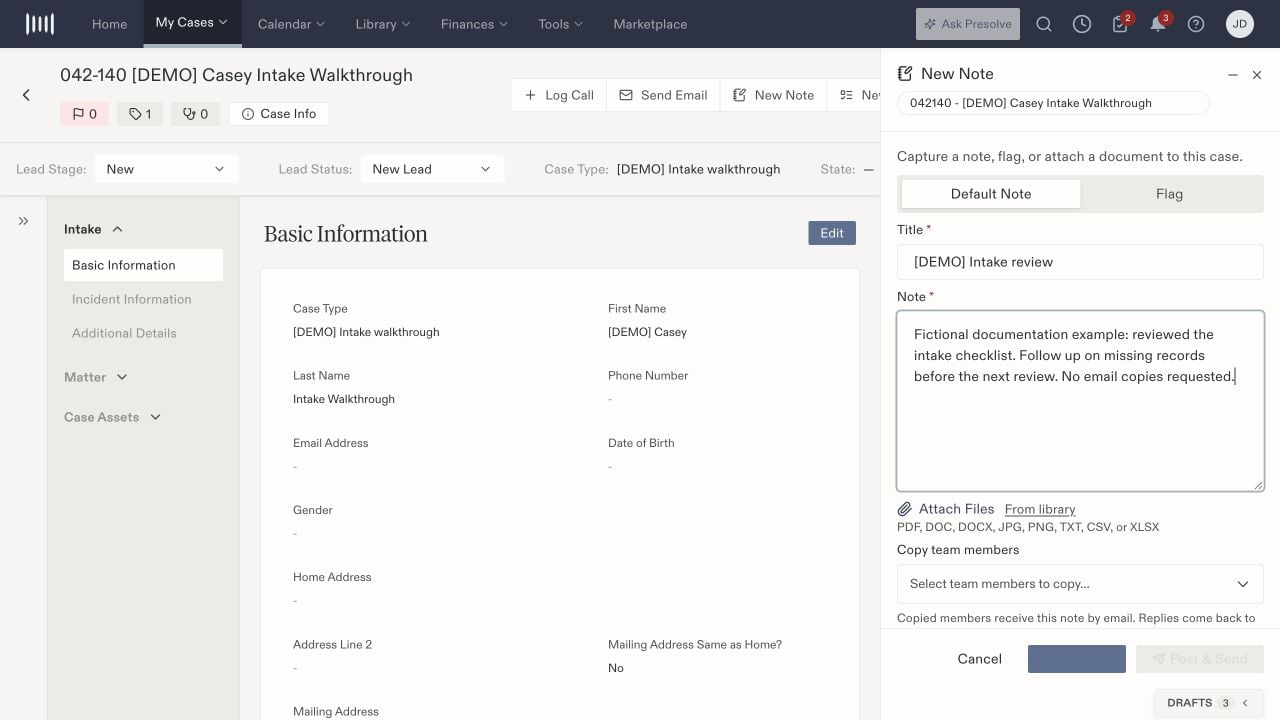
Open the matter and select **Records → Add Note**, or use **New Note** in its header. Confirm the case name and number shown in the drawer before entering information.
## Write the note
1. Leave **Default Note** selected for an ordinary note. The drawer also offers **Flag** as a separate choice.
2. Enter the required **Title**. Use a specific description such as “Intake review.”
3. Enter the required **Note** text. Distinguish what you reviewed, what happened, and what still needs follow-up.
4. Review any attachments and copied team members.
5. For an internal note without email copies, leave **Copy team members** empty and select **Save Note**.
6. Reopen **Records → Notes** and verify the title and contents after saving.
 ## Review attachment options
The drawer offers **Attach Files** and **From library**. Its listed file types are PDF, DOC, DOCX, JPG, PNG, TXT, CSV, and XLSX. Choose supporting material appropriate to the note and verify the selected file before saving.
After attaching a file, reopen the saved record and confirm the intended attachment is present.
## Understand the sending controls
The drawer explains that copied team members receive the note by email and that replies come back to you. It offers **Save Note** and **Post & Send** as separate controls.
Before using Post & Send, verify the copied members and the content they should receive. For an internal note without email copies, leave copied members empty, use Save Note, and verify the saved entry in Notes.
## Confirm the result
Reload or reopen the case, select Notes, and find the saved title. Check the author, contents, and direction as well as the title. Confirm that the note appears after reloading before creating another copy.
If the note is missing, inspect the selected record type and filters before creating it again. If the work described by the note needs an owner or due date, create a [task](/docs/help/tasks/create-and-track) as well; a written follow-up instruction is not an assigned task.
## Review attachment options
The drawer offers **Attach Files** and **From library**. Its listed file types are PDF, DOC, DOCX, JPG, PNG, TXT, CSV, and XLSX. Choose supporting material appropriate to the note and verify the selected file before saving.
After attaching a file, reopen the saved record and confirm the intended attachment is present.
## Understand the sending controls
The drawer explains that copied team members receive the note by email and that replies come back to you. It offers **Save Note** and **Post & Send** as separate controls.
Before using Post & Send, verify the copied members and the content they should receive. For an internal note without email copies, leave copied members empty, use Save Note, and verify the saved entry in Notes.
## Confirm the result
Reload or reopen the case, select Notes, and find the saved title. Check the author, contents, and direction as well as the title. Confirm that the note appears after reloading before creating another copy.
If the note is missing, inspect the selected record type and filters before creating it again. If the work described by the note needs an owner or due date, create a [task](/docs/help/tasks/create-and-track) as well; a written follow-up instruction is not an assigned task.