> ## Documentation Index
> Fetch the complete documentation index at: https://www.presolve.com/docs/llms.txt
> Use this file to discover all available pages before exploring further.
# Compose an email from a case
> Review the sending mailbox, recipients, template values, and attachments before sending.
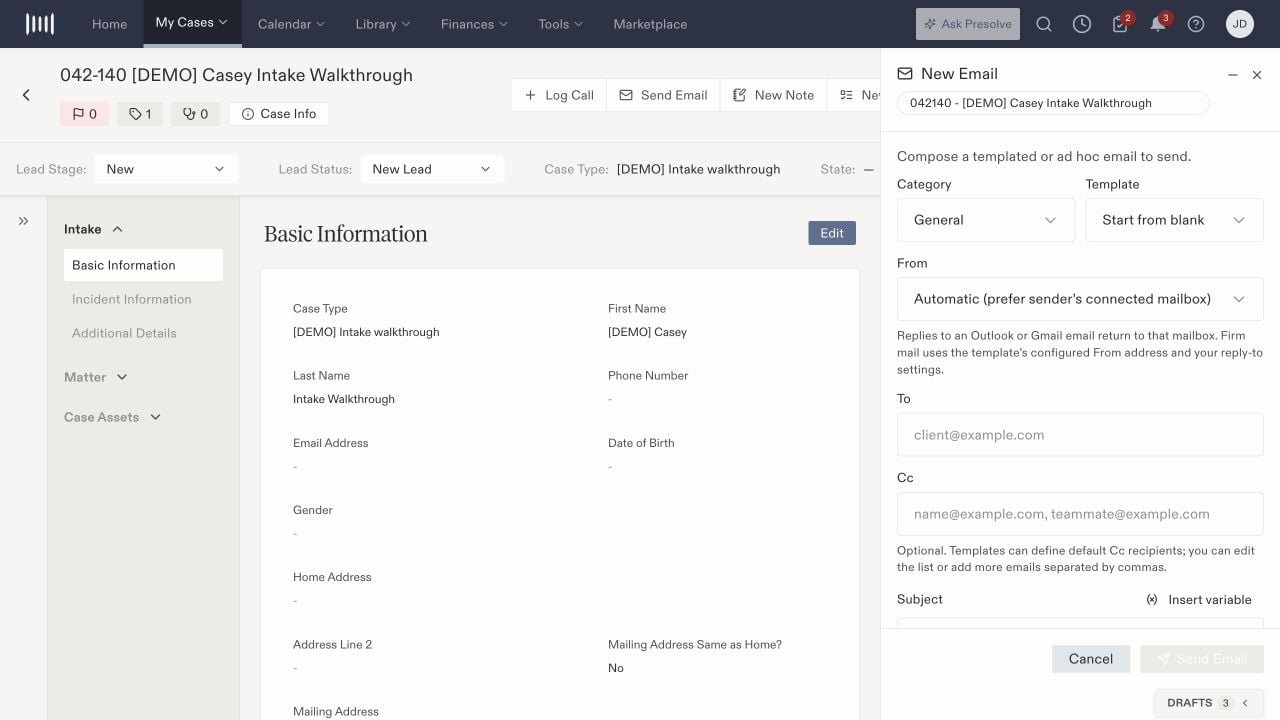
Open the matter and select **Send Email**. Check the case name and number in the **New Email** drawer. You can start from a template or write an ad hoc message.
## Prepare the message
1. Choose the **Category**, then select a **Template** or leave **Start from blank** selected.
2. Review **From**. Automatic delivery prefers the sender's connected mailbox. Replies to Outlook or Gmail messages return to that mailbox; firm mail uses the configured From address and reply-to settings.
3. Check **To** and **Cc**. Templates can prefill Cc, and additional addresses can be separated by commas.
4. Enter the **Subject** and **Body**. Use **Insert variable** for available case values.
5. Use **Attach files** for supporting documents. The composer lists limits of 10 documents, 10 MB per file, and 20 MB total.
6. Select **Preview** and inspect the message before sending.
 ## Check the populated message
Confirm that the client's name, dates, amounts, and other variables match the intended case. Replace missing values before sending. Review every attachment and the entire Cc list, including addresses supplied by a template.
Select **Send Email** when the message is ready for those recipients. Wait for the result and inspect the case's email history. If sending reports a problem, check the history and mailbox state before retrying to avoid sending a duplicate. A saved draft or selected template does not establish delivery.
## Return to an unfinished email
The drawer offers **Minimize drawer** for returning to other case work. Use the **Drafts** tray to locate unfinished items and check their associated case before continuing. **Cancel** can prompt to discard the draft; confirm only if you do not need it.
Administrators maintain reusable content in [Email Templates](/docs/help/admin/email-templates). For connection setup, see [email integrations](/docs/help/integrations/email). For an internal record without a client message, [save a case note](/docs/help/records/create-note).
## Check the populated message
Confirm that the client's name, dates, amounts, and other variables match the intended case. Replace missing values before sending. Review every attachment and the entire Cc list, including addresses supplied by a template.
Select **Send Email** when the message is ready for those recipients. Wait for the result and inspect the case's email history. If sending reports a problem, check the history and mailbox state before retrying to avoid sending a duplicate. A saved draft or selected template does not establish delivery.
## Return to an unfinished email
The drawer offers **Minimize drawer** for returning to other case work. Use the **Drafts** tray to locate unfinished items and check their associated case before continuing. **Cancel** can prompt to discard the draft; confirm only if you do not need it.
Administrators maintain reusable content in [Email Templates](/docs/help/admin/email-templates). For connection setup, see [email integrations](/docs/help/integrations/email). For an internal record without a client message, [save a case note](/docs/help/records/create-note).