> ## Documentation Index
> Fetch the complete documentation index at: https://www.presolve.com/docs/llms.txt
> Use this file to discover all available pages before exploring further.
# Review a matter's activity records
> Find email, call logs, and notes using record types, search, and categories.
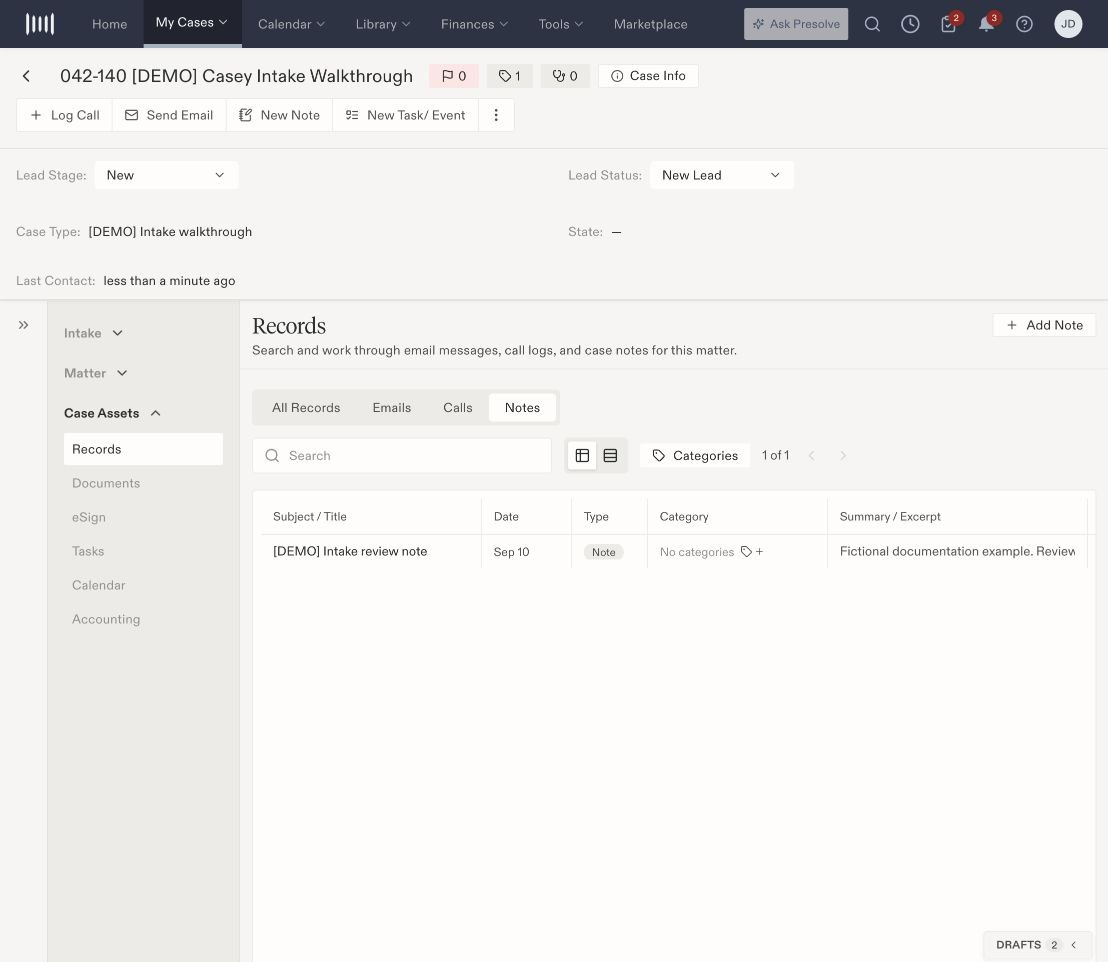
Open a case from [My Cases](https://attorney.dearlegal.com/dashboard/cases), confirm its identity, and select **Records**. In layouts with grouped navigation, expand **Case Assets → Records**.
## Choose the activity type
The workspace includes **All Records**, **Emails**, **Calls**, and **Notes**. Start with All Records when you are unsure which type you need, then narrow the view. Text availability depends on your firm's communication configuration.
 ## Search and compare entries
Use the search field and **Categories** filter. Switch between **Table view** and **Expanded view** to change how you review the results.
| Table column | What to inspect |
| - | - |
| Subject / Title | The record's identifying text |
| Date | When the displayed record is dated |
| Type | Whether the entry is a note, call, email, or other available type |
| Category | The labels applied to that activity |
| Summary / Excerpt | A preview of its contents |
| From / By | The sender or recorded author |
| Participants | People associated with the entry |
| Direction | The recorded direction; the example note is Internal |
A preview can be shorter than the full entry. Inspect the record's contents before using it to establish what was said or done. An internal note and an outgoing message are different types of activity.
## Start related work
All Records offers **Add Note**, **Log Call**, **Compose Email**, **Sync**, and **Settings** in this layout. A narrower type view can show fewer actions.
* Use [Add Note](/docs/help/records/create-note) to record information on the case.
* Use [Log Call](/docs/help/records/calls) to record call information. To dial, choose [Call in browser](/docs/help/records/teams-browser-calling) or [Call in Teams](/docs/help/records/teams-app-calling). Review the actual result before recording an outcome.
* Use Compose Email to prepare a message, then review the sending account, recipient, content, and attachments before sending.
* Sync is labeled as checking for new messages. Inspect the resulting records rather than treating the button click as proof of delivery.
## When activity seems missing
Check the case, selected type, search text, and category filters first. Allow the list to finish loading. If a provider-supplied record is still missing, check the relevant [communication integration](/docs/help/integrations/communications) with the integration owner.
Activity categories, [case tags](/docs/help/matters/tags), and [document tags](/docs/help/documents/tags) label different objects. Applying one does not establish that the other labels changed.
For new communication records, see [log a call](/docs/help/records/calls) and [compose a case email](/docs/help/records/email).
For Teams call imports, ambiguous case matches, and recording status, see [Review Teams calls and recordings](/docs/help/records/teams-call-records).
## Search and compare entries
Use the search field and **Categories** filter. Switch between **Table view** and **Expanded view** to change how you review the results.
| Table column | What to inspect |
| - | - |
| Subject / Title | The record's identifying text |
| Date | When the displayed record is dated |
| Type | Whether the entry is a note, call, email, or other available type |
| Category | The labels applied to that activity |
| Summary / Excerpt | A preview of its contents |
| From / By | The sender or recorded author |
| Participants | People associated with the entry |
| Direction | The recorded direction; the example note is Internal |
A preview can be shorter than the full entry. Inspect the record's contents before using it to establish what was said or done. An internal note and an outgoing message are different types of activity.
## Start related work
All Records offers **Add Note**, **Log Call**, **Compose Email**, **Sync**, and **Settings** in this layout. A narrower type view can show fewer actions.
* Use [Add Note](/docs/help/records/create-note) to record information on the case.
* Use [Log Call](/docs/help/records/calls) to record call information. To dial, choose [Call in browser](/docs/help/records/teams-browser-calling) or [Call in Teams](/docs/help/records/teams-app-calling). Review the actual result before recording an outcome.
* Use Compose Email to prepare a message, then review the sending account, recipient, content, and attachments before sending.
* Sync is labeled as checking for new messages. Inspect the resulting records rather than treating the button click as proof of delivery.
## When activity seems missing
Check the case, selected type, search text, and category filters first. Allow the list to finish loading. If a provider-supplied record is still missing, check the relevant [communication integration](/docs/help/integrations/communications) with the integration owner.
Activity categories, [case tags](/docs/help/matters/tags), and [document tags](/docs/help/documents/tags) label different objects. Applying one does not establish that the other labels changed.
For new communication records, see [log a call](/docs/help/records/calls) and [compose a case email](/docs/help/records/email).
For Teams call imports, ambiguous case matches, and recording status, see [Review Teams calls and recordings](/docs/help/records/teams-call-records).