> ## Documentation Index
> Fetch the complete documentation index at: https://www.presolve.com/docs/llms.txt
> Use this file to discover all available pages before exploring further.
# Call through the Microsoft Teams app
> Launch Teams from a case, contact, or dialer, save notes in Presolve, and link them to the imported call.
Use **Call in Teams** to speak through the Microsoft Teams app using your existing work account and number. Presolve opens a call-note draft so you can record the conversation. The completed call is imported separately when Microsoft makes it available.
For calls entirely inside Presolve, use [Call in browser](/docs/help/records/teams-browser-calling).
## Before calling
Sign into Teams with the work account whose number you intend to use. Your firm must have assigned that account the appropriate Teams Phone service and calling permissions. To import calls into Presolve, complete [Track my Teams calls](/docs/help/integrations/microsoft-teams-phone) or have the integration manager verify that your line is already tracked.
Browser-calling availability is not required to speak in the separate Teams app. The screenshots below use a demonstration workspace with fictional data; Microsoft's screens vary by browser and Teams version.
## Place the call and save your notes
Open the case, confirm its name and number, and check the contact's phone number. Find **Call in Teams** beside the other calling controls in the case header or **Records**.
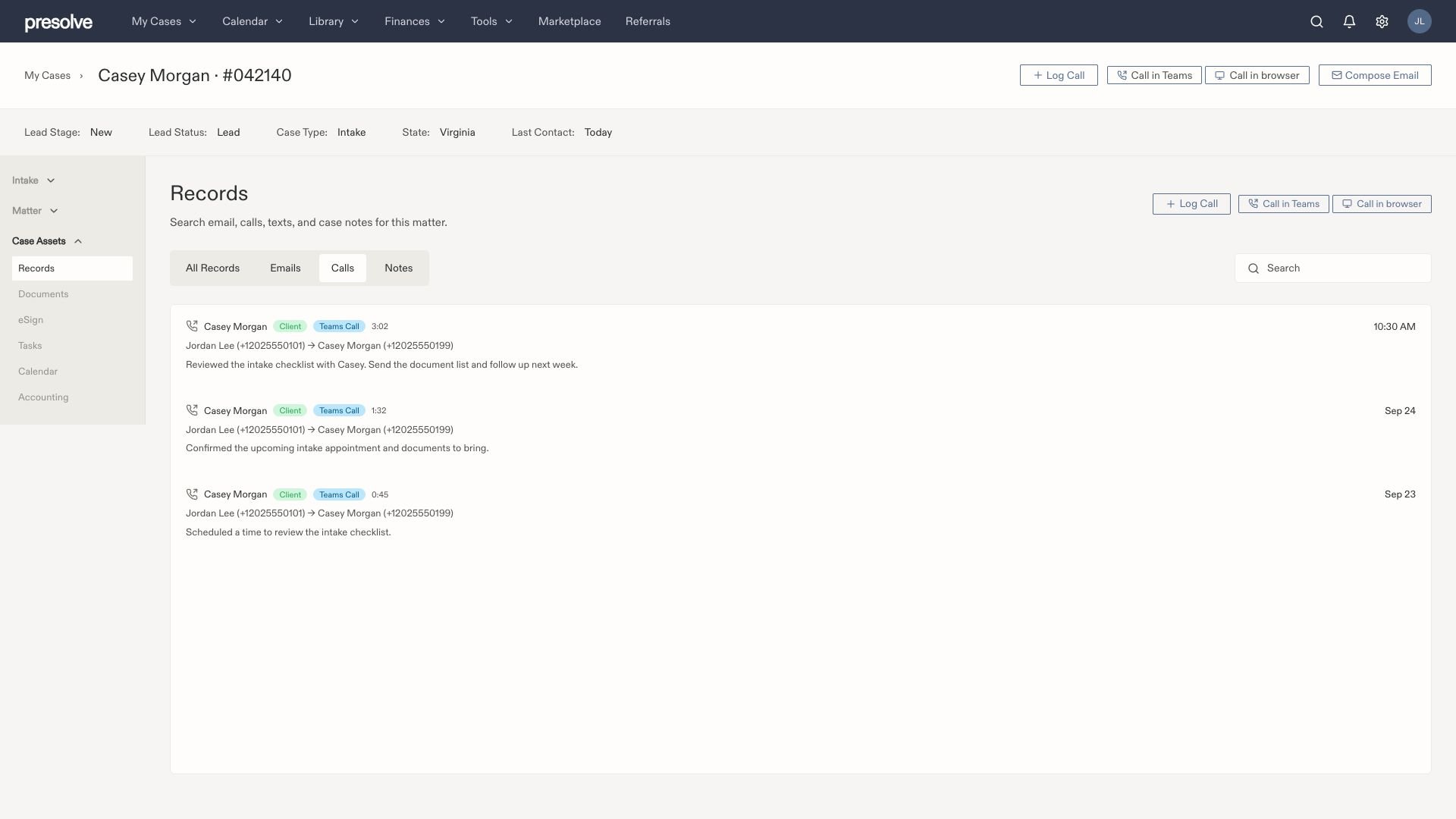 Select **Call in Teams**. Allow the browser to open Microsoft Teams if prompted. Follow Teams' calling prompt and confirm the destination before placing the call. The handoff screen depends on your browser and Teams installation.
Use Teams for microphone, speaker, mute, and hang-up controls. If it opens with the wrong Microsoft account, switch to the intended work account before calling. If the call fails, record the actual result rather than marking it successful.
Return to the Presolve tab. Review the selected case, outbound direction, contact, role, date, and time. You can correct the suggested details. Choose **Call Outcome** and enter **Call Summary**. The draft starts when you launch Teams, so correct the time if you place the call later.
Check **Log as Case Note** if you also want the information in case notes, then select **Save Call**.
Select **Call in Teams**. Allow the browser to open Microsoft Teams if prompted. Follow Teams' calling prompt and confirm the destination before placing the call. The handoff screen depends on your browser and Teams installation.
Use Teams for microphone, speaker, mute, and hang-up controls. If it opens with the wrong Microsoft account, switch to the intended work account before calling. If the call fails, record the actual result rather than marking it successful.
Return to the Presolve tab. Review the selected case, outbound direction, contact, role, date, and time. You can correct the suggested details. Choose **Call Outcome** and enter **Call Summary**. The draft starts when you launch Teams, so correct the time if you place the call later.
Check **Log as Case Note** if you also want the information in case notes, then select **Save Call**.
 Choose **No, just log the call → Submit** to finish. If you need follow-up, choose **Schedule a Call** or **Create Follow-Up Task**, select **Next**, and complete the resulting scheduling or task draft.
 Open **Records → Calls** on the same case. Confirm the direction, contact, time, outcome, and notes. Saving the draft records your notes; it does not confirm that Microsoft has reported the completed call.
For the draft's fields, see [Log a case call](/docs/help/records/calls).
## Call a directory contact or another number
From **Library → Contacts**, use **Call in Teams** beside the contact's phone number. Check the destination in Teams, then choose the correct case and role in the Presolve call-note draft.
To choose another destination from the dialer:
1. Select the phone icon labeled **New call** in the top navigation bar, or open the calling panel from a case.
2. Under **Caller, case and role**, search **Find a contact**, choose a case contact, or enter a US **Phone number**.
3. Review **Case (optional)**, **Caller / person being called**, and **Role in this case**. Correct any suggestion before continuing.
4. Select **Call in Teams**. The selected details carry into the Presolve call-note draft and remain editable there.
5. Complete the call in Teams, then finish the draft using the steps above.
The dialer can hand off a call without a selected case, but you must choose a case before saving the manual **New Call** draft. These controls depend on your firm's enabled features and your access.
For example, you can call a medical provider about a client's case. Select the provider as the person being called and use their role in that case; do not leave **Client** merely because you started from the client's case. Edits to the call draft do not change the contact's directory entry.
## How the Teams call becomes a case record
After the call, Microsoft supplies its details and Presolve checks whether the line is tracked in the organization. Presolve matches the other party's number to a case or places the call in **Calls needing review** when there is no single clear match.
Matches can include clients and other case contacts, such as adjusters or providers. A shared office number or a contact involved in several cases may require review. See [how calls match to cases](/docs/help/records/teams-call-records#how-calls-match-to-cases).
Calls launched from a case carry context that can help associate your draft with the imported Teams call. Linking still depends on identifying the corresponding call. Opening a draft does not mean the provider's call or recording is already attached.
Microsoft notifications and scheduled syncs bring in reported calls. They may arrive later, sometimes after a few hours. For a missing entry, follow [IT/support: missing calls and failed syncs](/docs/help/integrations/teams-phone-troubleshooting#missing-calls-and-failed-syncs).
## Link an existing note to the Teams call
If notes and an imported call remain separate, first ensure both belong to the same case.
1. Open the saved manual call entry in **Records → Calls**.
2. Under **Call Notes**, find **Link these notes to a Teams call**.
3. Choose the matching entry by date/time, direction, contact, and duration. Do not select an unrelated call merely because it has the same number.
4. Select **Link Teams call**.
5. Confirm **Linked to the Teams call. Notes remain editable here.**
Open **Records → Calls** on the same case. Confirm the direction, contact, time, outcome, and notes. Saving the draft records your notes; it does not confirm that Microsoft has reported the completed call.
For the draft's fields, see [Log a case call](/docs/help/records/calls).
## Call a directory contact or another number
From **Library → Contacts**, use **Call in Teams** beside the contact's phone number. Check the destination in Teams, then choose the correct case and role in the Presolve call-note draft.
To choose another destination from the dialer:
1. Select the phone icon labeled **New call** in the top navigation bar, or open the calling panel from a case.
2. Under **Caller, case and role**, search **Find a contact**, choose a case contact, or enter a US **Phone number**.
3. Review **Case (optional)**, **Caller / person being called**, and **Role in this case**. Correct any suggestion before continuing.
4. Select **Call in Teams**. The selected details carry into the Presolve call-note draft and remain editable there.
5. Complete the call in Teams, then finish the draft using the steps above.
The dialer can hand off a call without a selected case, but you must choose a case before saving the manual **New Call** draft. These controls depend on your firm's enabled features and your access.
For example, you can call a medical provider about a client's case. Select the provider as the person being called and use their role in that case; do not leave **Client** merely because you started from the client's case. Edits to the call draft do not change the contact's directory entry.
## How the Teams call becomes a case record
After the call, Microsoft supplies its details and Presolve checks whether the line is tracked in the organization. Presolve matches the other party's number to a case or places the call in **Calls needing review** when there is no single clear match.
Matches can include clients and other case contacts, such as adjusters or providers. A shared office number or a contact involved in several cases may require review. See [how calls match to cases](/docs/help/records/teams-call-records#how-calls-match-to-cases).
Calls launched from a case carry context that can help associate your draft with the imported Teams call. Linking still depends on identifying the corresponding call. Opening a draft does not mean the provider's call or recording is already attached.
Microsoft notifications and scheduled syncs bring in reported calls. They may arrive later, sometimes after a few hours. For a missing entry, follow [IT/support: missing calls and failed syncs](/docs/help/integrations/teams-phone-troubleshooting#missing-calls-and-failed-syncs).
## Link an existing note to the Teams call
If notes and an imported call remain separate, first ensure both belong to the same case.
1. Open the saved manual call entry in **Records → Calls**.
2. Under **Call Notes**, find **Link these notes to a Teams call**.
3. Choose the matching entry by date/time, direction, contact, and duration. Do not select an unrelated call merely because it has the same number.
4. Select **Link Teams call**.
5. Confirm **Linked to the Teams call. Notes remain editable here.**
 The control appears when you can edit the note and eligible Teams calls exist on the case. If it is absent, the call may not have arrived or may still need a case match. Ask the integration manager to check **Calls needing review** before creating another entry.
## Record a call in Teams
If your firm's policies allow recording, use Teams' **More actions → Record and transcribe → Start recording** during the call. Teams notifies participants. Stop the recording when finished and confirm it is available in Teams. Follow your firm's recording procedures. Microsoft's [call recording instructions](https://support.microsoft.com/en-us/teams/calling/record-and-transcribe-calls-in-microsoft-teams) explain the controls and policy requirements.
Presolve can import a recording only after one exists and is accessible through the configured source. The call record can arrive while its recording is processing. See [Find a recording or transcript](/docs/help/records/teams-call-records#find-a-recording-or-transcript).
## Need help?
For a missing call or separate notes, see [IT/support: missing calls and failed syncs](/docs/help/integrations/teams-phone-troubleshooting#missing-calls-and-failed-syncs). For a Teams recording that has not appeared, see [missing recordings and transcripts](/docs/help/integrations/teams-phone-troubleshooting#missing-recordings-and-transcripts).
The control appears when you can edit the note and eligible Teams calls exist on the case. If it is absent, the call may not have arrived or may still need a case match. Ask the integration manager to check **Calls needing review** before creating another entry.
## Record a call in Teams
If your firm's policies allow recording, use Teams' **More actions → Record and transcribe → Start recording** during the call. Teams notifies participants. Stop the recording when finished and confirm it is available in Teams. Follow your firm's recording procedures. Microsoft's [call recording instructions](https://support.microsoft.com/en-us/teams/calling/record-and-transcribe-calls-in-microsoft-teams) explain the controls and policy requirements.
Presolve can import a recording only after one exists and is accessible through the configured source. The call record can arrive while its recording is processing. See [Find a recording or transcript](/docs/help/records/teams-call-records#find-a-recording-or-transcript).
## Need help?
For a missing call or separate notes, see [IT/support: missing calls and failed syncs](/docs/help/integrations/teams-phone-troubleshooting#missing-calls-and-failed-syncs). For a Teams recording that has not appeared, see [missing recordings and transcripts](/docs/help/integrations/teams-phone-troubleshooting#missing-recordings-and-transcripts).