> ## Documentation Index
> Fetch the complete documentation index at: https://www.presolve.com/docs/llms.txt
> Use this file to discover all available pages before exploring further.
# Call from your browser
> Call a case contact or another number, answer incoming calls, and correct the caller, case, and role.
**Call in browser** lets you talk from Presolve using your connected Microsoft work account and Teams number. The separate **Call in Teams** button opens the Microsoft Teams app instead.
Complete [your Teams account setup](/docs/help/integrations/microsoft-teams-phone) before starting. Screenshots use fictional demonstration accounts and numbers.
## Start from the correct case
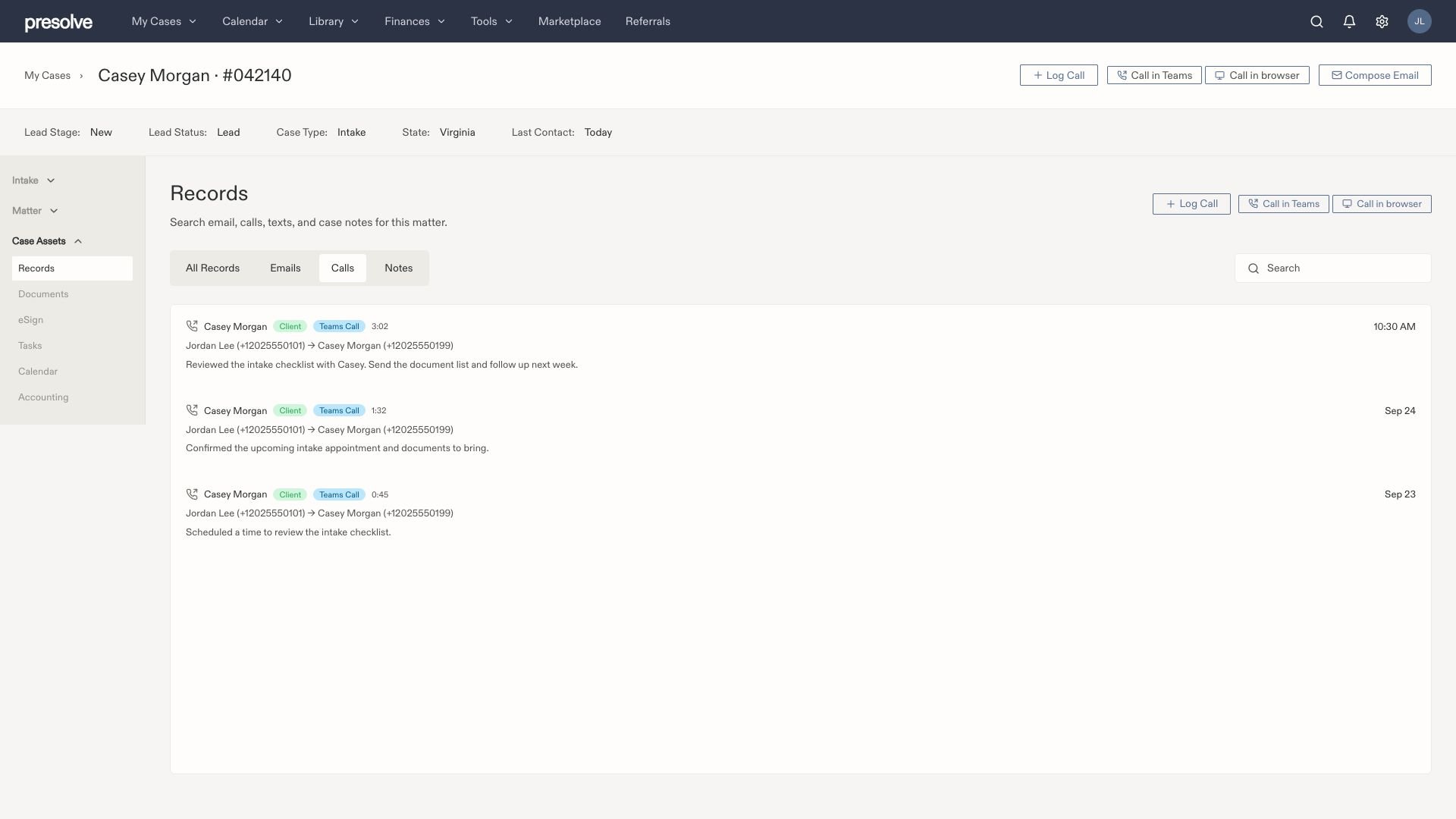
Confirm the client's name and case number. Find the calling buttons beside **Log Call** in the case header or in **Records**. The destination initially comes from the selected case or contact. In the calling panel, you can choose another contact or enter a different number before dialing.
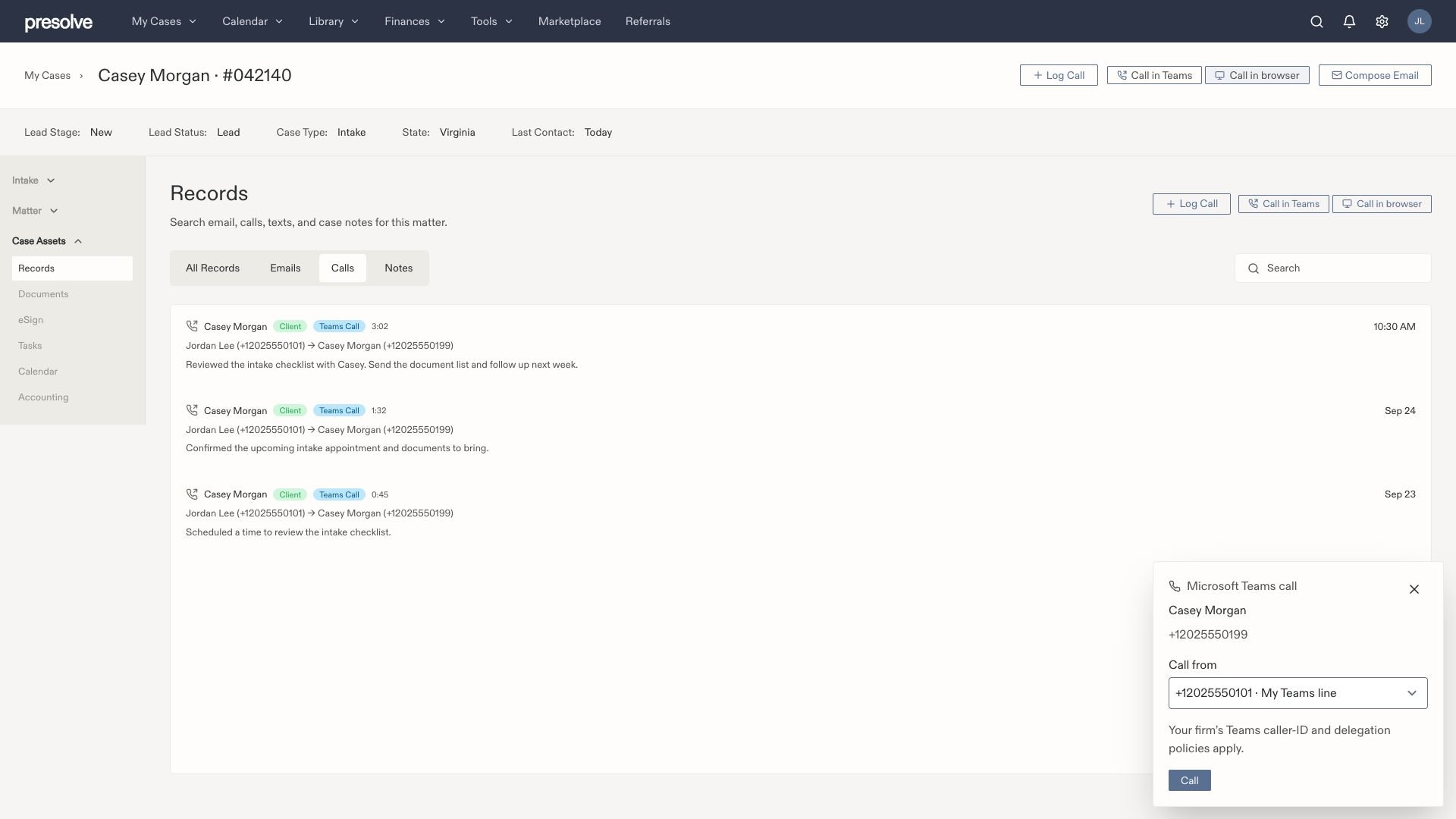
 The calling panel opens at the bottom right. Check the person's name and destination number. Opening the panel does not place the call.
In **Call from**, select the appropriate Teams line. Your firm's Microsoft calling, caller-ID, and delegation policies apply. Tracking a shared number in Presolve does not by itself give you permission to call from it.
Select **Call**. Allow microphone access if prompted. Wait for calling to initialize and the call state to change; do not repeatedly select Call while it is starting.
The calling panel opens at the bottom right. Check the person's name and destination number. Opening the panel does not place the call.
In **Call from**, select the appropriate Teams line. Your firm's Microsoft calling, caller-ID, and delegation policies apply. Tracking a shared number in Presolve does not by itself give you permission to call from it.
Select **Call**. Allow microphone access if prompted. Wait for calling to initialize and the call state to change; do not repeatedly select Call while it is starting.
 ## Call a contact or another number
You do not have to start from the client's number or even from a case.
Select the phone icon labeled **New call** in the top navigation bar. From **Library → Contacts**, you can instead use the browser-calling button beside a contact's phone number. If a case has no client number, its **Call** control lets you choose a destination.
Expand **Caller, case and role** if needed. Enter a US phone number in **Phone number**, or use **Find a contact** and select a search result. When a case is selected, you can also choose from **Case contacts / matching callers**. Confirm the displayed number before dialing.
Choose **Case (optional)** if the conversation belongs to a case. Review **Caller / person being called** and **Role in this case**. A clear match may fill these in for you, but every suggestion is editable. If several cases match, select the one this conversation concerns.
Select your **Call from** line and start the browser call with **Call**. To speak in the separate Teams app instead, select **Call in Teams** and follow the [Teams-app tutorial](/docs/help/records/teams-app-calling#call-a-directory-contact-or-another-number).
Calling controls depend on your firm's enabled features and your access. If a control is missing, see [IT/support](/docs/help/integrations/teams-phone-troubleshooting#browser-call-will-not-start).
## Choose who you are calling
Open **Caller, case and role** to review or correct the call's details:
| Field | What to check |
| - | - |
| **Phone number** | The destination. You can change it before an outgoing call starts. An incoming or started call keeps its actual number. |
| **Case (optional)** | The case this conversation concerns. Choose another case or use **Remove case** if it is unrelated to the suggested case. |
| **Caller / person being called** | The actual person or organization on the other end. Select a contact or type a name. |
| **Role in this case** | Their relationship to this case, such as Client, Insurance Adjuster, Medical Provider, Opposing Counsel, or Witness. You can type another role. |
For example, when calling an adjuster about Casey Morgan's case, keep Casey's case selected, choose the adjuster's contact and phone number, and check that the role describes the adjuster. A call about a client does not make the other person the client. Leave **Unknown** when you cannot identify them.
Suggestions use known contacts and case relationships when the match is clear. Shared phone numbers may identify several people or cases, so check both separately. See [how calls match to cases](/docs/help/records/teams-call-records#how-calls-match-to-cases).
You can correct the case, name, and role during or after a browser call. Select **Save call notes** to save those changes with your notes and outcome. Saved corrections apply to this call only: they do not edit the contact directory or the person's relationship to other cases, and later Teams imports preserve them.
You can change or remove the case only before a recording, transcript, case note, or follow-up task is linked, and while no recording or transcription work is running. Once those items are linked, the case is locked; they are not moved to another case. Caller names, roles, and call notes remain editable. If a case change is blocked, restore the original case to save your other edits, and [contact support](/docs/help/integrations/teams-phone-troubleshooting#correcting-call-details) if the case is wrong.
## Use the calling controls
When the panel shows **Connected**, speak through your selected audio devices.
Drag the **grip dots** at the top of the panel to keep it clear of emails, case notes, or other work. Moving the panel keeps the call and any unsaved call notes open. The panel stays within the screen and above minimized draft bars; use **Reset position** to return it to the bottom right. With the move handle focused, you can also use the arrow keys to reposition it.
| Control | What it does |
| - | - |
| **Mute / Unmute** | Turns your microphone off or on for the call. |
| **Hang up** | Ends the call. |
| **Keypad** | Sends digits to an automated menu or extension prompt during the call. |
| **Audio devices** | Opens the microphone and speaker choices available to the browser. |
| **Outcome** | Records the result of the conversation or attempt. |
| **Call notes** | Captures what happened and the next action. |
| **Save call notes** | Saves the notes, outcome, and edited caller, case, and role. The button shows **Saved** after a successful save. |
## Call a contact or another number
You do not have to start from the client's number or even from a case.
Select the phone icon labeled **New call** in the top navigation bar. From **Library → Contacts**, you can instead use the browser-calling button beside a contact's phone number. If a case has no client number, its **Call** control lets you choose a destination.
Expand **Caller, case and role** if needed. Enter a US phone number in **Phone number**, or use **Find a contact** and select a search result. When a case is selected, you can also choose from **Case contacts / matching callers**. Confirm the displayed number before dialing.
Choose **Case (optional)** if the conversation belongs to a case. Review **Caller / person being called** and **Role in this case**. A clear match may fill these in for you, but every suggestion is editable. If several cases match, select the one this conversation concerns.
Select your **Call from** line and start the browser call with **Call**. To speak in the separate Teams app instead, select **Call in Teams** and follow the [Teams-app tutorial](/docs/help/records/teams-app-calling#call-a-directory-contact-or-another-number).
Calling controls depend on your firm's enabled features and your access. If a control is missing, see [IT/support](/docs/help/integrations/teams-phone-troubleshooting#browser-call-will-not-start).
## Choose who you are calling
Open **Caller, case and role** to review or correct the call's details:
| Field | What to check |
| - | - |
| **Phone number** | The destination. You can change it before an outgoing call starts. An incoming or started call keeps its actual number. |
| **Case (optional)** | The case this conversation concerns. Choose another case or use **Remove case** if it is unrelated to the suggested case. |
| **Caller / person being called** | The actual person or organization on the other end. Select a contact or type a name. |
| **Role in this case** | Their relationship to this case, such as Client, Insurance Adjuster, Medical Provider, Opposing Counsel, or Witness. You can type another role. |
For example, when calling an adjuster about Casey Morgan's case, keep Casey's case selected, choose the adjuster's contact and phone number, and check that the role describes the adjuster. A call about a client does not make the other person the client. Leave **Unknown** when you cannot identify them.
Suggestions use known contacts and case relationships when the match is clear. Shared phone numbers may identify several people or cases, so check both separately. See [how calls match to cases](/docs/help/records/teams-call-records#how-calls-match-to-cases).
You can correct the case, name, and role during or after a browser call. Select **Save call notes** to save those changes with your notes and outcome. Saved corrections apply to this call only: they do not edit the contact directory or the person's relationship to other cases, and later Teams imports preserve them.
You can change or remove the case only before a recording, transcript, case note, or follow-up task is linked, and while no recording or transcription work is running. Once those items are linked, the case is locked; they are not moved to another case. Caller names, roles, and call notes remain editable. If a case change is blocked, restore the original case to save your other edits, and [contact support](/docs/help/integrations/teams-phone-troubleshooting#correcting-call-details) if the case is wrong.
## Use the calling controls
When the panel shows **Connected**, speak through your selected audio devices.
Drag the **grip dots** at the top of the panel to keep it clear of emails, case notes, or other work. Moving the panel keeps the call and any unsaved call notes open. The panel stays within the screen and above minimized draft bars; use **Reset position** to return it to the bottom right. With the move handle focused, you can also use the arrow keys to reposition it.
| Control | What it does |
| - | - |
| **Mute / Unmute** | Turns your microphone off or on for the call. |
| **Hang up** | Ends the call. |
| **Keypad** | Sends digits to an automated menu or extension prompt during the call. |
| **Audio devices** | Opens the microphone and speaker choices available to the browser. |
| **Outcome** | Records the result of the conversation or attempt. |
| **Call notes** | Captures what happened and the next action. |
| **Save call notes** | Saves the notes, outcome, and edited caller, case, and role. The button shows **Saved** after a successful save. |
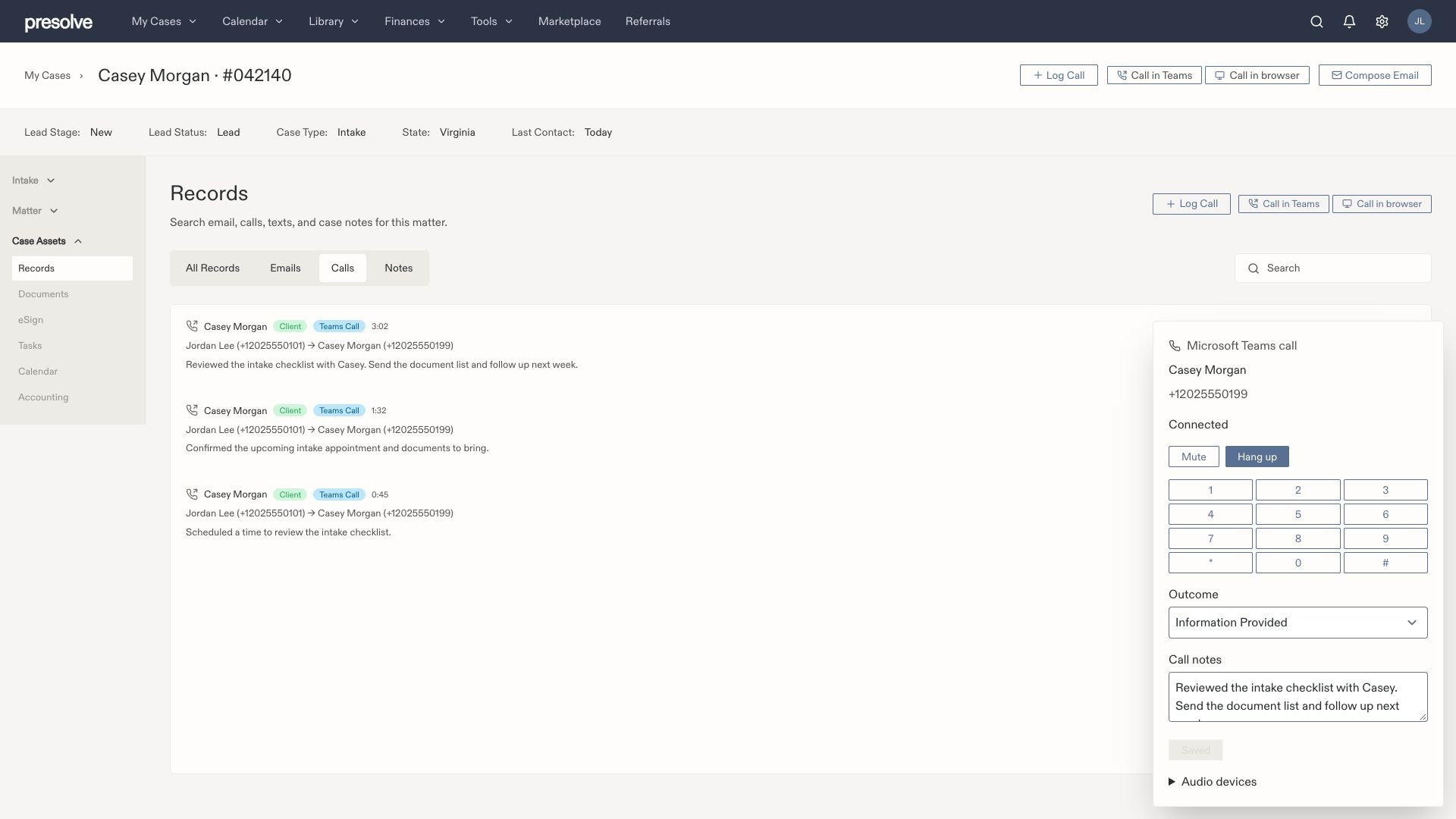 You can write and save notes during the call. After hanging up, check the outcome and save final changes before closing the panel. If prompted about unsaved notes, return to save them rather than discarding work you need.
Keep one calling tab open for the same account and organization. Do not refresh, close the tab, or switch organizations during a call. Those actions can end the browser session.
## Finish and review the call
Select **Hang up**, save any final note changes, then open the selected case's **Records → Calls**. Check the date, direction, participants, and outcome, then open the entry to read the notes. Provider details and any available recording may arrive later.
You can start and save a browser call without a case. It will not appear in a case's Records until associated with that case. A later import may find a clear match if you have not made an explicit case choice; a saved case correction or removal is preserved. For calls awaiting a case, ask the integration manager to check [Calls needing review](/docs/help/records/teams-call-records#resolve-a-call-that-needs-a-case-match).
A failed dialing attempt is not a completed conversation. Choose an outcome that reflects what happened and review the call state before relying on its duration or treating it as contact with the client.
If follow-up needs an owner and due date, create a [task](/docs/help/tasks/create-and-track). Saving a follow-up outcome alone does not assign work.
## Receive calls in Presolve
1. Open your **profile menu** in the top navigation.
2. Turn **Receive calls** on. Confirm **Available for calls**. You can also enable it under **Settings → Integrations → Microsoft Teams Phone → Your calling account**.
3. Keep Presolve open in that browser tab with microphone access allowed.
4. When the incoming panel appears, select **Answer**. You do not have to wait for a contact lookup or select a case before answering.
5. Expand **Caller, case and role** to review the suggestions. A clear match can fill in the caller and case. Choose the correct case when several match, and identify whether the caller is the client, an adjuster, a provider, or someone else. Changing these details does not change the actual incoming number.
6. Use the same notes, mute, keypad, and hang-up controls. Select **Save call notes** to retain any corrected details, notes, and outcome.
The status dot on your profile is green when available, amber while connecting, gray when off or disconnected, and red when browser calling needs attention. The profile menu includes the status in words and a link to calling settings.
Incoming ringing comes through your active Teams browser session. Post-call imports bring the completed call into Records; they do not make a closed Presolve tab ring.
Presolve remembers availability for your account and organization in the same browser tab. If you refresh between calls, it reconnects automatically; wait for **Available for calls** before relying on incoming ringing. Turning availability off or disconnecting your calling account clears that choice. A new tab needs availability turned on separately, and only one tab can receive calls for the same account and organization. Do not refresh during a call.
Existing Teams routing still applies. Shared lines, queues, and delegation depend on what your Microsoft administrator enabled. Availability in Presolve does not change the firm's routing rules.
The incoming-call panel opens automatically while browser calling is available; you do not need to leave the dialer open or select **Sync now**. Call-history syncing happens separately after the call. A closed tab or an unavailable browser calling session cannot ring in Presolve.
## Recordings and transcripts
The browser dialer does **not** automatically record audio. Saving a call or its notes does not create a recording or transcript. If you need to record through Teams, use your firm's approved Teams recording workflow and confirm that a recording was created. See [recordings and transcripts](/docs/help/records/teams-call-records#find-a-recording-or-transcript).
## Need help?
For microphone, unavailable-line, or session errors, see [IT/support: browser call will not start](/docs/help/integrations/teams-phone-troubleshooting#browser-call-will-not-start). If you can speak in Teams, use [Call in Teams](/docs/help/records/teams-app-calling) while the browser issue is investigated.
For an entry that has not appeared, see [IT/support: missing calls and failed syncs](/docs/help/integrations/teams-phone-troubleshooting#missing-calls-and-failed-syncs).
You can write and save notes during the call. After hanging up, check the outcome and save final changes before closing the panel. If prompted about unsaved notes, return to save them rather than discarding work you need.
Keep one calling tab open for the same account and organization. Do not refresh, close the tab, or switch organizations during a call. Those actions can end the browser session.
## Finish and review the call
Select **Hang up**, save any final note changes, then open the selected case's **Records → Calls**. Check the date, direction, participants, and outcome, then open the entry to read the notes. Provider details and any available recording may arrive later.
You can start and save a browser call without a case. It will not appear in a case's Records until associated with that case. A later import may find a clear match if you have not made an explicit case choice; a saved case correction or removal is preserved. For calls awaiting a case, ask the integration manager to check [Calls needing review](/docs/help/records/teams-call-records#resolve-a-call-that-needs-a-case-match).
A failed dialing attempt is not a completed conversation. Choose an outcome that reflects what happened and review the call state before relying on its duration or treating it as contact with the client.
If follow-up needs an owner and due date, create a [task](/docs/help/tasks/create-and-track). Saving a follow-up outcome alone does not assign work.
## Receive calls in Presolve
1. Open your **profile menu** in the top navigation.
2. Turn **Receive calls** on. Confirm **Available for calls**. You can also enable it under **Settings → Integrations → Microsoft Teams Phone → Your calling account**.
3. Keep Presolve open in that browser tab with microphone access allowed.
4. When the incoming panel appears, select **Answer**. You do not have to wait for a contact lookup or select a case before answering.
5. Expand **Caller, case and role** to review the suggestions. A clear match can fill in the caller and case. Choose the correct case when several match, and identify whether the caller is the client, an adjuster, a provider, or someone else. Changing these details does not change the actual incoming number.
6. Use the same notes, mute, keypad, and hang-up controls. Select **Save call notes** to retain any corrected details, notes, and outcome.
The status dot on your profile is green when available, amber while connecting, gray when off or disconnected, and red when browser calling needs attention. The profile menu includes the status in words and a link to calling settings.
Incoming ringing comes through your active Teams browser session. Post-call imports bring the completed call into Records; they do not make a closed Presolve tab ring.
Presolve remembers availability for your account and organization in the same browser tab. If you refresh between calls, it reconnects automatically; wait for **Available for calls** before relying on incoming ringing. Turning availability off or disconnecting your calling account clears that choice. A new tab needs availability turned on separately, and only one tab can receive calls for the same account and organization. Do not refresh during a call.
Existing Teams routing still applies. Shared lines, queues, and delegation depend on what your Microsoft administrator enabled. Availability in Presolve does not change the firm's routing rules.
The incoming-call panel opens automatically while browser calling is available; you do not need to leave the dialer open or select **Sync now**. Call-history syncing happens separately after the call. A closed tab or an unavailable browser calling session cannot ring in Presolve.
## Recordings and transcripts
The browser dialer does **not** automatically record audio. Saving a call or its notes does not create a recording or transcript. If you need to record through Teams, use your firm's approved Teams recording workflow and confirm that a recording was created. See [recordings and transcripts](/docs/help/records/teams-call-records#find-a-recording-or-transcript).
## Need help?
For microphone, unavailable-line, or session errors, see [IT/support: browser call will not start](/docs/help/integrations/teams-phone-troubleshooting#browser-call-will-not-start). If you can speak in Teams, use [Call in Teams](/docs/help/records/teams-app-calling) while the browser issue is investigated.
For an entry that has not appeared, see [IT/support: missing calls and failed syncs](/docs/help/integrations/teams-phone-troubleshooting#missing-calls-and-failed-syncs).