> ## Documentation Index
> Fetch the complete documentation index at: https://www.presolve.com/docs/llms.txt
> Use this file to discover all available pages before exploring further.
# Review Teams calls and recordings
> Find imported calls, resolve ambiguous case matches, and review notes, recordings, and transcripts.
A Teams call can have several related pieces: the call details supplied by Microsoft, notes you write, a recording created in Teams, and a transcript generated from an available recording. They do not necessarily arrive together.
## Find the call on a case
1. Open the intended Presolve organization and case.
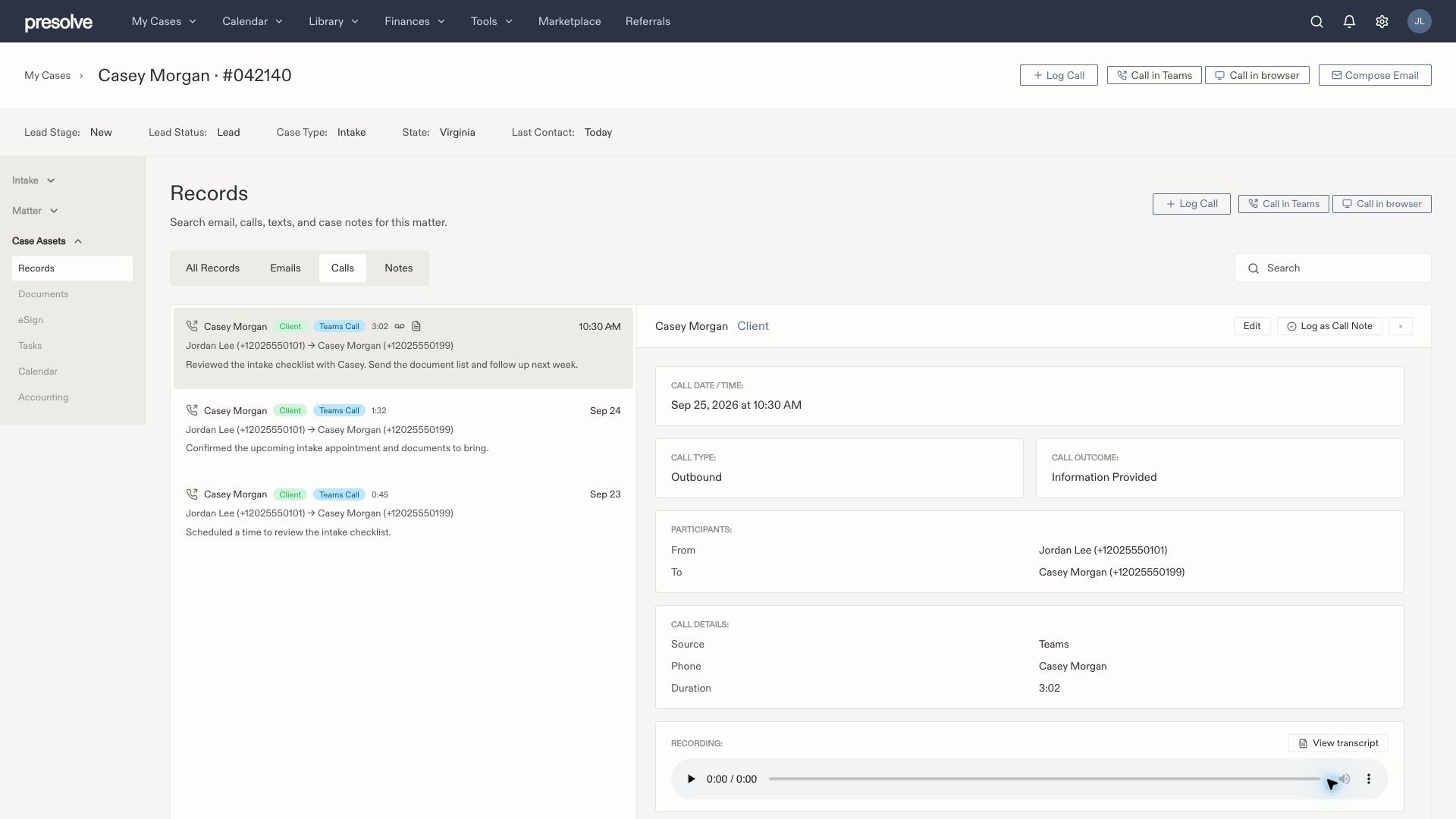
2. Select **Records → Calls**. Clear search and category filters if necessary.
3. Compare the date, direction, and people, then open the call.
4. Inspect **Participants**, **Call Details**, **Recording**, and **Call Notes**.
| Information | How to read it |
| - | - |
| **From / By** in Records | A compact identity for the caller or recorded author. Open the call for its full number and direction. |
| **Participants** | Who was involved. In details, **From** and **To** show the calling and receiving sides. |
| **Source** | Identifies the provider, such as Teams. |
| **Duration** | The available call duration. Compare it with the call state; a failed attempt is not a conversation. |
| **Teams Call** category | The provider label on a Teams call. It does not mean a recording exists. Other providers can have labels such as RingCX Call. |
| **Call Notes** | The saved account of what happened and the follow-up needed. |
 If the entry is missing, use [IT/support: missing calls and failed syncs](/docs/help/integrations/teams-phone-troubleshooting#missing-calls-and-failed-syncs).
## Which calls are imported?
Tracking is scoped to the **Presolve organization**. Presolve imports calls involving the organization's verified or mapped users' individual lines and explicitly selected shared lines. Other numbers are skipped before saving a call or fetching its recording.
The Microsoft number inventory can contain more lines than Presolve tracks. A number visible in **Add numbers** is not proof that its calls are imported. See [firm call tracking](/docs/help/integrations/teams-phone-admin#choose-the-lines-to-track).
## How calls match to cases
Both inbound and outbound calls can be associated with a case. Presolve checks the other party's phone number against clients and linked case contacts, including people such as insurance adjusters and medical providers. Starting a call from a case also supplies context for that conversation.
| Situation | What to expect |
| - | - |
| One clear case and person match | Presolve can prefill the case, person, and their role in that case. Review the suggestions. |
| A known person appears on several cases | Their identity may be known, but the case still needs a choice. |
| Several people share a number | The number alone does not identify who spoke. Confirm the person and role. |
| No clear person or role | The role can remain **Unknown**. A caller is not assumed to be the client just because the call concerns a case. |
| An imported call has no clear case | An integration manager can attach it through **Calls needing review**. |
For example, an adjuster's office number may appear on several matters. Presolve should not attach every call from that office to one client, or label everyone using that number as the client.
While using the browser dialer, expand **Caller, case and role** to choose or correct the case, contact, name, and role. Select **Save call notes** to retain the corrections. You can do this during or after the call, including after answering an unknown caller. See [editing caller details](/docs/help/records/teams-browser-calling#choose-who-you-are-calling).
Saved corrections apply to the individual call and survive later Teams imports. They do not update the contact directory or change other calls. If you are writing notes for a Teams-app call, review the same details in its [New Call draft](/docs/help/records/teams-app-calling#place-the-call-and-save-your-notes).
A call's case cannot be changed or removed once a recording, transcript, case note, or follow-up task is linked, or while recording or transcription work is running. Those items stay with their case. You can still correct the caller's name and role. For an incorrect case that is locked, see [IT/support: correcting call details](/docs/help/integrations/teams-phone-troubleshooting#correcting-call-details).
## Resolve a call that needs a case match
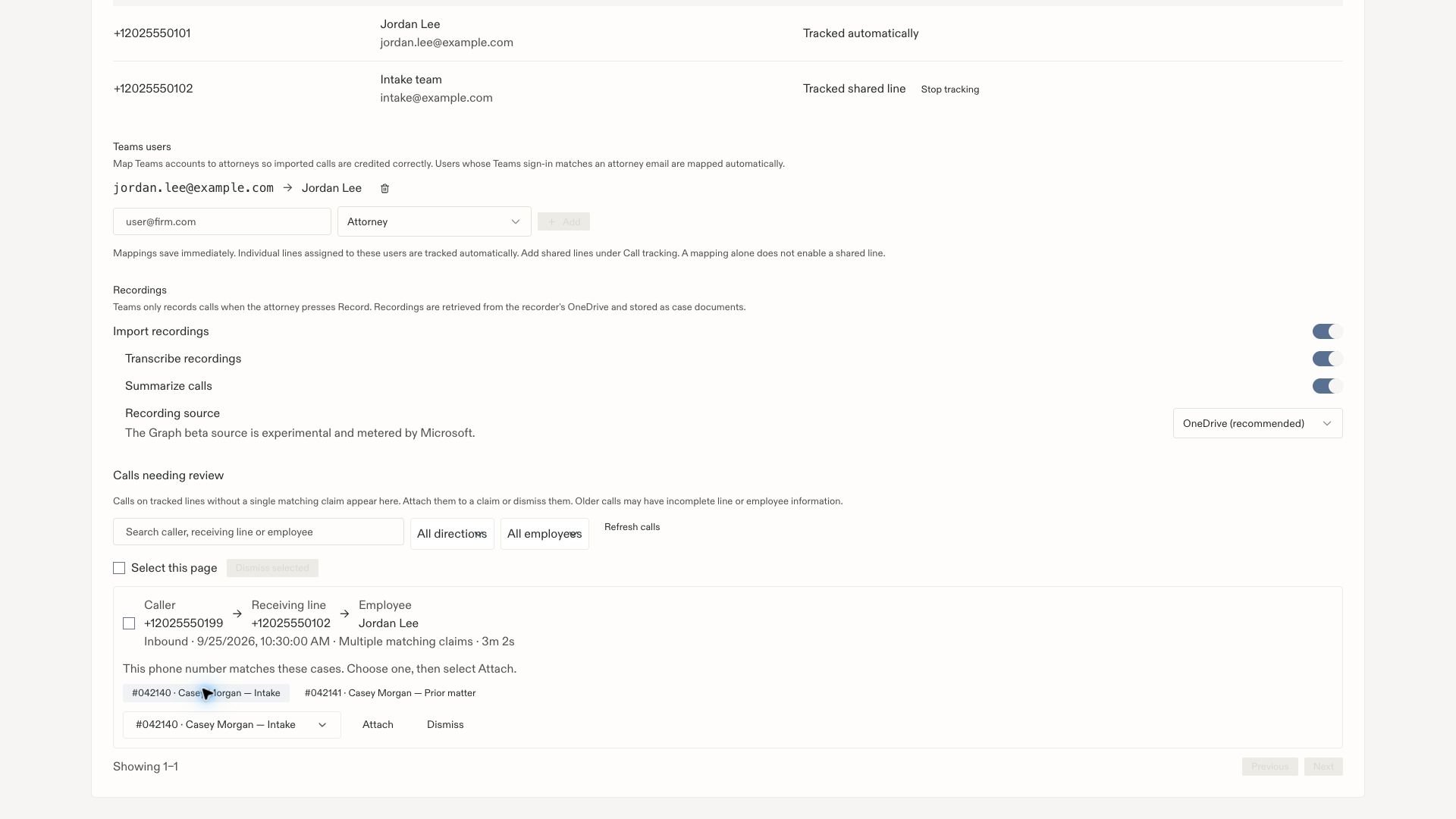
Open **Approvals → Pending → Calls needing review**. Unresolved Teams and RingCX calls are grouped into **one review item per day**, using your firm’s timezone. The Approvals waiting count counts these daily items, not individual calls. Each item shows how many calls it contains; open it to review the calls inside. Existing unresolved calls are included automatically. The queue requires access to Approvals and permission to manage your firm's integrations. If it is absent, ask your firm administrator.
The same Teams calls also remain available under **Settings → Integrations → Microsoft Teams Phone → Calls needing review**. Attaching or dismissing a call resolves it in both places.
The queue explains each call:
* **Inbound:** caller → receiving line → employee.
* **Outbound:** employee → calling line → called number.
* **No matching claim:** Presolve did not find a case for the other party's number.
* **Multiple matching claims:** more than one case matches the number, so a person must choose the correct case.
Two cases can legitimately share a number—for example, an intake and a prior matter for one client, or several matters involving the same adjuster. This status requests a case association; it does not mean Microsoft duplicated the call.
In Approvals, select **Calls needing review** for the call’s date. Search inside the item by caller, receiving line, or employee. Narrow by direction when the queue is large. The integration settings queue also has an employee filter. Select **Refresh calls** to reload it.
Compare the time, duration, employee, and firm line. For a shared intake number, the receiving line helps distinguish the purpose of the call.
Choose a suggested case or use **Search for a claim**. Check the case number as well as the name.
Select **Attach**, then open that case's Records to verify the result. Use **Dismiss** when the call should not be attached to a case. For multiple unwanted entries in the integration settings queue, select them and choose **Dismiss selected**. **Select this page** applies to the displayed page.
If the entry is missing, use [IT/support: missing calls and failed syncs](/docs/help/integrations/teams-phone-troubleshooting#missing-calls-and-failed-syncs).
## Which calls are imported?
Tracking is scoped to the **Presolve organization**. Presolve imports calls involving the organization's verified or mapped users' individual lines and explicitly selected shared lines. Other numbers are skipped before saving a call or fetching its recording.
The Microsoft number inventory can contain more lines than Presolve tracks. A number visible in **Add numbers** is not proof that its calls are imported. See [firm call tracking](/docs/help/integrations/teams-phone-admin#choose-the-lines-to-track).
## How calls match to cases
Both inbound and outbound calls can be associated with a case. Presolve checks the other party's phone number against clients and linked case contacts, including people such as insurance adjusters and medical providers. Starting a call from a case also supplies context for that conversation.
| Situation | What to expect |
| - | - |
| One clear case and person match | Presolve can prefill the case, person, and their role in that case. Review the suggestions. |
| A known person appears on several cases | Their identity may be known, but the case still needs a choice. |
| Several people share a number | The number alone does not identify who spoke. Confirm the person and role. |
| No clear person or role | The role can remain **Unknown**. A caller is not assumed to be the client just because the call concerns a case. |
| An imported call has no clear case | An integration manager can attach it through **Calls needing review**. |
For example, an adjuster's office number may appear on several matters. Presolve should not attach every call from that office to one client, or label everyone using that number as the client.
While using the browser dialer, expand **Caller, case and role** to choose or correct the case, contact, name, and role. Select **Save call notes** to retain the corrections. You can do this during or after the call, including after answering an unknown caller. See [editing caller details](/docs/help/records/teams-browser-calling#choose-who-you-are-calling).
Saved corrections apply to the individual call and survive later Teams imports. They do not update the contact directory or change other calls. If you are writing notes for a Teams-app call, review the same details in its [New Call draft](/docs/help/records/teams-app-calling#place-the-call-and-save-your-notes).
A call's case cannot be changed or removed once a recording, transcript, case note, or follow-up task is linked, or while recording or transcription work is running. Those items stay with their case. You can still correct the caller's name and role. For an incorrect case that is locked, see [IT/support: correcting call details](/docs/help/integrations/teams-phone-troubleshooting#correcting-call-details).
## Resolve a call that needs a case match
Open **Approvals → Pending → Calls needing review**. Unresolved Teams and RingCX calls are grouped into **one review item per day**, using your firm’s timezone. The Approvals waiting count counts these daily items, not individual calls. Each item shows how many calls it contains; open it to review the calls inside. Existing unresolved calls are included automatically. The queue requires access to Approvals and permission to manage your firm's integrations. If it is absent, ask your firm administrator.
The same Teams calls also remain available under **Settings → Integrations → Microsoft Teams Phone → Calls needing review**. Attaching or dismissing a call resolves it in both places.
The queue explains each call:
* **Inbound:** caller → receiving line → employee.
* **Outbound:** employee → calling line → called number.
* **No matching claim:** Presolve did not find a case for the other party's number.
* **Multiple matching claims:** more than one case matches the number, so a person must choose the correct case.
Two cases can legitimately share a number—for example, an intake and a prior matter for one client, or several matters involving the same adjuster. This status requests a case association; it does not mean Microsoft duplicated the call.
In Approvals, select **Calls needing review** for the call’s date. Search inside the item by caller, receiving line, or employee. Narrow by direction when the queue is large. The integration settings queue also has an employee filter. Select **Refresh calls** to reload it.
Compare the time, duration, employee, and firm line. For a shared intake number, the receiving line helps distinguish the purpose of the call.
Choose a suggested case or use **Search for a claim**. Check the case number as well as the name.
Select **Attach**, then open that case's Records to verify the result. Use **Dismiss** when the call should not be attached to a case. For multiple unwanted entries in the integration settings queue, select them and choose **Dismiss selected**. **Select this page** applies to the displayed page.
 A daily review item stays pending until every call inside it has been attached or dismissed. Reviewing some calls reduces its remaining call count without creating additional approvals.
Attaching resolves the case association. It does not create a missing recording. If you already wrote a manual call note, use [Link Teams call](/docs/help/records/teams-app-calling#link-an-existing-note-to-the-teams-call) to associate it with the imported entry.
## Find a recording or transcript
Check the call in Teams first. Importing calls and saving notes do not start recording. The Presolve browser dialer also does not automatically record audio.
Go to the case's **Records → Calls** and select the corresponding entry. Under **Recording**, use the player's play, pause, and seek controls when an imported file is available.
Select **View transcript** when present. Transcription must be enabled and finish processing. Review the transcript against the recording before relying on names, numbers, or commitments.
A daily review item stays pending until every call inside it has been attached or dismissed. Reviewing some calls reduces its remaining call count without creating additional approvals.
Attaching resolves the case association. It does not create a missing recording. If you already wrote a manual call note, use [Link Teams call](/docs/help/records/teams-app-calling#link-an-existing-note-to-the-teams-call) to associate it with the imported entry.
## Find a recording or transcript
Check the call in Teams first. Importing calls and saving notes do not start recording. The Presolve browser dialer also does not automatically record audio.
Go to the case's **Records → Calls** and select the corresponding entry. Under **Recording**, use the player's play, pause, and seek controls when an imported file is available.
Select **View transcript** when present. Transcription must be enabled and finish processing. Review the transcript against the recording before relying on names, numbers, or commitments.
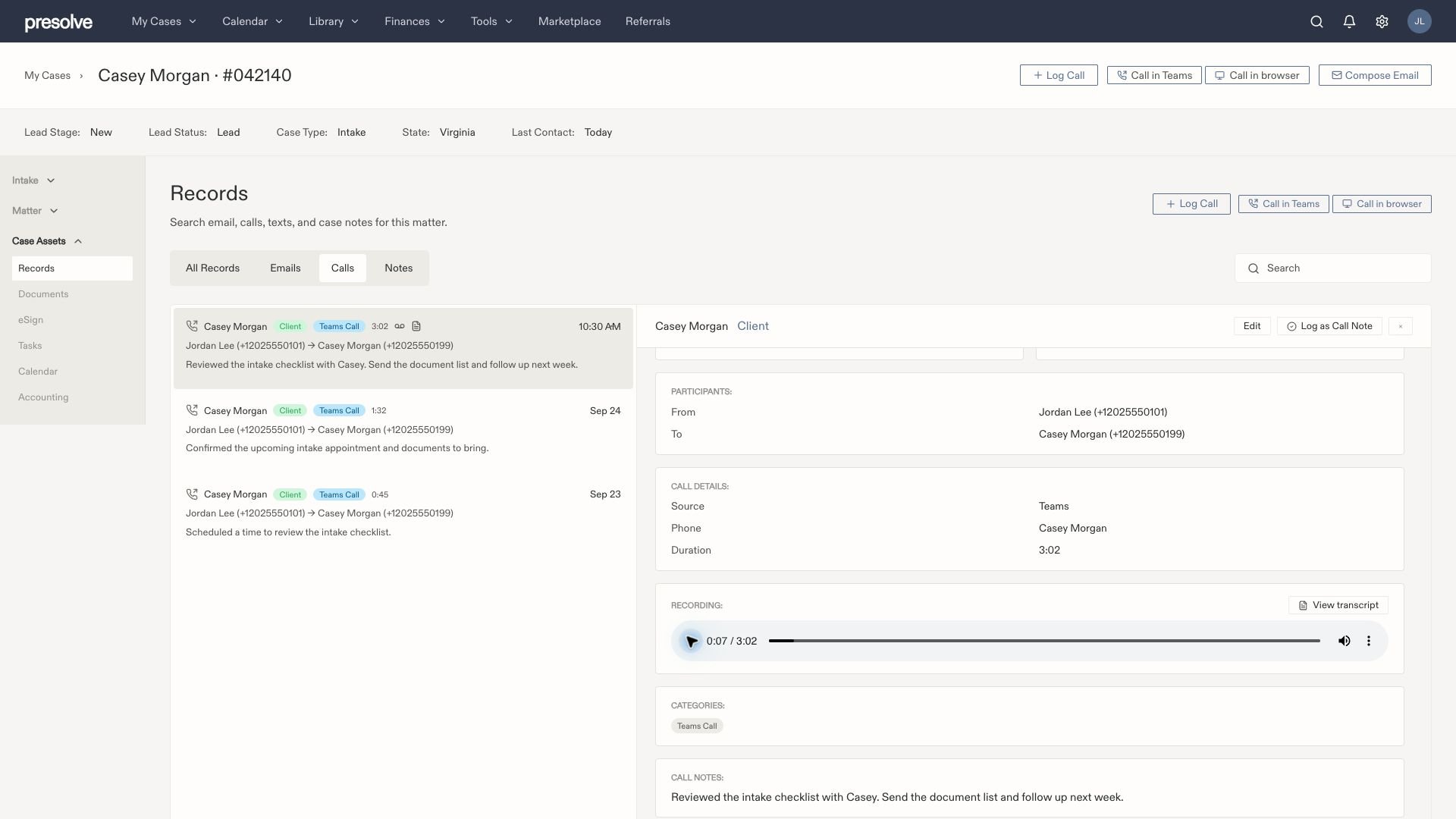 The recommended recording source retrieves files from the recorder's OneDrive and stores imported recordings as case documents. A recording visible to someone in Teams can still be unavailable to the integration because of its source, access, processing, or call-matching status.
## Need help?
For a pending or failed recording, missing transcript, or a file visible only in Teams, see [IT/support: missing recordings and transcripts](/docs/help/integrations/teams-phone-troubleshooting#missing-recordings-and-transcripts).
For a missing call or failed Sync now attempt, see [missing calls and failed syncs](/docs/help/integrations/teams-phone-troubleshooting#missing-calls-and-failed-syncs).
The recommended recording source retrieves files from the recorder's OneDrive and stores imported recordings as case documents. A recording visible to someone in Teams can still be unavailable to the integration because of its source, access, processing, or call-matching status.
## Need help?
For a pending or failed recording, missing transcript, or a file visible only in Teams, see [IT/support: missing recordings and transcripts](/docs/help/integrations/teams-phone-troubleshooting#missing-recordings-and-transcripts).
For a missing call or failed Sync now attempt, see [missing calls and failed syncs](/docs/help/integrations/teams-phone-troubleshooting#missing-calls-and-failed-syncs).