> ## Documentation Index
> Fetch the complete documentation index at: https://www.presolve.com/docs/llms.txt
> Use this file to discover all available pages before exploring further.
# Export or schedule a report
> Review the result before downloading it or scheduling automatic email delivery.
Open a saved report from [Tools → Reporting](https://attorney.dearlegal.com/dashboard/reports). Run it and review the filters, columns, and representative rows before exporting or sharing the result.
## Download the current result
Select **Export** in the report builder. Wait for the export result, then open the downloaded file and check its headings, row count, dates, and amounts before sharing it. A download confirmation does not replace checking the file itself.
**Full Preview** lets you inspect the table before exporting. Chart **Download PNG** controls are separate from exporting the underlying data. For a chart's setup, see [charts and summaries](/docs/help/reporting/charts).
## Schedule email delivery
1. Save the report configuration you intend to distribute.
2. Select **Schedule**.
3. Review **Status** and **Format**. CSV is the initial format shown.
4. Enter an intended recipient and select **Add**. Check the complete recipient list.
5. Choose **Daily**, **Weekly**, or **Monthly** frequency and the corresponding day/time options.
6. Check the timezone shown in the dialog. Use that timezone when interpreting the selected time.
7. Select **Create Schedule** only when automatic delivery to those recipients is intended.
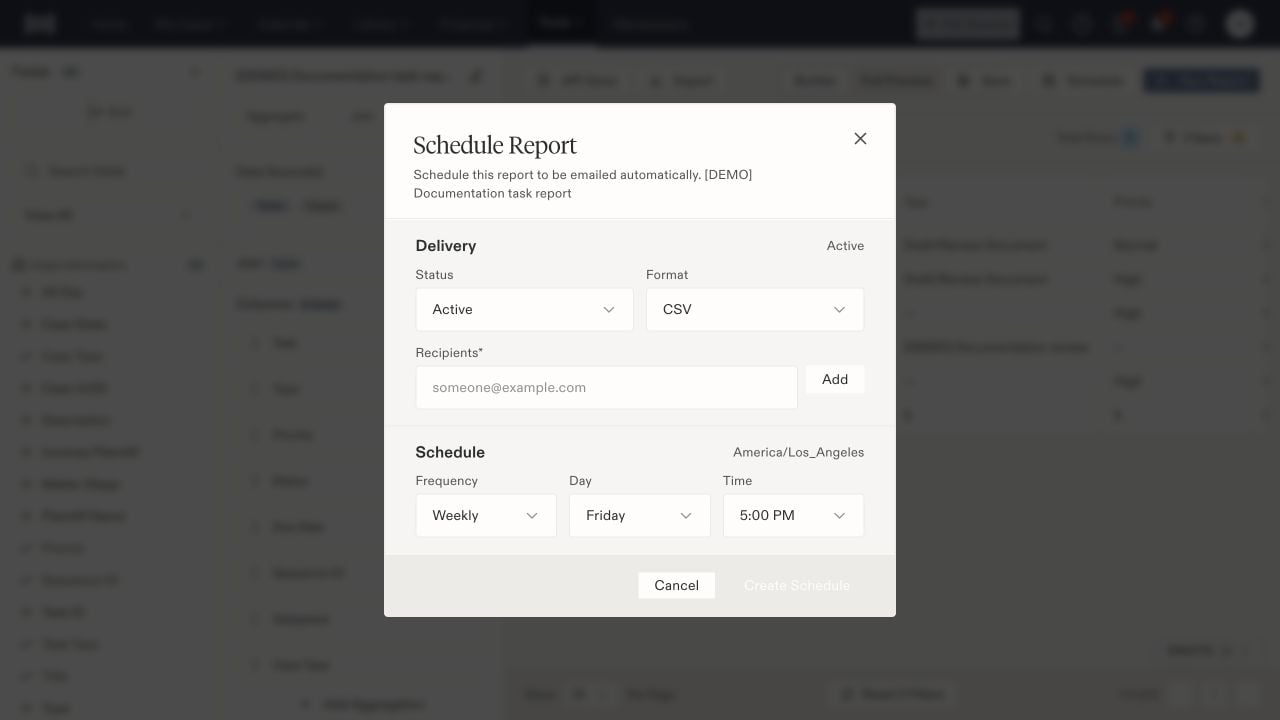 A schedule distributes report data automatically. Recheck its recipients and included columns when the report's purpose changes. After the first scheduled delivery, confirm that the intended recipient received the expected file. If it is missing, review the schedule's active state, timezone, and recipient list before creating another schedule.
## Share with another system
The report workspace also links to **API Docs** for technical integration. Give an administrator or developer the [reporting reference](/docs/reporting/overview) when another system needs report data. API credentials and individual report-access settings are separate from email scheduling; creating a schedule does not grant API access.
For HQ integrations, confirm the key's acting attorney and organization-scope setting as well as the report's publication and sharing. A wider scope does not remove the saved status, date, or practice-area filters. See [Report execution](/docs/reporting/report-definitions) and [Troubleshooting reports](/docs/reporting/troubleshooting).
A schedule distributes report data automatically. Recheck its recipients and included columns when the report's purpose changes. After the first scheduled delivery, confirm that the intended recipient received the expected file. If it is missing, review the schedule's active state, timezone, and recipient list before creating another schedule.
## Share with another system
The report workspace also links to **API Docs** for technical integration. Give an administrator or developer the [reporting reference](/docs/reporting/overview) when another system needs report data. API credentials and individual report-access settings are separate from email scheduling; creating a schedule does not grant API access.
For HQ integrations, confirm the key's acting attorney and organization-scope setting as well as the report's publication and sharing. A wider scope does not remove the saved status, date, or practice-area filters. See [Report execution](/docs/reporting/report-definitions) and [Troubleshooting reports](/docs/reporting/troubleshooting).