> ## Documentation Index
> Fetch the complete documentation index at: https://www.presolve.com/docs/llms.txt
> Use this file to discover all available pages before exploring further.
# Review the firm portfolio over time
> Compare live open matters with saved snapshots and interpret projected-fee totals.
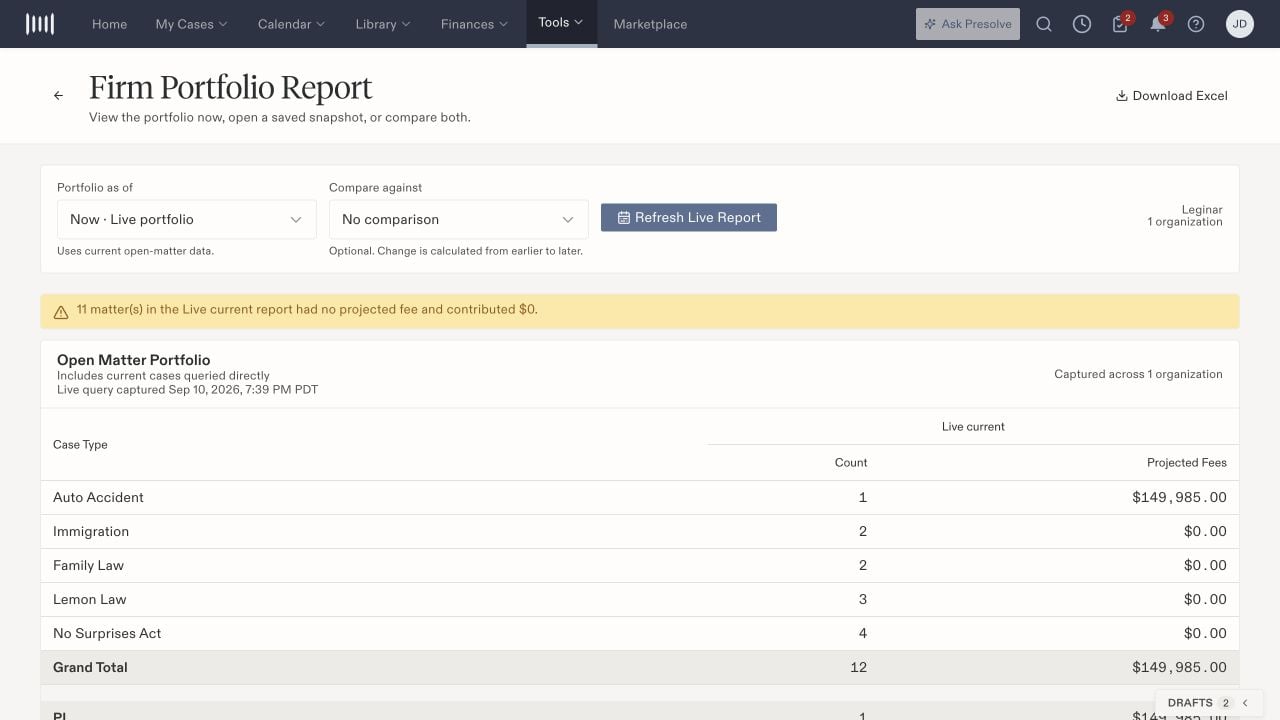
Open [Tools → Reporting → Portfolio Report](https://attorney.dearlegal.com/dashboard/reports/portfolio-comparison). This report groups open matters by case type and displays counts and projected fees.
## Choose the reporting date
Use **Portfolio as of** to choose **Now · Live portfolio** or an available saved snapshot. Live data reflects the current open-matter records. Check the capture time and organization scope shown above the table when interpreting the result.
 ## Compare two points in time
Choose an earlier or later snapshot under **Compare against**, then select **Compare Portfolios**. Read the earlier, later, and Change columns together. The page calculates change from earlier to later, regardless of the order in which you selected the dates.
Review individual case-type rows before using Grand Total, PI, or Non-PI summaries. Changes can reflect both the set of open matters and the projected-fee values recorded on those matters.
## Interpret missing projected fees
The report flags matters with no projected fee and counts their contribution as zero. A zero contribution therefore does not necessarily mean the matter has no expected fee. Review the missing-fee notice and the underlying case information with the responsible staff member.
Projected fees describe recorded projections. Use accounting receipts and [individual disbursements](/docs/help/accounting/disbursements) for payment progress.
## Refresh or export
Use **Refresh Live Report** for current data. Select **Download Excel** after the report loads, then open the downloaded file and confirm the selected dates, organization scope, and totals before sharing it. Choosing a historical snapshot does not update it to today's values.
For a custom report with different fields or filters, use the [report builder](/docs/help/reporting/build-report).
## Compare two points in time
Choose an earlier or later snapshot under **Compare against**, then select **Compare Portfolios**. Read the earlier, later, and Change columns together. The page calculates change from earlier to later, regardless of the order in which you selected the dates.
Review individual case-type rows before using Grand Total, PI, or Non-PI summaries. Changes can reflect both the set of open matters and the projected-fee values recorded on those matters.
## Interpret missing projected fees
The report flags matters with no projected fee and counts their contribution as zero. A zero contribution therefore does not necessarily mean the matter has no expected fee. Review the missing-fee notice and the underlying case information with the responsible staff member.
Projected fees describe recorded projections. Use accounting receipts and [individual disbursements](/docs/help/accounting/disbursements) for payment progress.
## Refresh or export
Use **Refresh Live Report** for current data. Select **Download Excel** after the report loads, then open the downloaded file and confirm the selected dates, organization scope, and totals before sharing it. Choosing a historical snapshot does not update it to today's values.
For a custom report with different fields or filters, use the [report builder](/docs/help/reporting/build-report).