> ## Documentation Index
> Fetch the complete documentation index at: https://www.presolve.com/docs/llms.txt
> Use this file to discover all available pages before exploring further.
# Search across Presolve
> Find cases and contacts and use common action shortcuts.
Select the **global search** icon in the header. It opens a search dialog without requiring you to leave the current page first.
## Find a case or contact
1. Enter a name or distinctive search phrase.
2. Wait for the matching results.
3. Inspect the result group: **Cases** and **Contacts** are separate.
4. For a case, check the case number and case type as well as the name.
5. Select the intended result and verify the destination before making changes.
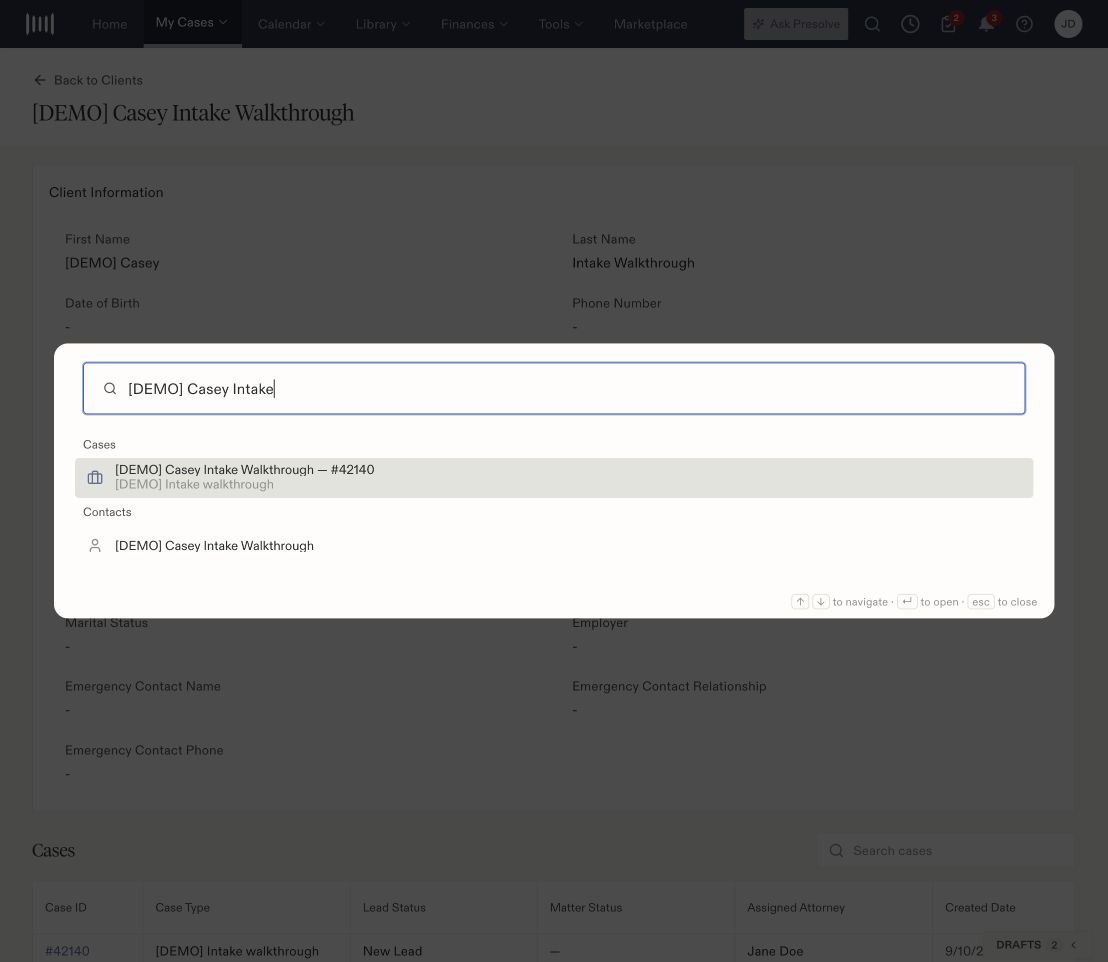 The dialog shows keyboard controls: use **Up/Down arrows** to move through results, **Enter** to open the selected result, and **Escape** to close search.
A case result opens the matter workspace. A contact result can take you to the Contacts directory; if the editor has not opened, search the directory and select the contact row. Do not assume a contact result is the same as the client profile with linked cases.
## Use a shortcut
With an empty search, the dialog can show recent results and these actions:
| Action | Work to start |
| - | - |
| Upload case | Open case intake and choose the appropriate case type. |
| New contact | Begin creating a directory contact. |
| Log time entry | Begin recording time. |
| New task | Begin entering a task. |
Selecting a shortcut starts its flow. Review the resulting form, case, and other required information before saving. Opening a shortcut alone does not create a record.
## When a result is missing
Try a shorter, distinctive name and check the directory appropriate to the record. A global search result and a directory's filtered results can behave differently. In My Cases, also inspect lifecycle views and stage filters; in Contacts, inspect Practice and State.
If the record remains unavailable, ask your administrator to check your access or case assignment before creating a duplicate.
Related: [client profiles](/docs/help/people/clients), [contact details](/docs/help/people/contacts), and [case lifecycle views](/docs/help/leads/lifecycle).
The dialog shows keyboard controls: use **Up/Down arrows** to move through results, **Enter** to open the selected result, and **Escape** to close search.
A case result opens the matter workspace. A contact result can take you to the Contacts directory; if the editor has not opened, search the directory and select the contact row. Do not assume a contact result is the same as the client profile with linked cases.
## Use a shortcut
With an empty search, the dialog can show recent results and these actions:
| Action | Work to start |
| - | - |
| Upload case | Open case intake and choose the appropriate case type. |
| New contact | Begin creating a directory contact. |
| Log time entry | Begin recording time. |
| New task | Begin entering a task. |
Selecting a shortcut starts its flow. Review the resulting form, case, and other required information before saving. Opening a shortcut alone does not create a record.
## When a result is missing
Try a shorter, distinctive name and check the directory appropriate to the record. A global search result and a directory's filtered results can behave differently. In My Cases, also inspect lifecycle views and stage filters; in Contacts, inspect Practice and State.
If the record remains unavailable, ask your administrator to check your access or case assignment before creating a duplicate.
Related: [client profiles](/docs/help/people/clients), [contact details](/docs/help/people/contacts), and [case lifecycle views](/docs/help/leads/lifecycle).