> ## Documentation Index
> Fetch the complete documentation index at: https://www.presolve.com/docs/llms.txt
> Use this file to discover all available pages before exploring further.
# Create, assign, and track a task
> Set up work for a teammate and verify its status.
Open [Tasks](https://attorney.dearlegal.com/dashboard/tasks) from the **Calendar** menu. To begin inside a case, use **Task** or **New Task/Event** on the matter.
## Create the task
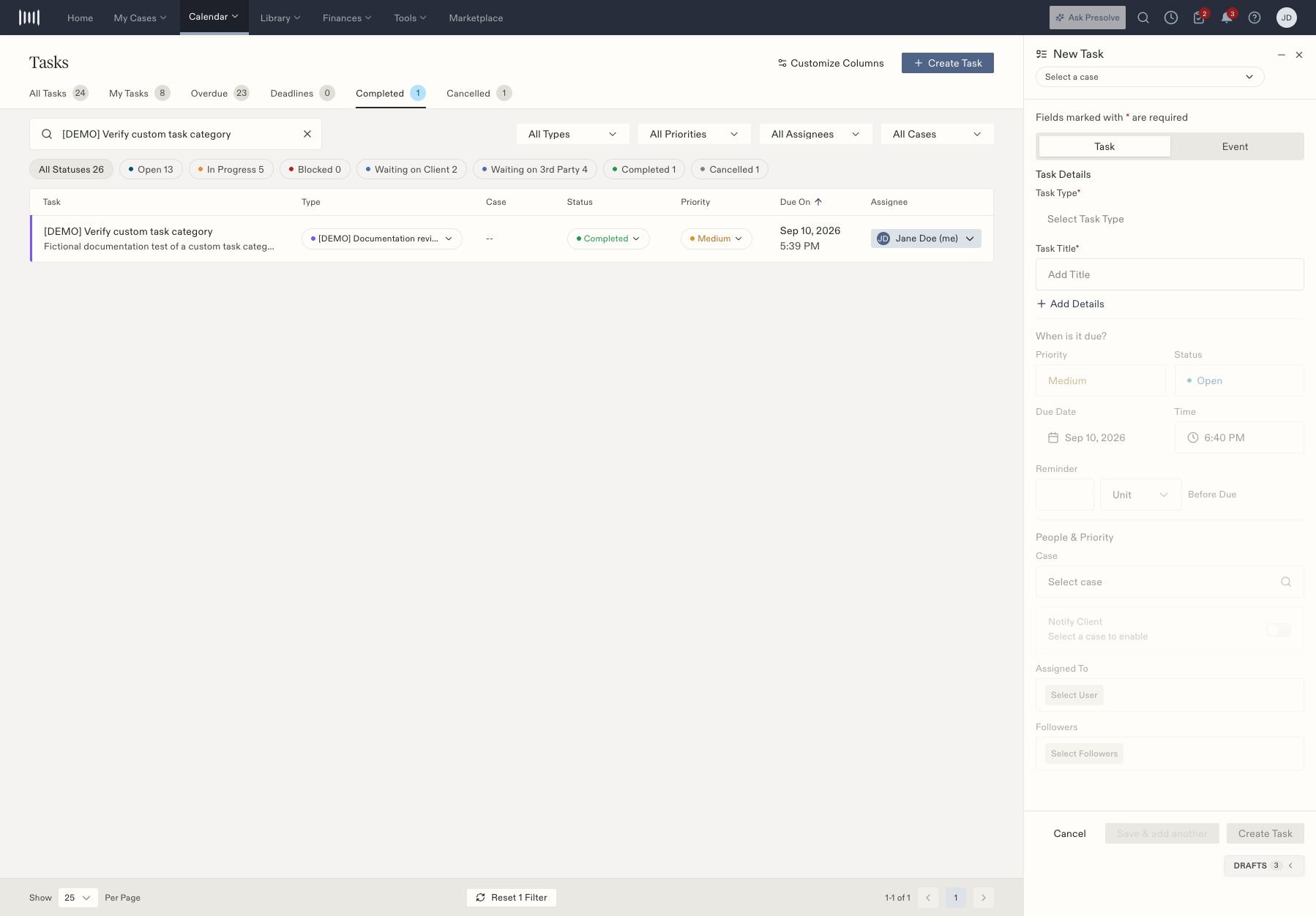
1. Select **Create Task**. In a combined drawer, select **Task**.
2. Choose a **Task Type** and enter a specific **Task Title**, such as “Review the accident report.”
3. Select **Add Details** to enter instructions and review the remaining fields.
4. Check the due date, time, priority, case, and **Assigned To**. Select the responsible person explicitly; a blank-looking picker can default to the current user when saved.
5. Review followers, reminders, and **Notify Client** before saving. These are separate from the task's title and status.
6. Select **Create Task**, then locate the saved row and verify the assignee, type, case, and due date.
 ## Find the task later
Choose **All Tasks**, **My Tasks**, **Overdue**, or **Deadlines** as appropriate. Search the title and check type, priority, assignee, case, and status filters. A badge total and the filtered table can represent different sets of tasks.
The row controls let you review or change the type, status, priority, and assignee where your access permits. Confirm the case and title before changing a row.
## When a task seems to disappear
Check **Completed** and **Cancelled** and clear search or filters that no longer apply. Completing a task moves it out of active views. Follow [Complete, reopen, or cancel a task](/docs/help/tasks/statuses) for the status sequence. Your administrator can [configure task types](/docs/help/admin/task-types).
## Understand the task fields
| Field or control | How to use it |
| - | - |
| Task Type | Choose the kind of work. Firm-specific choices are managed in Settings → Task Types. |
| Task Title | Describe the action clearly enough to recognize it in the list. |
| Add Details | Expand the instructions and document-attachment area. |
| Due date and time | Check the proposed deadline before saving; the drawer can start with default values. |
| Priority | Record the relative urgency according to your team's process. |
| Status | Describe the current state of the work. |
| Case | Link the matter when the task belongs to one; standalone tasks are also supported. |
| Assigned To | Identify who is responsible for doing the work. |
| Followers | Review the additional people associated with the task. |
| Reminder | Review the reminder settings separately from the due date. |
| Notify Client | Check whether this task should involve a client notification. |
**Attach Document** is available after expanding details. Check the selected document and case before saving. For a single task, use **Create Task**; **Save & add another** is also available when entering several tasks.
## Choose a list view, then narrow it
Start with the view that fits the work you need to find: **All Tasks**, **My Tasks**, **Overdue**, **Deadlines**, **Completed**, or **Cancelled**. Then apply the title search and type, priority, assignee, case, or status filters.
For example, to find an unfinished document review for one matter, choose an active task view, select the case and task type, and inspect the status. If the task was completed, switch to Completed rather than creating a replacement.
Use **Customize Columns** to review which information the table displays. Before changing an inline field, confirm the title and case in that row. A task's completion status records the team's update; check the actual document or other work product as well.
## Find the task later
Choose **All Tasks**, **My Tasks**, **Overdue**, or **Deadlines** as appropriate. Search the title and check type, priority, assignee, case, and status filters. A badge total and the filtered table can represent different sets of tasks.
The row controls let you review or change the type, status, priority, and assignee where your access permits. Confirm the case and title before changing a row.
## When a task seems to disappear
Check **Completed** and **Cancelled** and clear search or filters that no longer apply. Completing a task moves it out of active views. Follow [Complete, reopen, or cancel a task](/docs/help/tasks/statuses) for the status sequence. Your administrator can [configure task types](/docs/help/admin/task-types).
## Understand the task fields
| Field or control | How to use it |
| - | - |
| Task Type | Choose the kind of work. Firm-specific choices are managed in Settings → Task Types. |
| Task Title | Describe the action clearly enough to recognize it in the list. |
| Add Details | Expand the instructions and document-attachment area. |
| Due date and time | Check the proposed deadline before saving; the drawer can start with default values. |
| Priority | Record the relative urgency according to your team's process. |
| Status | Describe the current state of the work. |
| Case | Link the matter when the task belongs to one; standalone tasks are also supported. |
| Assigned To | Identify who is responsible for doing the work. |
| Followers | Review the additional people associated with the task. |
| Reminder | Review the reminder settings separately from the due date. |
| Notify Client | Check whether this task should involve a client notification. |
**Attach Document** is available after expanding details. Check the selected document and case before saving. For a single task, use **Create Task**; **Save & add another** is also available when entering several tasks.
## Choose a list view, then narrow it
Start with the view that fits the work you need to find: **All Tasks**, **My Tasks**, **Overdue**, **Deadlines**, **Completed**, or **Cancelled**. Then apply the title search and type, priority, assignee, case, or status filters.
For example, to find an unfinished document review for one matter, choose an active task view, select the case and task type, and inspect the status. If the task was completed, switch to Completed rather than creating a replacement.
Use **Customize Columns** to review which information the table displays. Before changing an inline field, confirm the title and case in that row. A task's completion status records the team's update; check the actual document or other work product as well.