

Create an access role
- Select New Role.
- Enter the required Role Name, optional description, and color.
- Review Admin Role. This grants full access to features and settings; use it only when that broad access is intended.
- Review Default Role, which automatically assigns the role to new members when they join.
- Select the permissions needed for the work. Read the descriptions and dependencies rather than selecting every item by category.
- Select Create Role and review the saved role before assigning it to members.
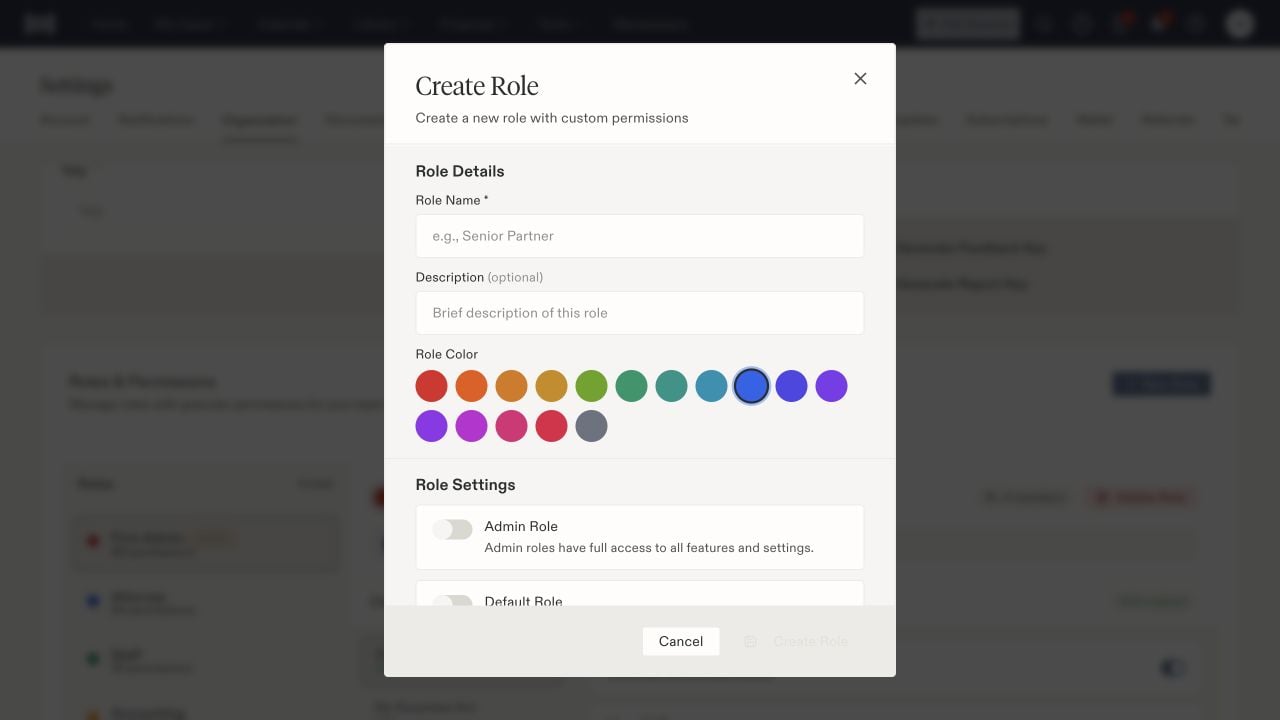
Creating an access role includes separate administrator and default-role settings.
Match permissions to the task
Permission groups distinguish viewing, creating, editing, approving, exporting, and executing work. Examples include:
Some practice permissions explicitly require other permissions. For example, NSA workspace viewing also requires case-viewing access, and managing negotiations has additional case and negotiation requirements. Follow the descriptions shown in the role editor.
Assign roles to members
In Members, find the intended person and check their identity. Use the + role control to assign an existing role. The role’s name and its configured permissions are separate from the person’s profile name or professional title. The Referral Network toggle controls network visibility; it is separate from role assignment. Invite Member starts onboarding for another person, so review the destination and role before sending an invitation. After changing access, have the member confirm they can open the intended page and perform the required task. Review case assignment and organization context if a record is still missing. Avoid treating an administrator’s successful walkthrough as proof that every staff role has the same access. For roles such as witness or referring attorney on an individual case, use case-contact roles.Roles used by reporting integrations
An integration key’s API scopes and its acting attorney’s organization roles are separate. A key withreports:read can call reporting endpoints, but an HQ rollup also checks the acting attorney’s current report viewing/export, HQ visibility, and underlying data permissions. Managing the key requires Manage Integrations; that permission alone does not grant access to case or accounting data.
For shared child reports, authorized HQ editors need Create Reports and Manage Shared Resources to save the original. Organization-managed reports additionally require Manage Organization Reports, and managed templates stay protected. Copying a report creates a different ID, so existing integrations continue using the original until deliberately changed.
Use the HQ reporting checklist and key management guide when reviewing an integration’s access. Application Accounting and Lead Overview permissions remain separate from a credential’s report hierarchy toggle.