

Review the configured workflow
- Open the automation’s editor.
- Select the trigger on the canvas. Check When this happens and any Start only when… rules in the Inspector.
- Select each action and verify its inputs and approval settings.
- Check the Activation checklist for unresolved configuration.
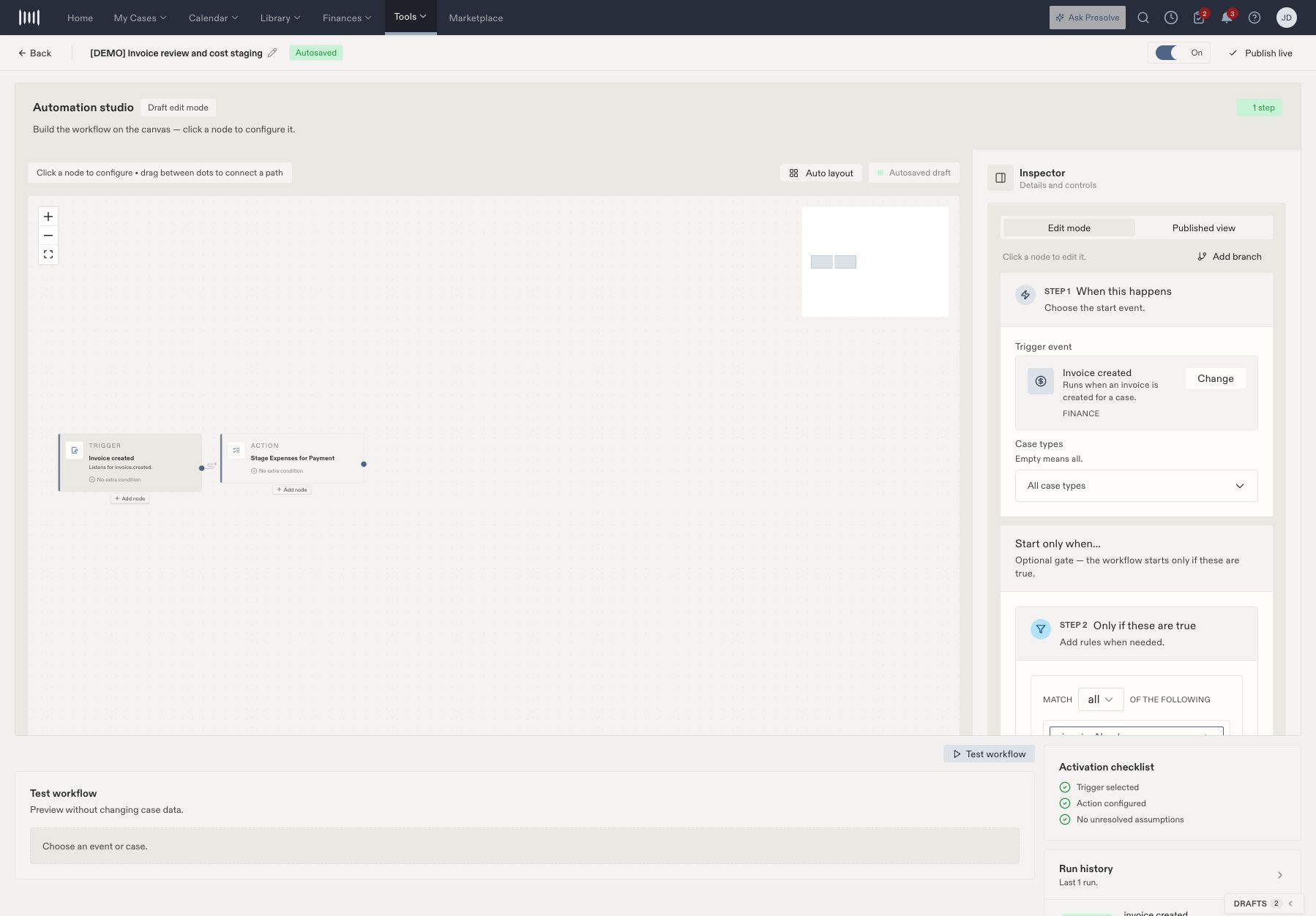
An invoice-staging demonstration workflow. Select a node to review its configuration in the Inspector.
Publish and activate
- Wait for the draft to show Autosaved.
- Select Publish live and check the publication confirmation.
- Set the automation to On when it should begin responding to matching events.
- Use Published view to inspect the live version.
Verify an actual run
- After the intended event occurs, open Run history.
- Select the matching run by event, time, and case.
- Review its overall status and individual steps.
- If approval is pending, the assigned reviewer must complete that review.
- Check the resulting record as well as the run status.
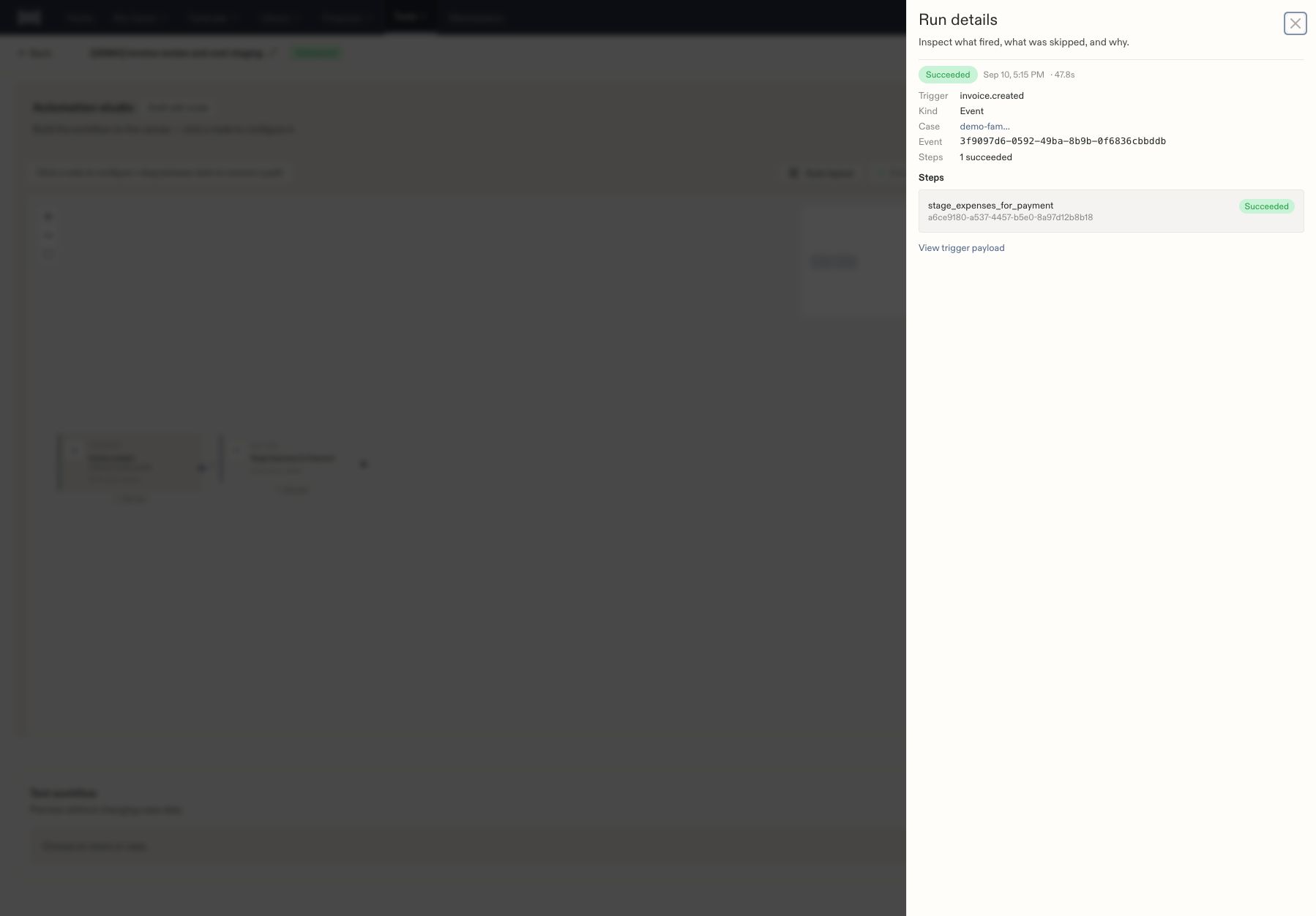
Run details show that the expense-staging step succeeded.
Check the scope before a live test
A workflow’s name helps people recognize it; its trigger and conditions determine which events qualify. For an invoice workflow, inspect the actual invoice-number rule rather than relying on a name such as “Demo review.” Review these parts together:
For the invoice-staging example, the action is Stage Expenses for Payment, the reviewer is a Specific team member, and the review can leave funding undecided until payment. Your administrator should choose the reviewer and notification channels that match your firm’s process.
Understand publication states
After publishing, reopen the workflow and verify its published version and On/Off state. Then create or perform the intended test event using a clearly identified test record approved by your firm.