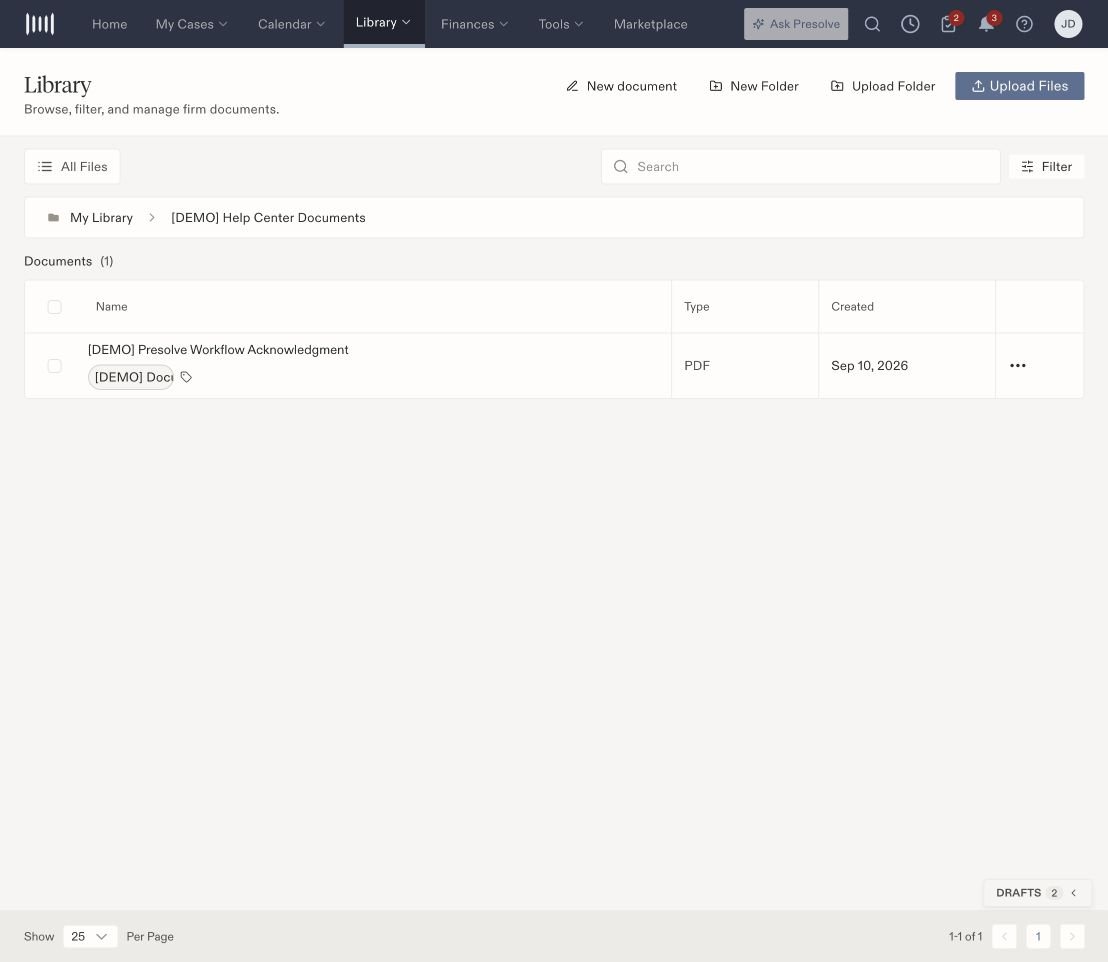
Use Library to browse and organize firm documents. For a document belonging to one matter, you can also start from that matter’s Documents area.
Presolve Library inside the Help Center Documents demo folder, with one PDF and a document tag.

A folder containing a fictional PDF and its document tag.

Create a folder

  1. Open Library and navigate to the location where you want the folder.
  2. Select New Folder.
  3. Enter a recognizable name and save.
  4. Open the folder and check the location trail above the file list.
Choose names that your team can recognize, such as the document purpose or the stage of work.

Move an existing file

  1. Find the file in Library.
  2. Open the three-dot File actions menu at the end of its row.
  3. Select Move.
  4. Open the destination folder in the picker. Check the location trail before continuing.
  5. Select Move Here.
  6. Open the destination folder and confirm that the file appears there.
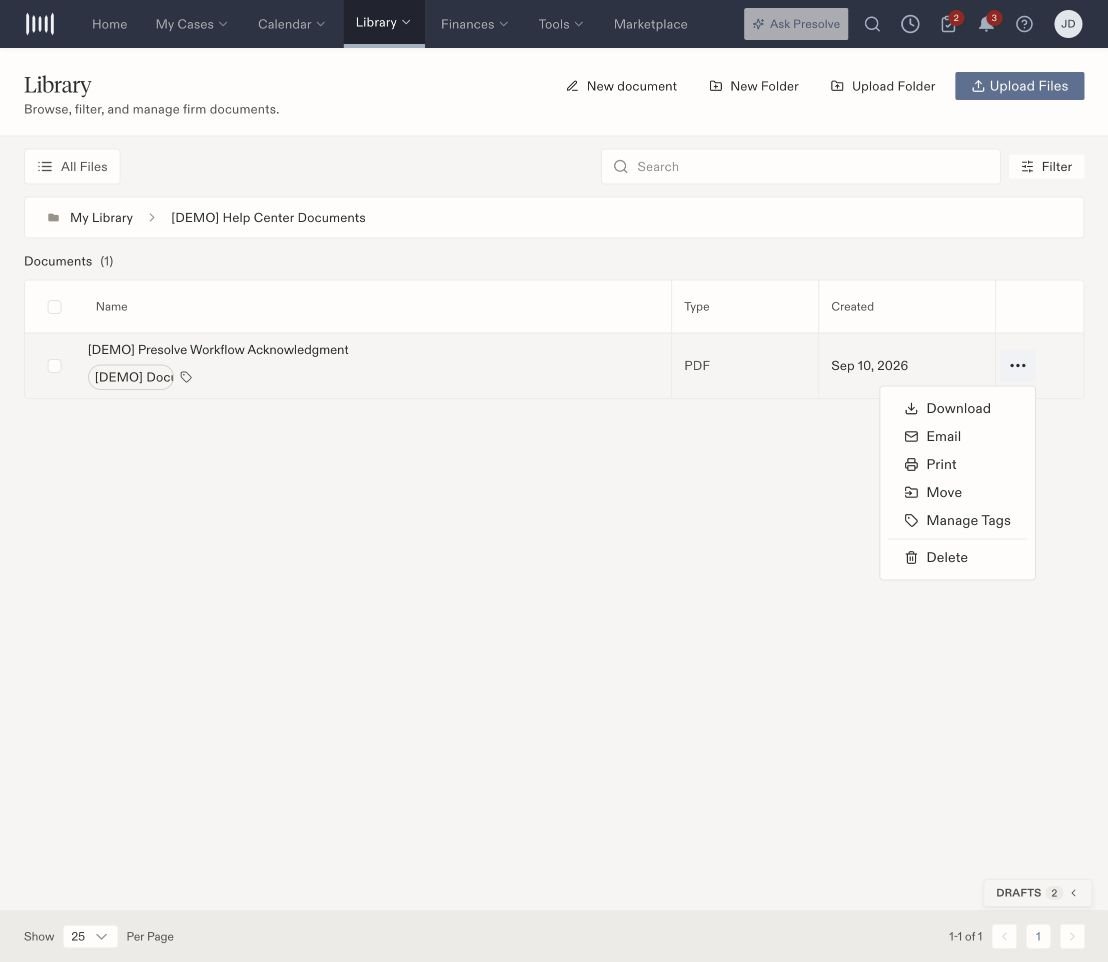
File actions menu beside a fictional PDF, including Move and Manage Tags.

The file actions menu includes Move and Manage Tags.

Open a file or find it again

Select the filename to open it. A PDF opens in a viewer with page and zoom controls. Use the search field and filters to narrow the file list. If you are looking in a folder and cannot find a file, check its location and try All Files. Moving a file organizes its location. To label what it contains, add document tags. To write a new matter document, start a blank document. For reusable signing documents, see e-sign template preparation.