

Search before creating another contact
Search by a distinctive part of the name. Review Practice, State, and other filters, and inspect additional result pages when needed. If a long search returns nothing, try a shorter name and check the filters. The current Practice choices include Personal Injury and NSA. The PI directory also includes general non-NSA contacts, including contacts used in family-law matters; it does not mean every listed person has an auto-accident case. Use Customize Columns to choose the information displayed. The table includes Name, Category, Practice, Providers, Case Roles, Phone Number, Email, Fax, City, and State. Several column headers also expose sort and filter controls.Open and edit a contact
- Select the correct contact row.
- In Edit Contact, review Details.
- Confirm the identity and contact information before changing a value.
- Complete required fields identified by the form, then select Save.
- Reopen the contact to verify the intended changes. Use Cancel when only inspecting it.
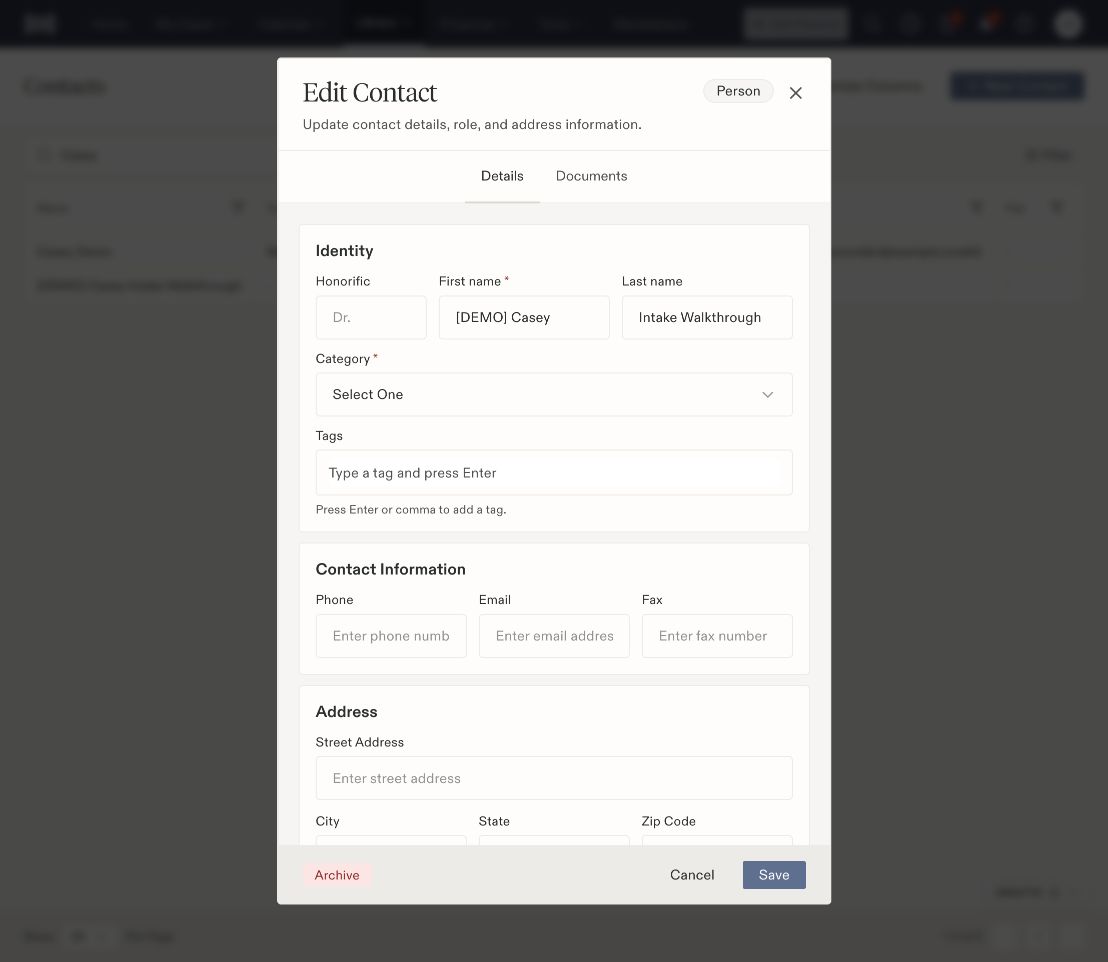
The contact editor separates identity, classification, contact information, and address fields.
Call a contact
When Teams calling is enabled for your account, use the calling buttons beside a contact’s Phone Number:- Call in Teams opens the Teams app and a call-note draft in Presolve. Choose the case and review the contact’s role before saving the draft.
- Call in browser opens the Presolve dialer with the contact and number. Under Caller, case and role, review or choose a case, correct any suggested details, then choose your calling line and place the call.
Distinguish the different labels
Contact tags are separate from case tags and document tags. A case-contact role is also separate from staff permissions.
Add a contact to a matter
Where your matter includes Associated Parties, use Add Contact Role. Choose the case role first, then search for an eligible contact or use the creation option. Review the identity and relationship notes before linking the contact. Selecting a contact for a case relationship and editing that contact’s directory information are separate operations. Check both the contact and matter when correcting a mismatch.Review contact documents
Open the editor’s Documents tab. Select or enter a Document type before choosing files; Choose from Library is disabled until a type is supplied.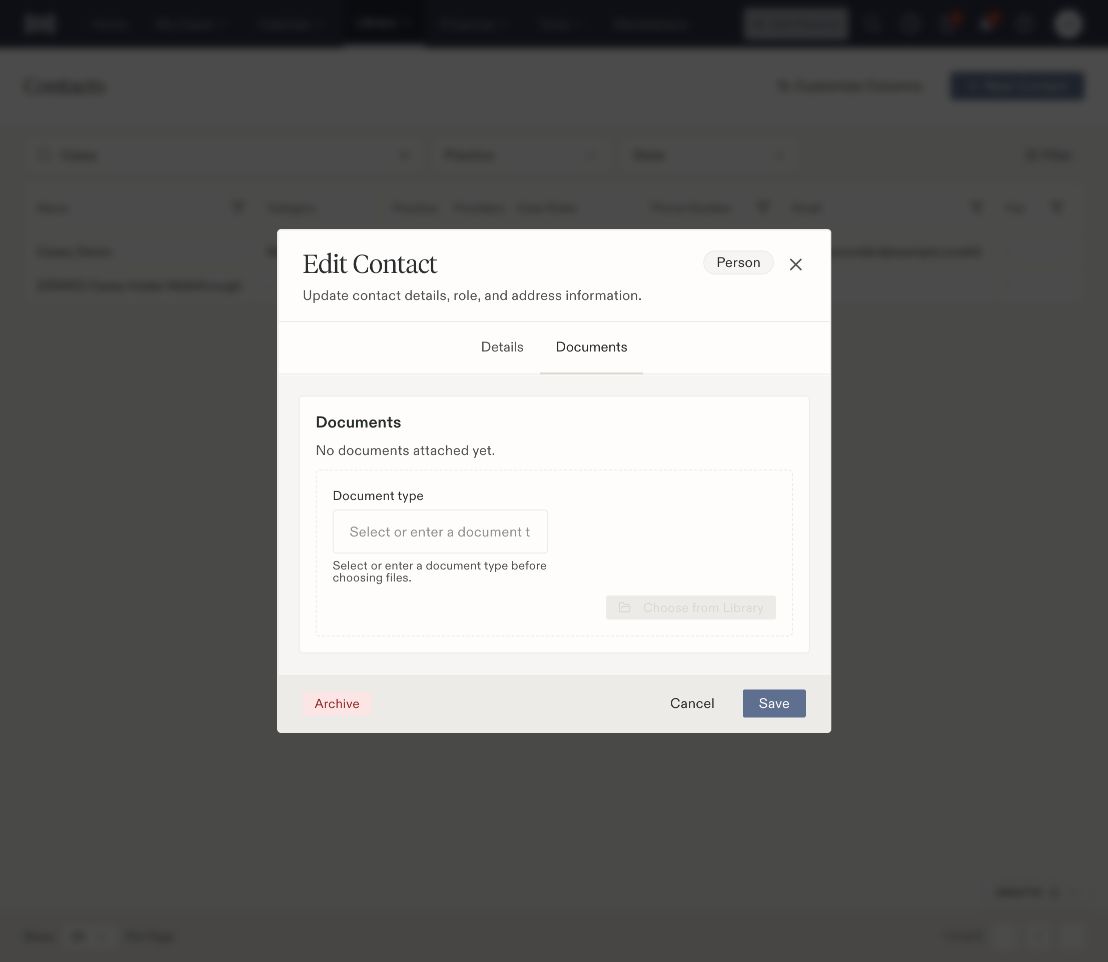
Choose a document type before opening the Library picker.