

Review the setup in layers
An organization can be connected with no mappings. Check that a document library and intended case folder are configured. Organization mappings take precedence according to the interface.
Inspect or begin a mapping
- Open the SharePoint detail screen and review existing connections and mappings.
- Use the new-mapping control when configuring a new mapping.
- Identify the intended site and document library.
- Review the available mapping behavior, including folder mirroring and binding cases to existing folders.
- Confirm the intended case-folder relationship with the document administrator before expecting files to appear.
Check a file result
Use a controlled file whose title and expected destination are clear. Check the source library, mapped location, and relevant case Documents area. A whole library should not be assumed synchronized because one account shows Connected. For missing files, check mapping and folder binding before reconnecting the account. When requesting help, provide the case, source site/library, folder, and specific file without including account credentials. For a synchronization conflict or recovery issue, provide the document administrator with the specific file and source/destination locations. This guide covers setup controls; it does not prescribe a conflict-resolution procedure.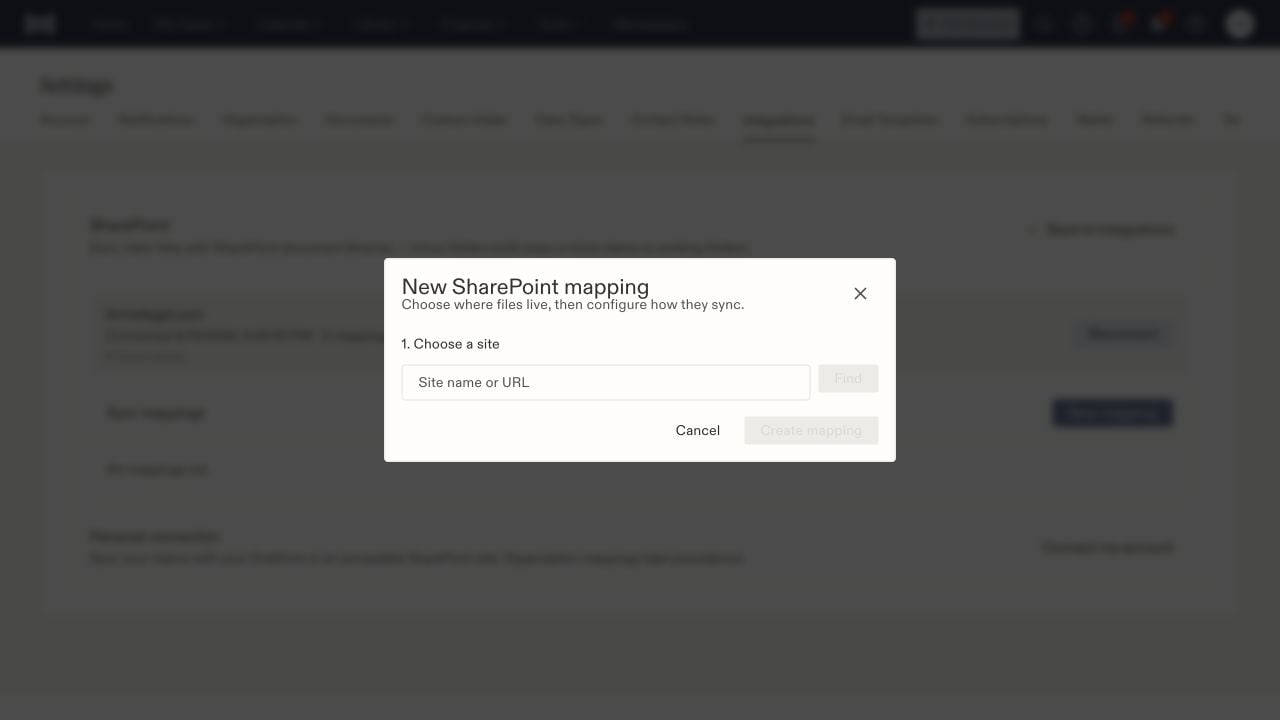
Begin a SharePoint mapping by choosing the intended site.