

When a lead appears
Use the Source column in Pending Leads to check where a lead originated.
Organization access, permissions, and selected filters still apply. Leads marked Test Lead, Hidden, or Duplicate Lead are excluded from normal attorney views. These visibility rules do not freeze firm assignments or change lead routing.
For example, an API lead can appear in New Leads while intake is still in progress. A Presolve-sourced lead can first appear in Converted and Active Cases at the same time, after its signed-retainer handoff completes.
Find the right view
The Presolve-source visibility rule above also applies during review: an unsigned Presolve-sourced lead does not appear in Under Review merely because qualification or internal turn-down review started.
Understand stages and custom statuses
Lead Stage controls the broad lead workflow and its list placement. Matter Stage controls the active matter’s progress and whether it belongs in Active or Closed. Referral acceptance also affects whether the originating firm retains active responsibility. Lead Status and Matter Status provide more specific labels within those stages. Your organization can customize those labels. Changing a custom status does not move the record between lifecycle views. A custom label named “Signed” or “Converted” does not establish conversion. Custom-status filters can still affect which rows you see.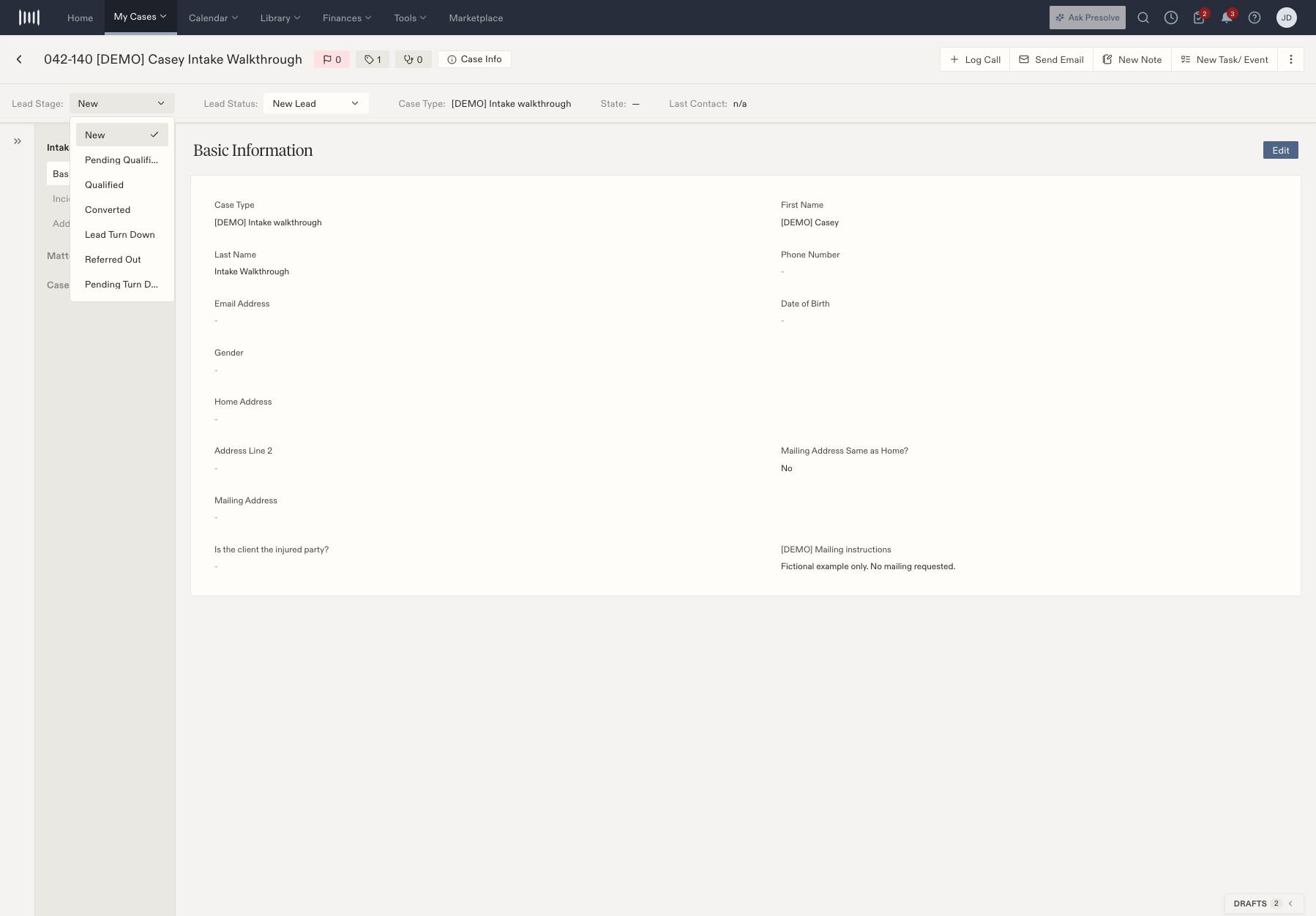
The lead header separates Lead Stage from Lead Status. The stage menu is open on a fictional record.
These stages are not a required sequence for every lead. Use the appropriate qualification, signing, turn-down, or referral action rather than changing a custom label to imitate it.
Move from a lead to a signed client
Signing through Presolve
- Review the intake and the retainer’s client and firm details.
- Send the retainer. Sending moves an eligible unsigned lead into review; it does not convert it. An unsigned Presolve-sourced lead remains hidden from the firm’s lists.
- Complete signing and allow the signing/handoff processing to finish.
- Verify Lead Stage: Converted and the matter fields.
Signing outside Presolve
If the client signed externally, an authorized user can select Converted in the lead-stage control and explicitly confirm that the retainer was signed. Canceling the confirmation makes no change. Confirming applies conversion and fills missing matter defaults.Do not mark a lead Converted just because a retainer was prepared or sent.
Check the completed signature. If signing has finished but processing reports
an error, review the saved record and contact support instead of creating
another case or resending the retainer.
Progress and close the matter
A signed matter stays in Pending Leads → Converted after closure or a matter turn-down. An unsigned lead that is turned down appears in Closed Cases → Lead Turned Down and does not count as Converted. A Presolve-sourced lead becomes visible in Closed only when its internal turn-down is final, not while that decision is pending.
Closing a matter does not itself prove that every accounting or disbursement task is finished. Complete your firm’s checks for remaining tasks, documents, client communication, and disbursements.
Follow an outbound referral
For a signed, open matter:
Withdrawing a referral restores the previous lead stage when appropriate. It does not undo a newer lifecycle change or another outstanding or accepted referral.
Acceptance does not automatically mark the shared matter Closed or transfer its ownership. An incoming or same-firm referral does not remove a receiving firm’s own matter from Active.
If Auto-accept on acknowledge is enabled, an acknowledgment can also
record acceptance. Check the resulting referral status rather than assuming it
is still awaiting acceptance. See referral settings.
Check counts and unexpected results
Converted and Active are not permanent one-to-one totals. A newly signed, open matter normally appears in both. After closure it appears in Converted and Closed; after an accepted outbound referral it remains in Converted and Referrals. Do not add those counts together as if every row represented a different client. If a record seems missing or in the wrong place:- Confirm the organization and your access. Removing a primary attorney preserves organization ownership and lifecycle stage, but can change what an attorney-specific filter returns.
- Check the main view and subtab, then clear search and saved filters, including custom-status filters.
- Check Source, Lead Stage, Matter Stage, the actual signed document, and any referral’s acceptance status.
- Wait for saving or handoff processing to finish, then reload. Review Case History, including lead history where available.
- If the result is still wrong, contact support with the case number, source, action, approximate time, expected view, actual view, and relevant document or referral ID.