

Create or edit a tag
- Select Add Tag, or select Edit beside an existing tag.
- Enter a clear Tag Name and choose an optional color.
- Review Tag automations before saving. Leave optional actions empty when the tag should only label cases.
- Save the tag. For an existing tag, select Update Tag.
- Reopen it to confirm the name, color, and intended configuration.
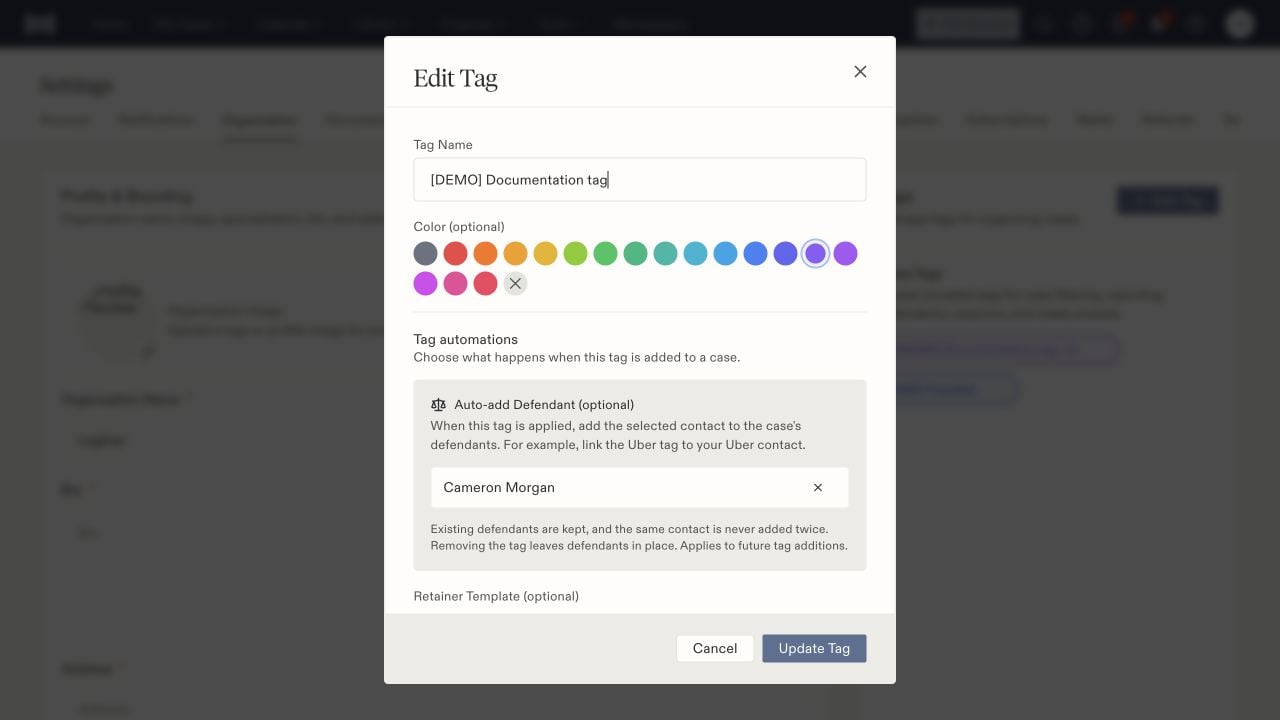
A case tag with an optional defendant contact configured.
Understand each automatic action
Auto-add Defendant lets you select a contact to associate with a case when the tag is added. Use the intended existing contact rather than creating another record for the same party. Turn off defendant automation clears this configuration. The setting applies to future tag additions; inspect the case’s defendants separately after applying a tag. Retainer Template selects a template for automatic sending when the tag is added. Choose No template when automatic sending is not intended. Confirm the template, fields, and client details before enabling an action that sends documents. Referral Retainer Template supplies the alternate template for a referred case with a referral attorney. The screen describes this as replacing the standard retainer selection for that circumstance.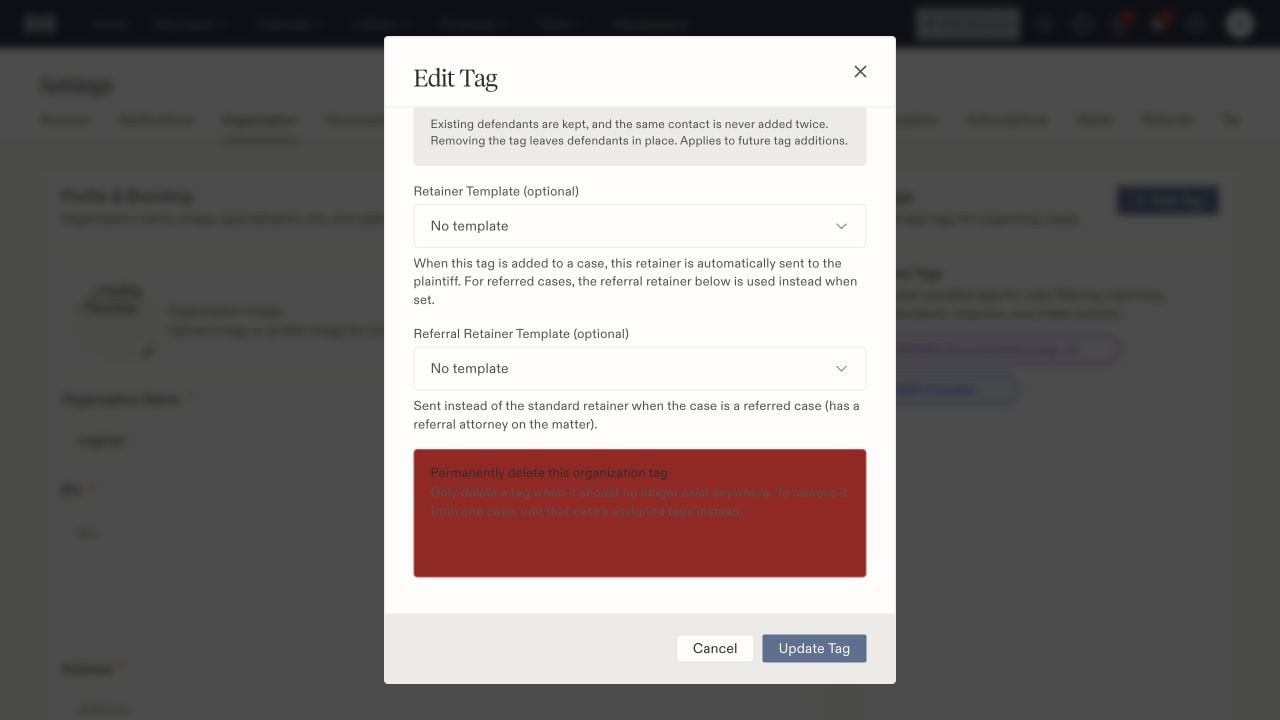
Standard and referral retainer choices are separate from the label itself.