Open Settings → Tasks & Events. Task types categorize work; event types categorize calendar entries. They do not grant staff permissions.

Add a task type

  1. Under Task Types, select Add Task Type.
  2. Enter the required name and an optional description.
  3. Choose an icon and color that help staff recognize the category.
  4. Save and confirm the new row is Active.
  5. Open Create Task and verify the type appears in the picker.
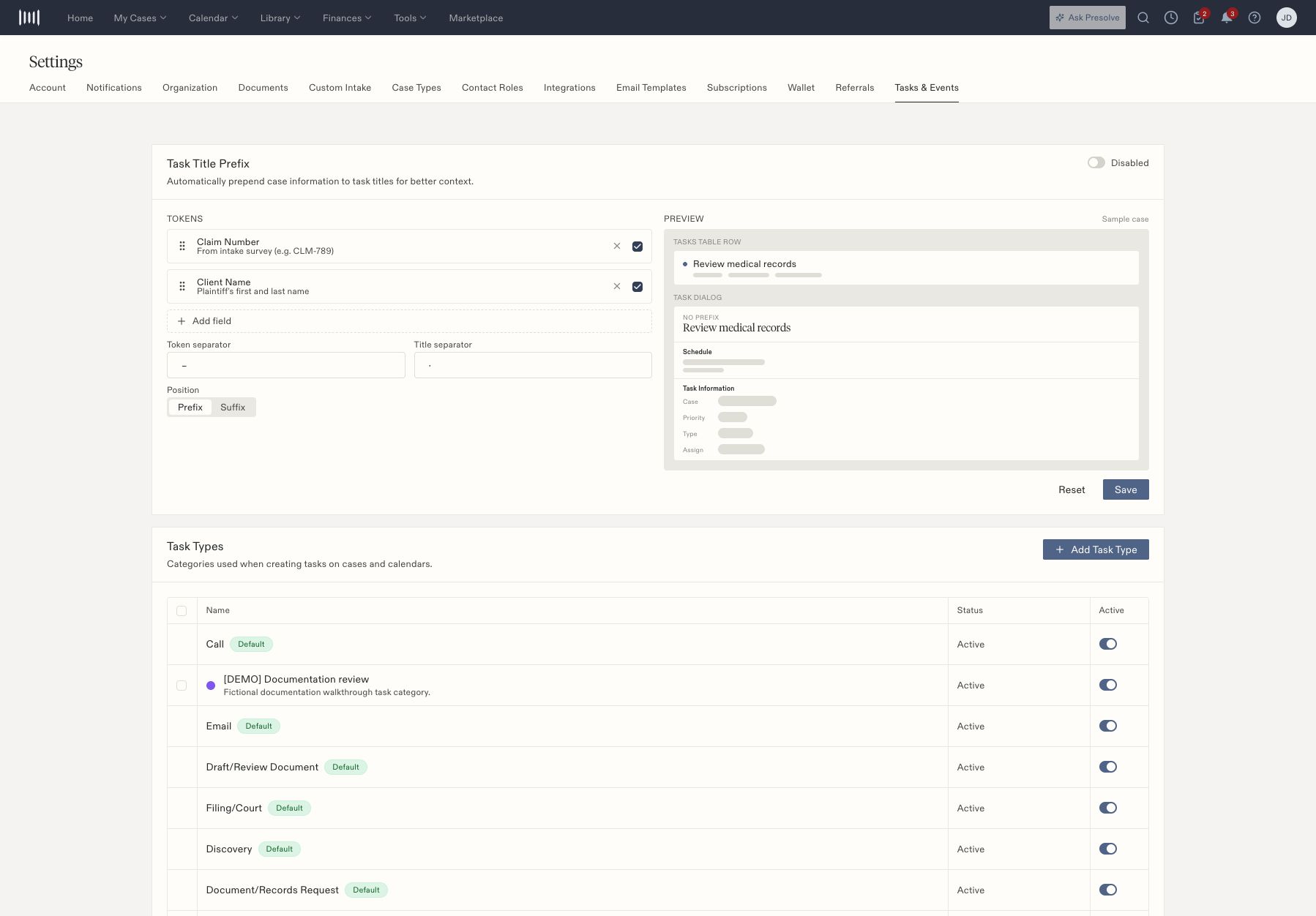
Tasks and Events settings with a custom active task category and the task-title preview.

Tasks and Events settings with a custom active task category and the task-title preview.

Review active categories

Use the Active switch on a category to deactivate or reactivate it. Reopen the settings page to confirm the saved state. Confirm the category is available when creating a task. Built-in categories are marked Default and cannot be selected for bulk operations. Review the available controls on each row rather than treating a built-in category like a new custom one.

Other controls on this page

Event Types is the corresponding category list for calendar events. Task Title Prefix configures the case information displayed with task titles. It provides ordered fields, separators, Prefix/Suffix placement, a preview, Reset, and Save. Review the preview with your firm’s naming convention before changing it. Related: Task statuses and schedule an event.