Open My Cases → Clients, or go directly to Clients. Use this area to review a client’s information and the cases linked to that profile.

Find the client

  1. Search for the client’s name.
  2. Inspect the case and state filters if the expected row is missing.
  3. Check the active and closed case counts to understand the client’s linked work.
  4. Open the client’s row and confirm the identity before editing.
The directory supports column sorting and filtering and Customize Columns. Search and filters affect what appears; a missing row does not establish that a client was deleted.

Review the profile

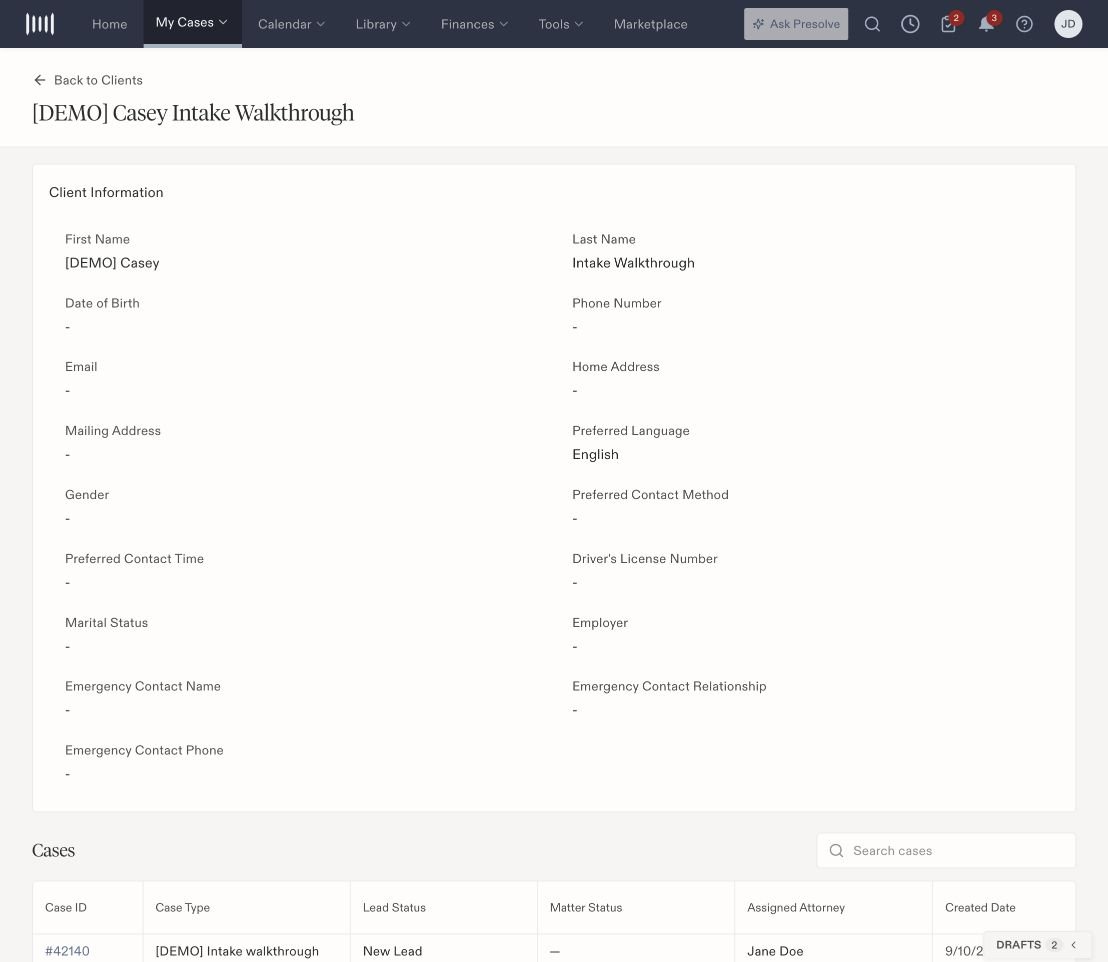
Casey demonstration client profile showing English as the preferred language and a linked intake case.

A fictional client profile with a saved language preference and a linked case.

A blank field means no value is displayed. Check the client’s confirmed information before filling it in; do not substitute another person’s details because the names are similar.

Update a field

  1. Find the individual field and select its Edit control.
  2. Enter or select the intended value.
  3. Select Save and wait for the update to finish.
  4. Reload or reopen the profile and confirm the value persisted.
A saved preference records information about the client. Check the actual message and delivery result separately when communicating with them.

Open a linked case

The Cases table includes Case ID, Case Type, Lead Status, Matter Status, Assigned Attorney, and Created Date. Search within this table when the client has multiple cases, then select the case-number link. Check the case type and status before choosing a row. Opening a client profile and opening one of that client’s matters take you to different workspaces. The profile can also show Associated Client Accounts. Use your firm’s instructions for that separate relationship feature; the Cases table is the place to open the cases listed for the current profile. Related: Search across Presolve, maintain contact details, and lead lifecycle.