Create a blank document when you want to write directly in Presolve and keep the draft connected to a matter. Before you start, open the correct case from My Cases. Check the case name and number.

Start the document

  1. Open the matter’s Documents area. In a workspace with side navigation, expand Case Assets, then select Documents.
  2. Select New document.
  3. In New Draft, select Blank document.
  4. If you return to the document list, select the new Untitled document row to open it.

Write and save

  1. Replace Untitled document at the top with a descriptive title.
  2. Click the page and enter your text.
  3. Use the toolbar for headings, emphasis, lists, font, spacing, and alignment.
  4. Select Save and wait for Saved beside the title.
  5. Return to the matter’s Documents area and reopen the draft to check your work.
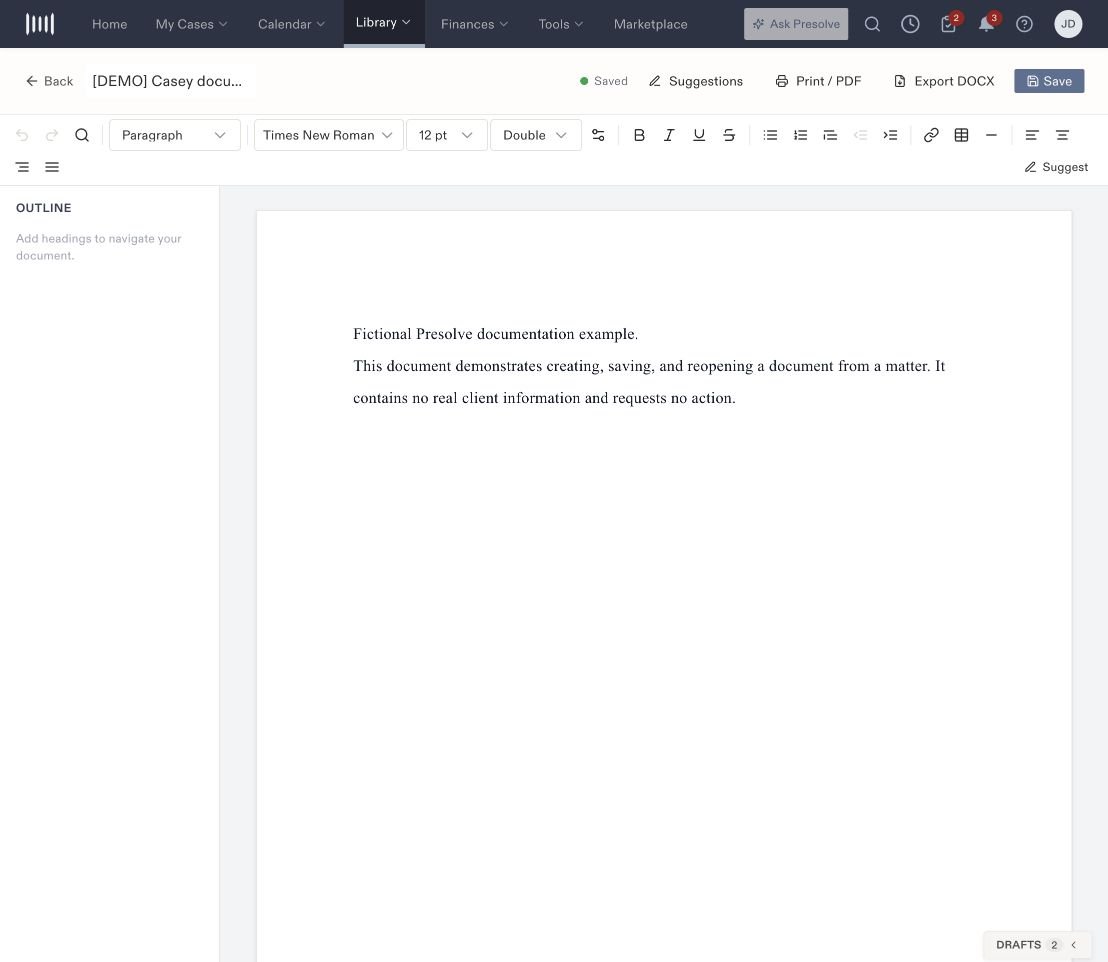
Document editor displaying Saved, formatting controls, and a fictional two-paragraph document.

The document editor with a saved title and fictional example text.

Find text or review edits

Use Find and replace to locate wording in the document. Suggest turns on tracked suggestions, and Suggestions opens the review controls. Check the current mode before editing so your changes are recorded in the way you intend. If your latest change is missing, check that Saved appeared before you left the editor and that you reopened the correct document. Saving a draft stores your work in Presolve. It does not send it to a recipient or start a signature request. Related: Organize files in Library.