

1. Prepare the resolution
- Open the demo matter’s Accounting → Resolutions and select Add Resolution.
- Choose Settlement, enter 1000.00, and use the fictional agreement’s date and payor.
- Review fee and referral fields; confirm they match the training terms.
- Save as a Draft and reopen it to check the amount and status. If your Accounting role shows Initial status, select Draft for this handoff exercise.
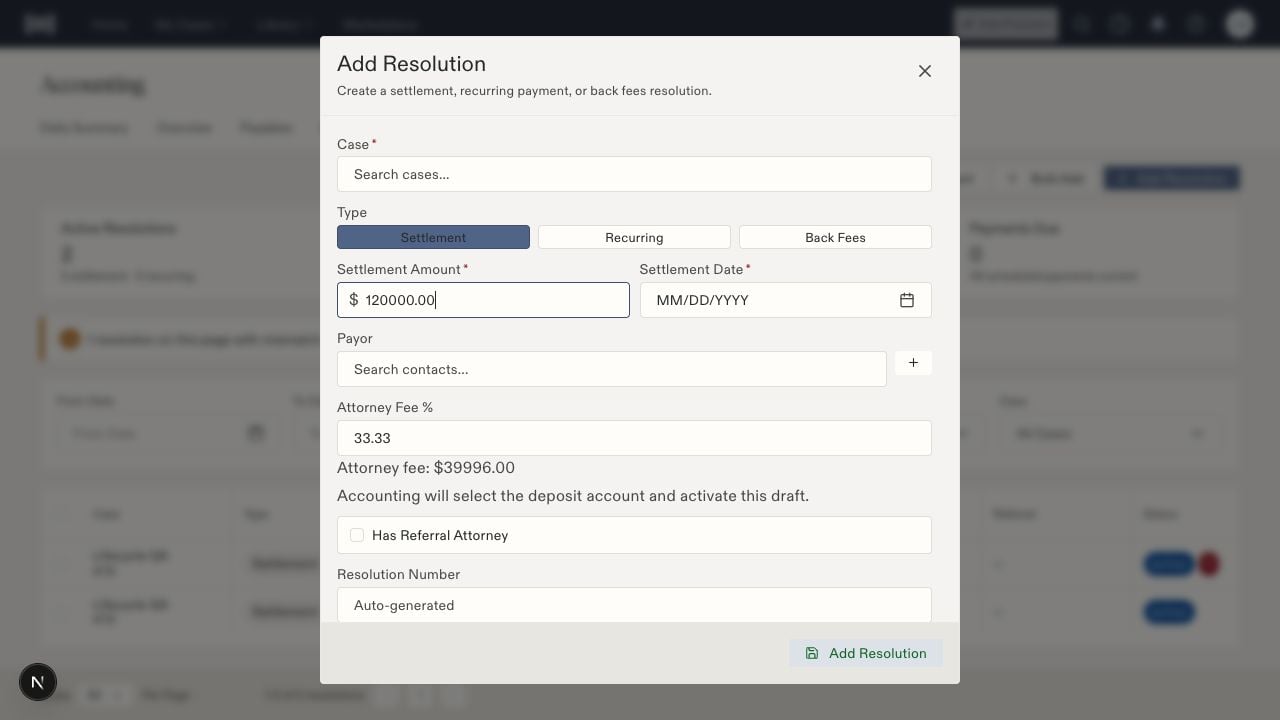
The Add Resolution form separates the agreement type, amount, date, payor, and fee terms. This layout example uses different amounts; enter the $1,000 training terms above.
2. Review and activate
If a resolution-review automation is enabled, its designated reviewer opens the pending item in Approvals, checks the terms, and records the outcome. Accounting verifies the terms, selects Activate Resolution, chooses the approved Deposit account, and confirms Activate resolution. Use Edit first if the terms need correction. Review and activation are separate actions. Checkpoint: the resolution shows the intended routing and Active status. No money has moved merely because it is Active.3. Log the incoming receipt
- Open the matter’s Accounting → Checks and select Add Check, or use Log Inbound Check in the matter header.
- Confirm the case/client and demo payor; enter 1000.00 and the fictional check reference.
- Link the resolution from this exercise.
- Select Deposited, enter November 6, 2026 as Deposit Date, and select the approved demo bank account. Under More options, set Date Received to November 5, 2026. Leave the client email option off for this exercise. Select Allocate later to practice allocation in the next step.
- Save and reopen the check.
4. Allocate and verify
- Open the saved check and select Allocate Funds. If it is already fully allocated, inspect those allocations instead of entering them again.
- Assign 125.00 to the existing case expense and 875.00 to client recovery.
- Confirm Check Amount and Total Allocated both equal 1000.00, with Remaining equal to zero.
- Save and inspect each resulting disbursement.
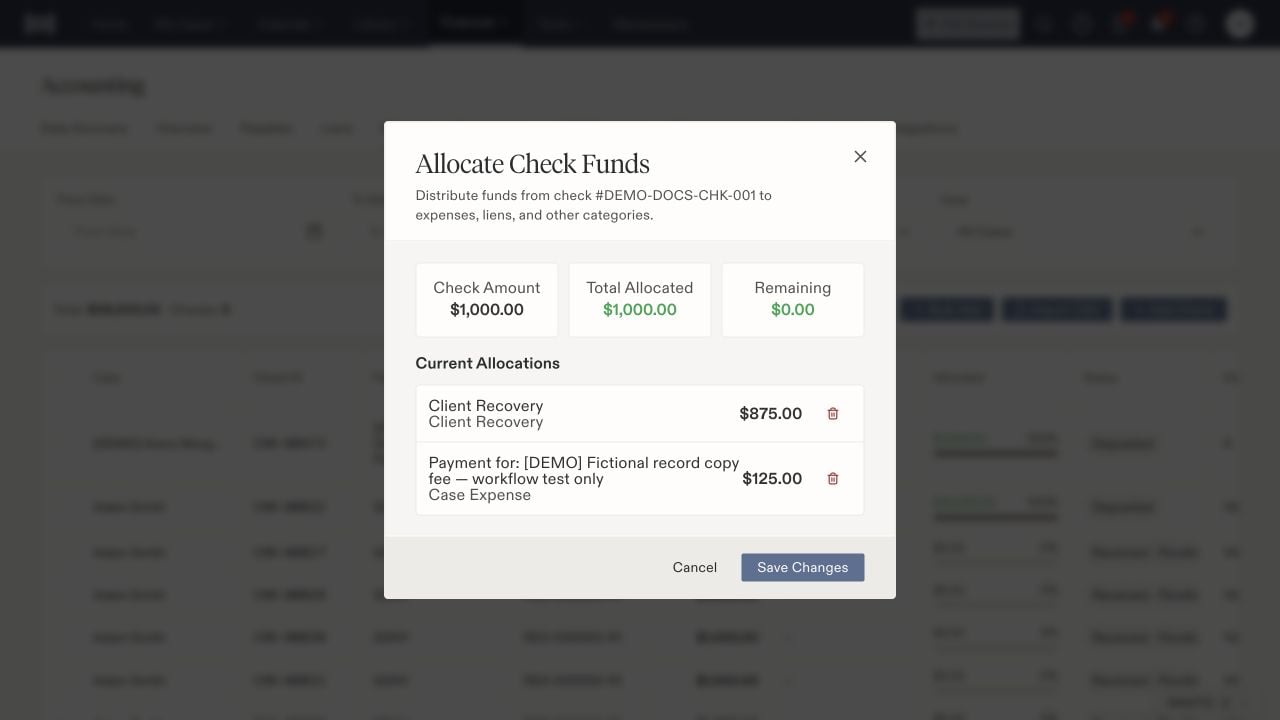
Check Amount and Total Allocated are both $1,000; Remaining is $0. The two destinations are the existing $125 expense and $875 client recovery.