

Choose Online payment handling
In the payment dialog, QuickBooks handling distinguishes Record locally only, Create payment/check directly (skip Bills), and Create Bill, then payment. The Online choices depend on your firm’s connection and account setup. Review vendor matching and the payment account before sending costs. Invoice-to-Bill export is optional; every invoice does not need to become a QuickBooks Bill. A successful local payment record does not prove that QuickBooks created or printed the check. Review the integration outcome and returned check number separately. See the litigation-cost lifecycle.Review account mappings
The setup panel offers Connect, expense and income chart-of-accounts mappings, CSV import, reset-default controls, and Desktop export navigation. Inspect existing mapping choices before changing them; the intended destination accounts should be confirmed by the accounting owner. If QuickBooks Online is disconnected, have the accounting or integration owner complete the intended connection before expecting Online synchronization.Open the Desktop export dashboard
Select Go to Export Dashboard, or open QuickBooks exports.
Populated groups offer View and Export. Inspect View before exporting. Compare each invoice’s displayed status with the source invoice. A group with no pending records can have Export disabled.
Review an export sequence
- Inspect Account Mappings and the dashboard’s displayed import-order guidance.
- Review the pending reference lists and transaction records using View.
- Compare identifiers, amounts, dates, and destination mappings with the source records.
- Use Refresh when you need to inspect the current pending set.
- Follow the accounting owner’s export/import process and reconcile the imported entries in QuickBooks.
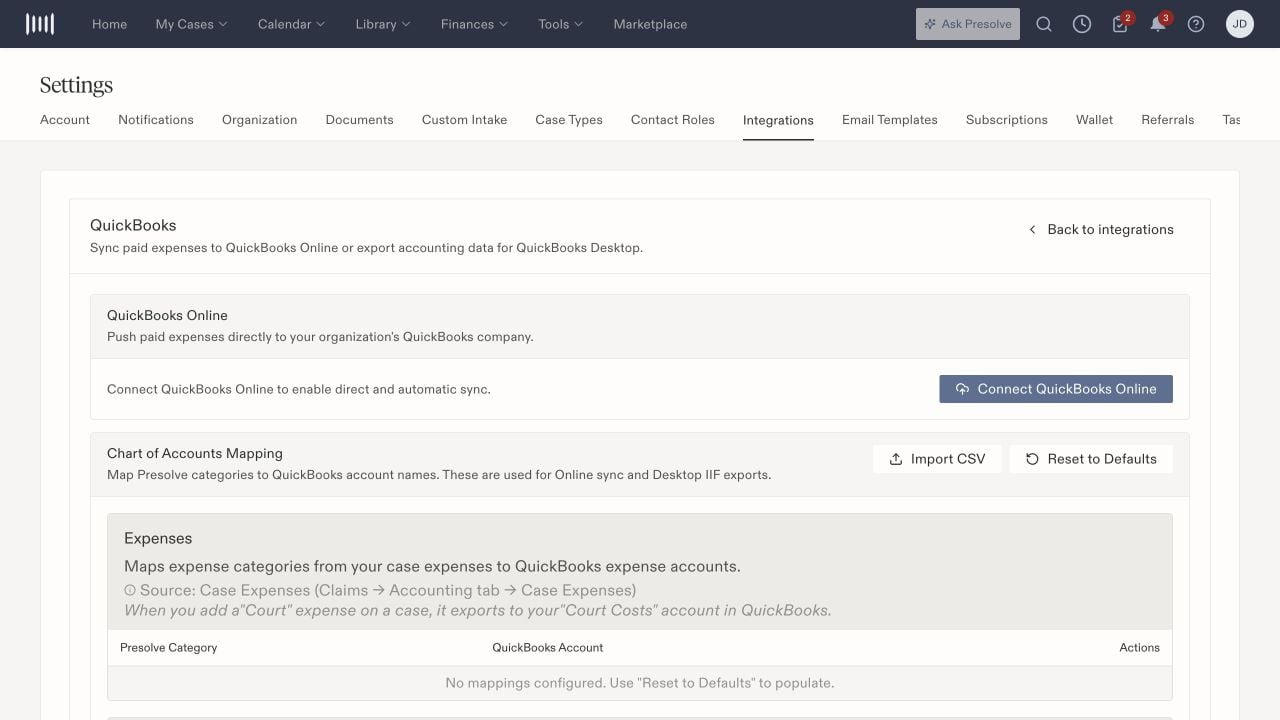
QuickBooks Online connection and chart-of-accounts mapping controls.