

Understand firm access and individual connections
Microsoft administrator consent allows the application to access approved services in the firm’s Microsoft tenant. Presolve then limits tracking to the employees and shared lines configured for each Presolve organization. Several Presolve organizations can use the same Microsoft tenant. Microsoft approval can be reused, but each Presolve organization needs its own verified connections or administrator-managed tracking. Approving the application does not assign the full tenant’s calls to every organization. Browser calling uses the employee’s own Microsoft identity and a separate connection. Firm call-import approval does not sign employees into browser calling or assign phone numbers.Complete firm setup
1
Confirm the Presolve organization
Open Settings → Integrations → Microsoft Teams Phone in the intended organization. Your account must be able to manage its integrations.
2
Start administrator setup
In Connection, select Admin setup for shared lines and tenant access. Follow the setup flow to obtain the Microsoft approval link for this organization. Have the firm’s Microsoft Global Administrator or Privileged Role Administrator complete approval in the intended Microsoft tenant.
3
Verify approved access
Return to Teams Phone settings. If approval was completed but Presolve still needs verification, select Re-check consent before starting another connection. Check for Microsoft connected and inspect any remaining error.
4
Set the tracking scope
Map the intended employees and select shared lines using the steps below. Review the names and numbers before relying on imported calls.
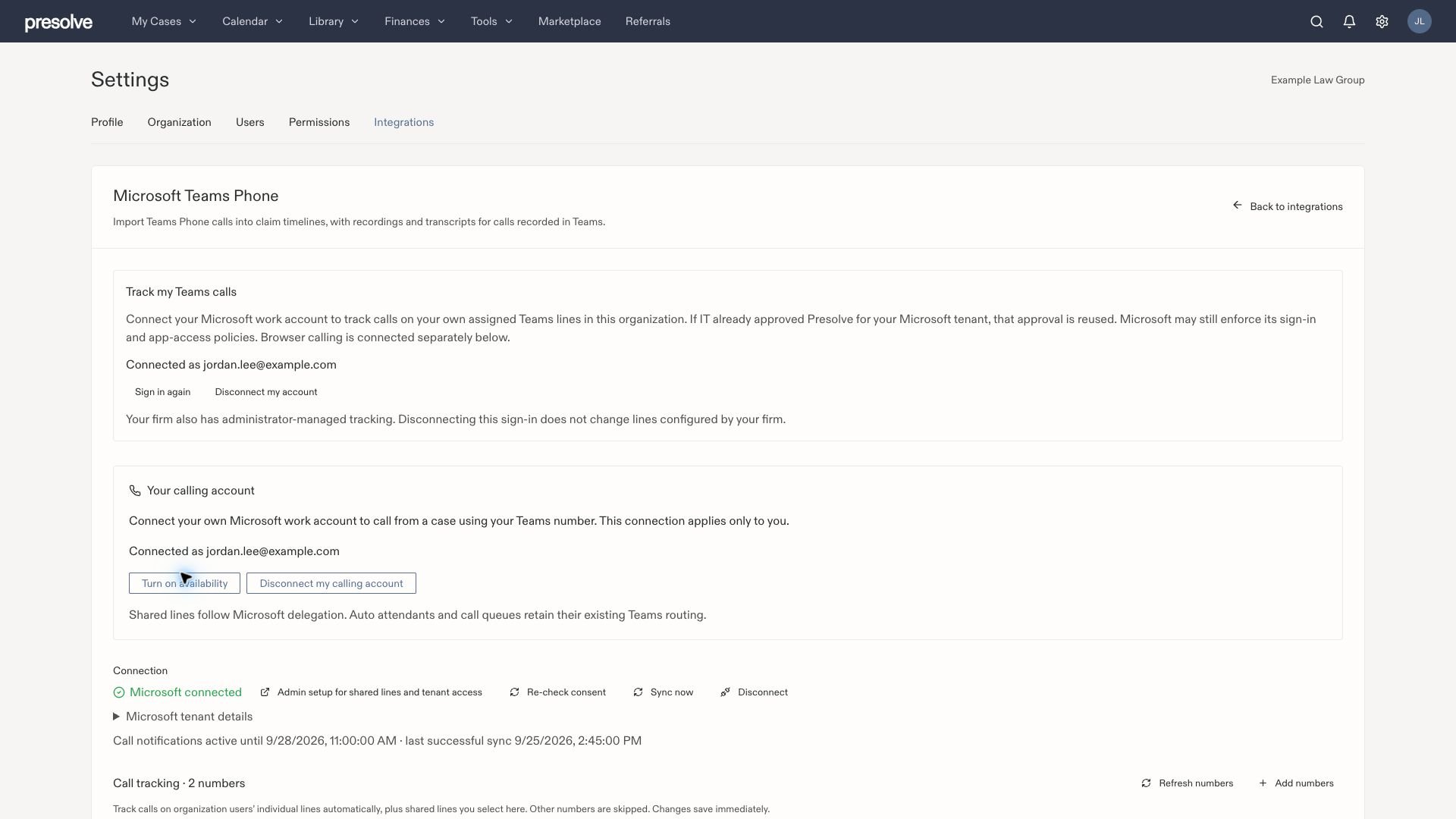
Personal connections and the firm's Connection section are separate. Firm controls include Re-check consent and Sync now.
Map Microsoft accounts to employees
In an administrator-managed connection, Teams users maps Microsoft work accounts to Presolve attorneys/users. Accounts whose Microsoft sign-in matches their Presolve email can be matched automatically. For an explicit mapping:- Enter the employee’s Microsoft work sign-in in the Teams account field.
- Select the corresponding Attorney in Presolve.
- Select Add.
- Confirm that the mapping appears in the list. Changes save immediately; there is no separate page-level Save button.
- Refresh the page to confirm the saved mapping if troubleshooting an earlier attempt.
Choose the lines to track
Call tracking defaults to tracked numbers and shows each number, assigned person or team, and status.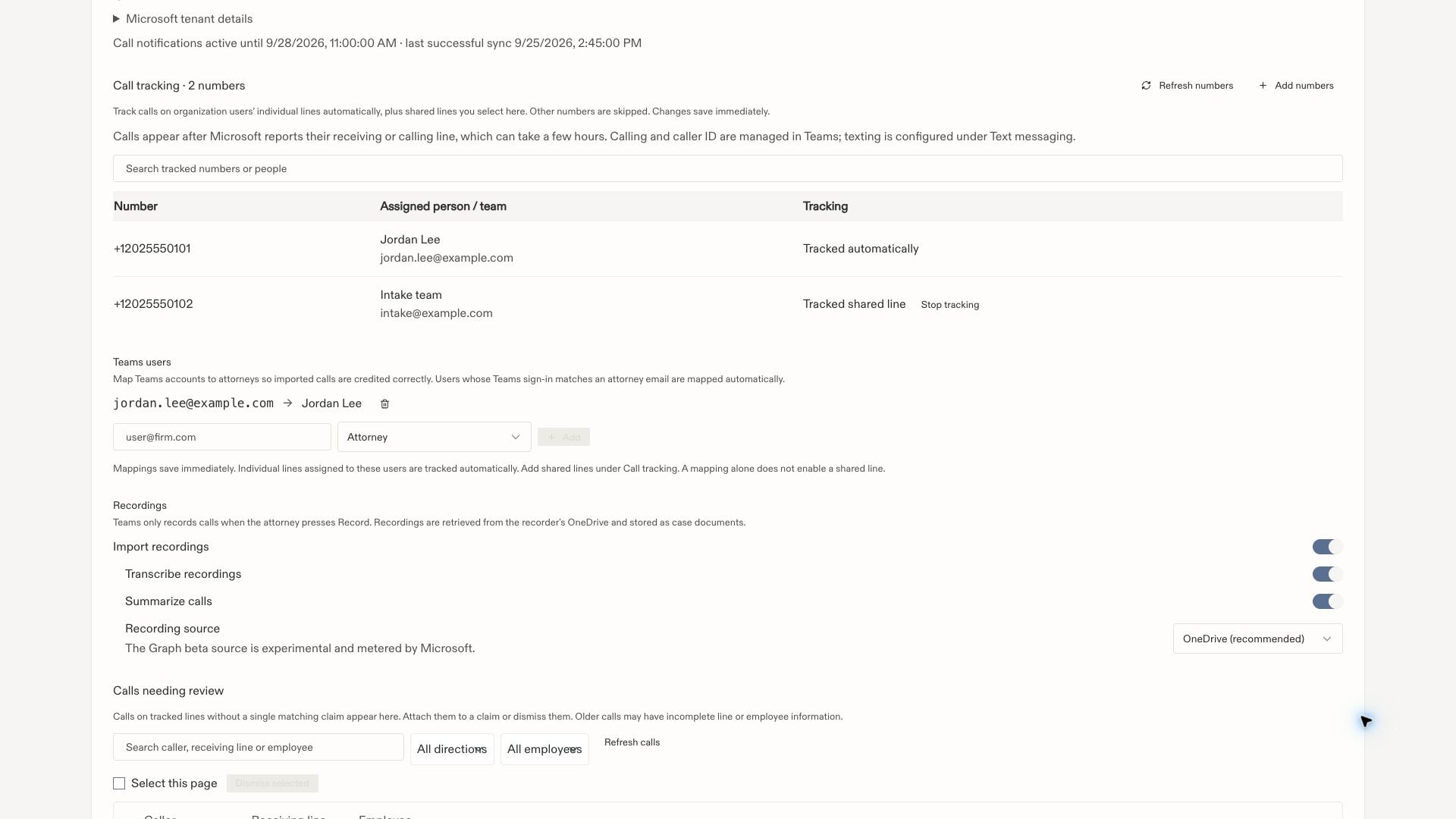
Individual lines are tracked through their users; shared lines are selected explicitly. Mappings save immediately.
Add or remove a shared line
- Select Refresh numbers to load current Microsoft assignments when needed.
- Select Add numbers to see the full Microsoft inventory.
- Search for the number or team. Confirm the exact shared number.
- Select Track number on the eligible shared line.
- Return to Show tracked numbers and confirm Tracked shared line.
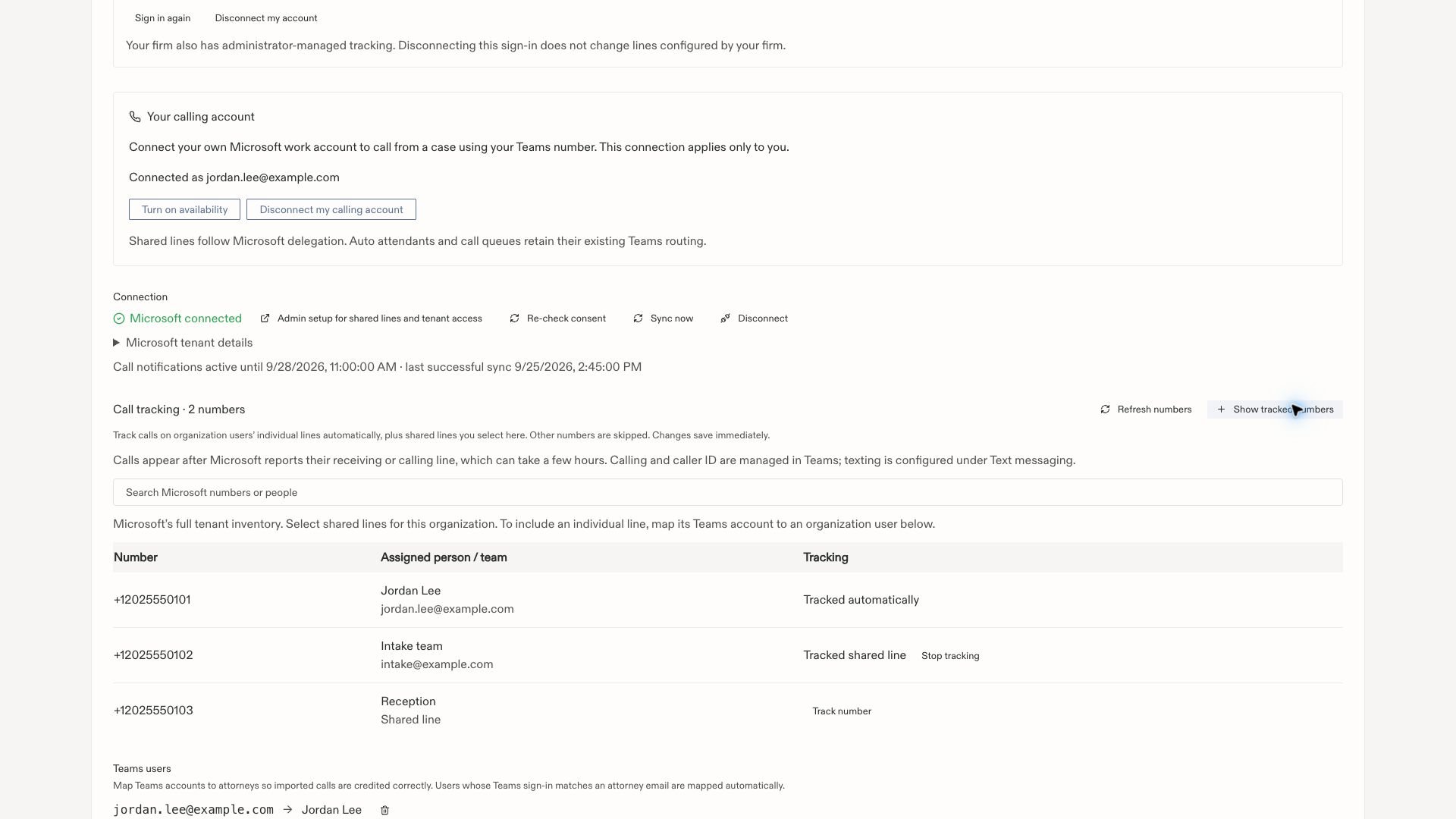
Add numbers reveals the tenant inventory. Select only the shared lines relevant to this organization.
Set up recording imports
Under Recordings, review:- Import recordings: retrieves available recordings for eligible calls.
- Transcribe recordings: enables transcription of imported recordings.
- Summarize calls: enables the configured summary processing.
- Recording source: OneDrive (recommended) retrieves recordings from the recorder’s OneDrive. The Graph beta alternative is experimental and marked as metered by Microsoft.
Review imported calls
Use Calls needing review for calls without a single case match. Search by employee or receiving line, attach to the correct case, or dismiss unwanted entries.IT and support
- Approval, account mapping, and device sign-in
- Missing calls, Sync now, and connection health
- Missing recordings and transcripts
- Availability and disconnect controls